A board for bugs when bugs are configured as tasks
Some teams configure Azure DevOps so that bugs are managed with tasks rather than with requirements. It is a defensible choice, since a bug is repair work on something that already exists rather than a new thing the business asked for, but it has one consequence nobody plans for: the bugs lose their board. They are not on the requirement backlog, so they never appear on the Kanban board; they show up under a parent requirement on the sprint taskboard and nowhere else. A team that wants to see its open defects as a flow, with columns and work-in-progress limits, has no surface to do it on.
AnyKanban closes that gap without changing anything about how the team is configured. Bugs are work items, a query finds them, and a query is all a board needs.
This guide is written for the process owner or team lead who has noticed the missing board. It covers how to confirm you are in this situation, the query to write, building the board, making priority visible, and why the underlying team setting is rarely something one team changes on its own.
How to tell you are in this situation
The symptoms are easy to recognize once you know what you are looking at:
| What you see | What it means |
|---|---|
| Bugs are missing from the backlog and from the board, but the work items clearly exist | Bugs are mapped to the task level, not the requirement level |
| Bugs appear on the sprint taskboard, indented under a requirement | Same cause, seen from the other side |
| The board's column options offer no Bug type to map | There is no requirement-level Bug to map |
A query for [System.WorkItemType] = 'Bug' returns plenty of items |
The data is fine; only the visualization is missing |
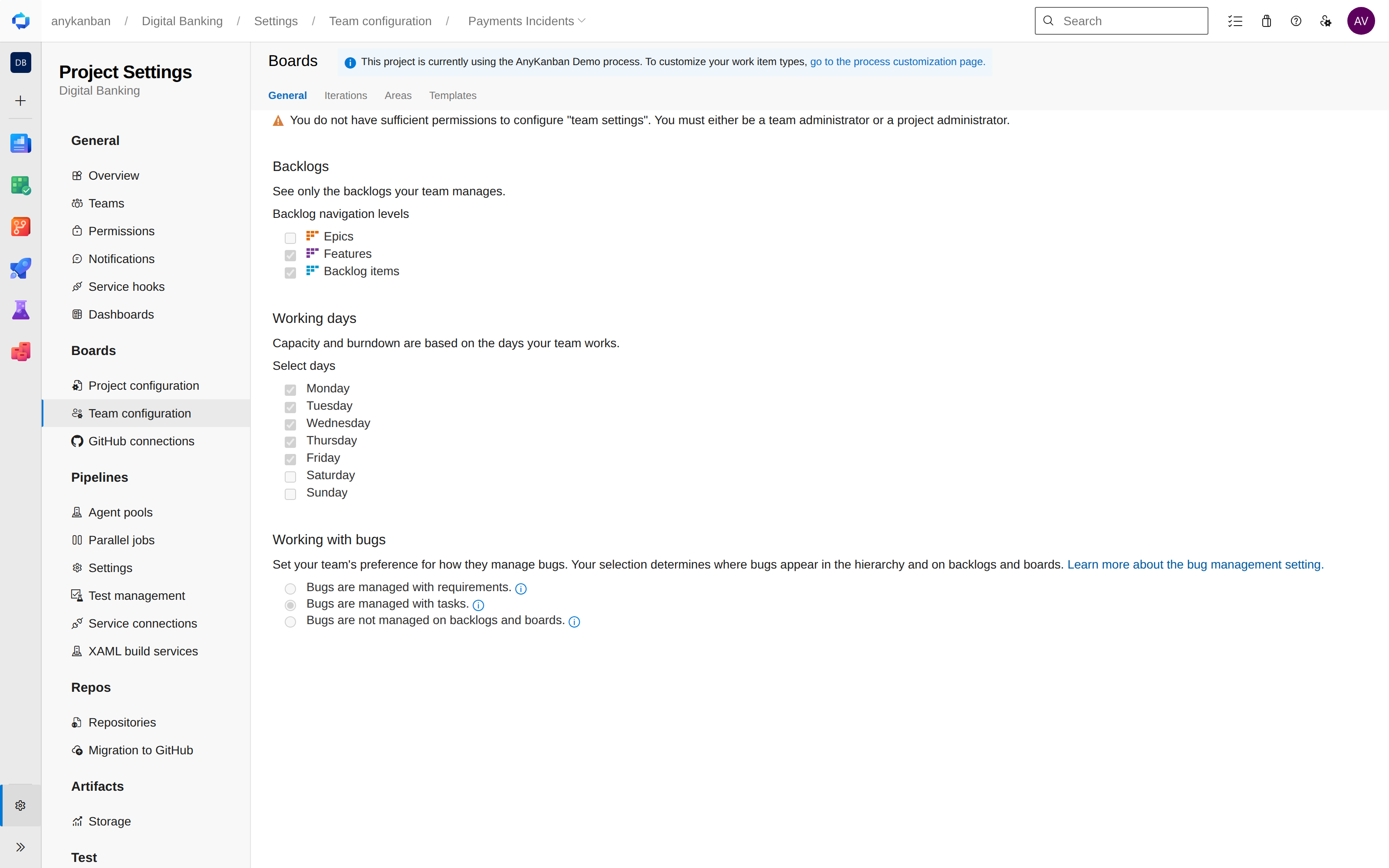
To confirm it, open Project settings → Team configuration → Working with bugs for the team in question. Three options exist: bugs are managed with requirements, bugs are managed with tasks, or bugs do not appear on backlogs and boards at all. The second and third both leave you without a bug board.
Three things are worth knowing before you go looking for someone to change it:
- The setting belongs to a team, not to a project and not to the process. Two teams in the same project can disagree about it, and both are right for their own backlog.
- AnyKanban never changes it, and your board does not depend on it. Which bugs appear comes from the query, and the columns come from the Bug type's own states, so the team setting can stay exactly as it is. In two places AnyKanban reads the setting only as a hint, and in both it asks the project's default team. The gallery words its Bugs board suggestion from that team's answer. Where your organization has set no default of its own, a new board also uses it to propose whether Show bugs on cards starts ticked, which you can change in the board's settings. When the team that keeps bugs as tasks is not the default team, the gallery card gives its ordinary reason and the box is proposed unticked.
- A board that reads one team's backlog follows that team instead. A team's own board, as a query adds bugs to the board beside the requirements, or leaves them out, according to the team you pick, and a board that reads a team follows how that team's bugs behave. Which team's backlog a board reads covers it.
In the demo organization, the Payments Incidents team in the Digital Banking project manages bugs as tasks. The project's default team keeps them with the requirements, so in Digital Banking the gallery card gives its ordinary reason and Show bugs on cards starts unticked. The bugs, among them "Instant payment times out but is still booked on the beneficiary side", "Sanctions screening skipped for payments initiated by the batch API", and others like them, have states and tags, many of them a priority, and until now no board on the Payments Incidents side.
The query
Board membership comes from a saved flat query. For a single project's bugs it is as short as this:
SELECT [System.Id]
  FROM WorkItems
 WHERE [System.WorkItemType] = 'Bug'
   AND [System.TeamProject] = 'Digital Banking'
 ORDER BY [Microsoft.VSTS.Common.BacklogPriority] ASC
Three details make the difference between a board that works and one that half-works:
- Flat list of work items. That is the shape this board wants: a plain set of bugs. A tree or a "work items and direct links" query loads too, flattened to the distinct items it returns; with Bug as the board's work item type, the parent requirements a tree drags along are counted as the tree's structure rather than becoming cards. For a defect queue the flat query is simply the more honest sentence.
ORDER BYyour process's order field, ascending, or noORDER BYat all. The board writes manual ordering into the one field your process orders backlogs by: Stack Rank (Microsoft.VSTS.Common.StackRank) on Agile and CMMI, Backlog Priority (Microsoft.VSTS.Common.BacklogPriority) on Scrum and processes inherited from it. The demo process inherits from Scrum, which is why the query above orders by Backlog Priority. With noORDER BYthe board adds that order to the query it runs. A query sorted by anything else shows that order and reordering is off, which the board says in one line.- The Bug type carries the order field in every system template. Where a custom process has removed it, the board still works for state changes, a warning banner names the field, and the Move to top / Move to bottom entries disappear from the card menu. See Prerequisites for the Fields page that adds it.
Narrow the query further if the backlog of old defects is long, with a state clause, an area path or a tag. Everything the query returns becomes a card, and nothing else does. The one exception is items in a state of the Removed category, which the board hides and counts for you (see Troubleshooting, below).
Screenshot pending: The backing query in the query editor: flat, one type, ordered by rank
Reordering on this board changes the order on the sprint taskboard too. The taskboard orders bugs by your process's order field, and the board writes that same field, so the two share one order by design: there is one order per process, and no board keeps one of its own.
Building the board
The quickest route is the Bugs board card in the gallery that opens when you select New board. It builds a board over the project's bugs without a saved query, and when the project's default team keeps bugs as tasks the card says so: "Your team's bugs behave as tasks, so they do not appear on a native board." It orders the board by your process's own backlog order field. The steps below take the other route, from the saved query above, which lets you narrow the bugs first.
- In your project's left navigation, open Boards and select AnyKanban.
- Select New board. The suggestions gallery opens. Choose Use existing query, and the settings panel, titled New board, opens on its General tab.
- Board name. Something the team will recognize in the hub list and in the board switcher, for example Digital Banking bugs.
- Backing query. Pick the saved query from the dropdown. Queries are listed with their folder path; only the first two levels of the query tree are offered, so keep board queries near the top of Shared Queries.
- Work item type. Pick Bug. This is what supplies the columns.
- Card order. The row names your process's order field, which the board derives for Bug: Backlog Priority on a Scrum-derived process, the field the sprint taskboard orders bugs by, so a drag on this board reorders the taskboard too. Nothing is chosen here.
- Select Create, then open the board from the list.
The columns are the Bug type's own states, ordered by state category, which in the demo process is New, Approved, Committed, Done. Your process will very likely name them differently, and that is fine: no state name is hardcoded anywhere in the product, the order follows the category (proposed → in progress → resolved → completed), and any state in the Removed category is left off the board exactly as native boards do.
Then open Settings on the board and make it useful:
| Tab | Setting | Why for a bug board |
|---|---|---|
| Fields | Card fields: Assigned To, Priority, Tags | Priority is the number the triage conversation is actually about, so put it on the card |
| Columns | WIP limit 3 on the in-progress column | Defect repair is where "started but not finished" hurts most |
| Tag colors | incident red, regulatory purple, instant-payments blue |
Three of the eight tags the demo bugs carry. Color the ones triage reacts to, not every tag |
| Styles | A rule for priority 1, in the next section |
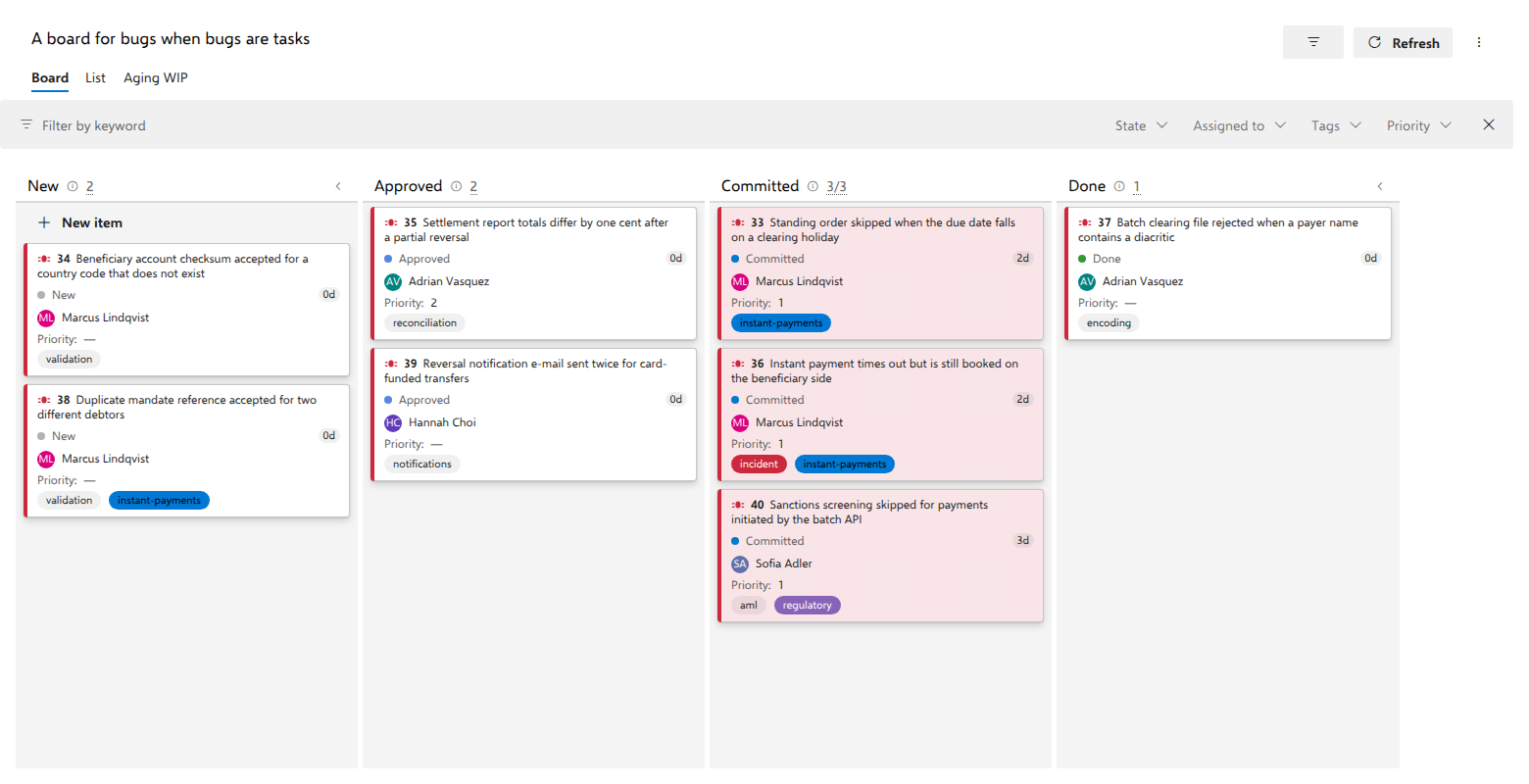
With the demo data the in-progress column holds three bugs and the counter reads 3/3, at the limit and not over it. The counter turns red only when the count exceeds the limit, and nothing is ever blocked: a WIP limit here is a signal for the stand-up, not a gate.
Making priority visible
A bug board that does not show priority is a list with extra steps. Card style rules put it in the periphery of everyone's vision:
- Open Settings → Styles and select Add rule.
- Name it Priority 1 and pick red from the palette.
- Select Add condition, choose the Priority field, operator
=, value1. - Select Save.
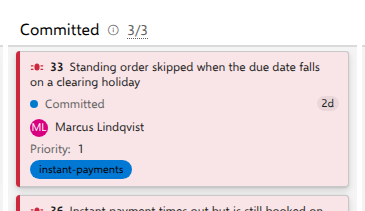
Matching cards get a faint tint of that color behind them. (The 4px strip on the left edge is not part of it, and always shows the work item type, the way native boards use it.) Three things about how the rules evaluate are worth knowing before you build a second one:
- All conditions of a rule must match (they are AND-ed), and rules are evaluated top-down, so the first one that matches wins. A new rule is appended below the existing ones and there is no way to move it afterwards, so add the rule you most want to see first; a card is never painted twice.
- Priority compares as a number, because both sides parse as numbers.
Priority < 2therefore does what you expect, rather than comparing text. - A bug with no priority set matches nothing. A missing value evaluates to false, so an untriaged bug does not accidentally look like a priority 1. It looks unstyled, which is its own signal.
A second rule earns its place on a defect board: name it Aging, pick amber, and set Changed Date < @Today-5. The @Today macro accepts day arithmetic (@Today-5, @Today-30) and @Me resolves to the signed-in user, which together cover most of what teams want to see at a glance. Order matters: because Priority 1 was added first it sits above Aging, so an old priority-1 bug stays red.
Tag pills only render when Tags is one of the configured card fields; the colors from the Tag colors tab apply to matching tag names exactly.
What the team gets, and what stays untouched
Day to day the board behaves like any other Azure Boards surface: drag a card to change its state, drag within a column to set the order, click Priority on a card to retriage it in place, right-click for Move to. Clicking a card title opens the native work item form, with every field, rule and extension the project already has, and nothing about editing a bug is reimplemented. The List view shows the complete query result as a dense, reorderable table, which is the better surface for a bulk triage session.
The New item button on the first column creates a bug from a title alone. Because the board creates it as a Bug in the board's own project, it satisfies this query straight away; its state is left to the type's default.
What the board deliberately does not do:
- It does not change your process from the board. No fields, states, rules or backlog levels are added. (The one path that can add a field is the field setup on the organization settings page, run by your administrator.)
- It does not change your team configuration. Bugs keep behaving as tasks on the backlog and on the sprint taskboard.
- It reads and writes as the signed-in user. Anyone who cannot edit a bug today still cannot; a rejected write reverts the card and shows the server's own explanation.
- Board configuration is stored in your Azure DevOps through the Extension Data Service, and no work item content leaves your organization. Security and data handling lists everything AnyKanban stores there.
On the card itself
A bug card shows the work items linked to it as Related, each with its current state, so you can see a requirement linked that way without opening anything. The card does not show the parent requirement a bug sits under on the sprint taskboard, because that is a parent link, not a Related one. To see the parent, open the bug. Test cases linked to the bug appear on the card as a checklist with a completion count: the regression evidence that the fix holds, next to the fix. A bug with no linked test case shows no test checklist at all, and that absence is itself the answer: nobody has written the regression test yet. AnyKanban links a card to a backlog item only as Related, never as a parent or a child. Anything you add on the card hangs off the card itself, so the requirement hierarchy your sprint taskboard depends on is exactly as your team left it.
Why one team usually cannot change the setting on its own
The obvious alternative to this board is "just switch the team to manage bugs with requirements". Sometimes that is the right answer. More often it is a change nobody is in a position to make alone, for reasons that have nothing to do with permissions:
- It moves bugs onto the requirement backlog for everyone on that team. Ordering, forecasting and sprint planning all change at once, mid-flight, for work that is already committed.
- Capacity accounting changes. Bugs managed as tasks consume a person's sprint capacity; bugs managed as requirements sit on the requirement backlog, where they are estimated and ordered alongside user stories or product backlog items. Velocity before and after the switch are not comparable.
- It is a per-team setting on shared data. The same bugs are read by other teams, by portfolio reporting and by whatever dashboards exist. One team flipping its own setting produces an organization where the same work item is on a backlog in one place and not in another, and cross-team charts quietly stop comparing like with like.
- Someone else owns it. Changing it requires team administrator rights, and the person who wants the board is frequently not that person. What follows is a request, a meeting and a change window, all for a visualization problem.
- It is reversible on paper and awkward in practice. Switching back leaves people having reordered a backlog that no longer contains what they reordered.
The point of this board is that the question does not have to be asked. The team keeps the configuration that suits how it works, the bugs keep living where they live, and the flow becomes visible anyway. If the team later decides to move bugs to the requirement level for good reasons of its own, the board keeps working, because the query still returns the same items.
Troubleshooting
| Symptom | Cause and fix |
|---|---|
| The board is empty | The query returned nothing. Run it in the query editor first. A state clause left over from an earlier edit is the usual culprit. |
| A note says items from other levels "remain in the hierarchy but are not shown as cards" | The backing query is a tree or direct-links query. It loads, with Bug as the board's work item type, and the parent requirements and other levels the tree brings along stay as structure instead of becoming cards. The bugs are all there. If the note bothers you, a flat query over the Bug type gives the same board without the note. |
| Bugs from other projects appear | The query has no [System.TeamProject] clause. That is a legitimate board too, but if you did not intend it, add the clause. |
| Cards sit in an Unmapped column | The query returns items whose state the Bug type does not have. Narrow the query to one type, or check the board's work item type on the General tab. |
| Reordering does nothing | The query sorts by another field, which a line above the board says; or the Bug type lacks the process's order field, which a warning banner says. |
| Board order and query results disagree | The query sorts by something other than the order field ascending. Remove the sort, or sort by the order field ascending. |
| A drag snaps back with a message | Your process rules refused the transition. The board shows the server's own explanation; make the change on the work item form where the required fields can be filled in. |
| Some bugs are missing and a note counts them | They are in a state of the Removed category, hidden from the board exactly as on native boards. The List view still shows them. |
Related pages
- User Guide: everything the board does, organized by task
- Prerequisites: the order field, the query and the permissions an administrator must put in place first