A board for what the business asked for
A backlog answers how work gets built. It does not answer what the business asked for, and it was never meant to: a backlog item is a unit of delivery, sized and ordered so a team can commit to it. A business request is something else entirely. It is raised by someone outside the delivery team, it outlives several sprints, and it is satisfied by work spread across one or more backlogs, sometimes in more than one project.
Because a request is not a backlog item, it is not on a backlog level, and a work item type that is not on a backlog level has no board in Azure Boards at all. The people who own these requests, the process owners, business analysts and portfolio leads, are exactly the people without a board. That is the gap this guide closes, and it is the case AnyKanban was built for.
The board is over a query, so membership is "everything that matches", not "everything one team put on one backlog". The requests keep their own states, their own order and their own owner.
Each request links to the backlog items that implement it, with Related links and never parent/child. AnyKanban does not touch the backlog hierarchy; it reads it.
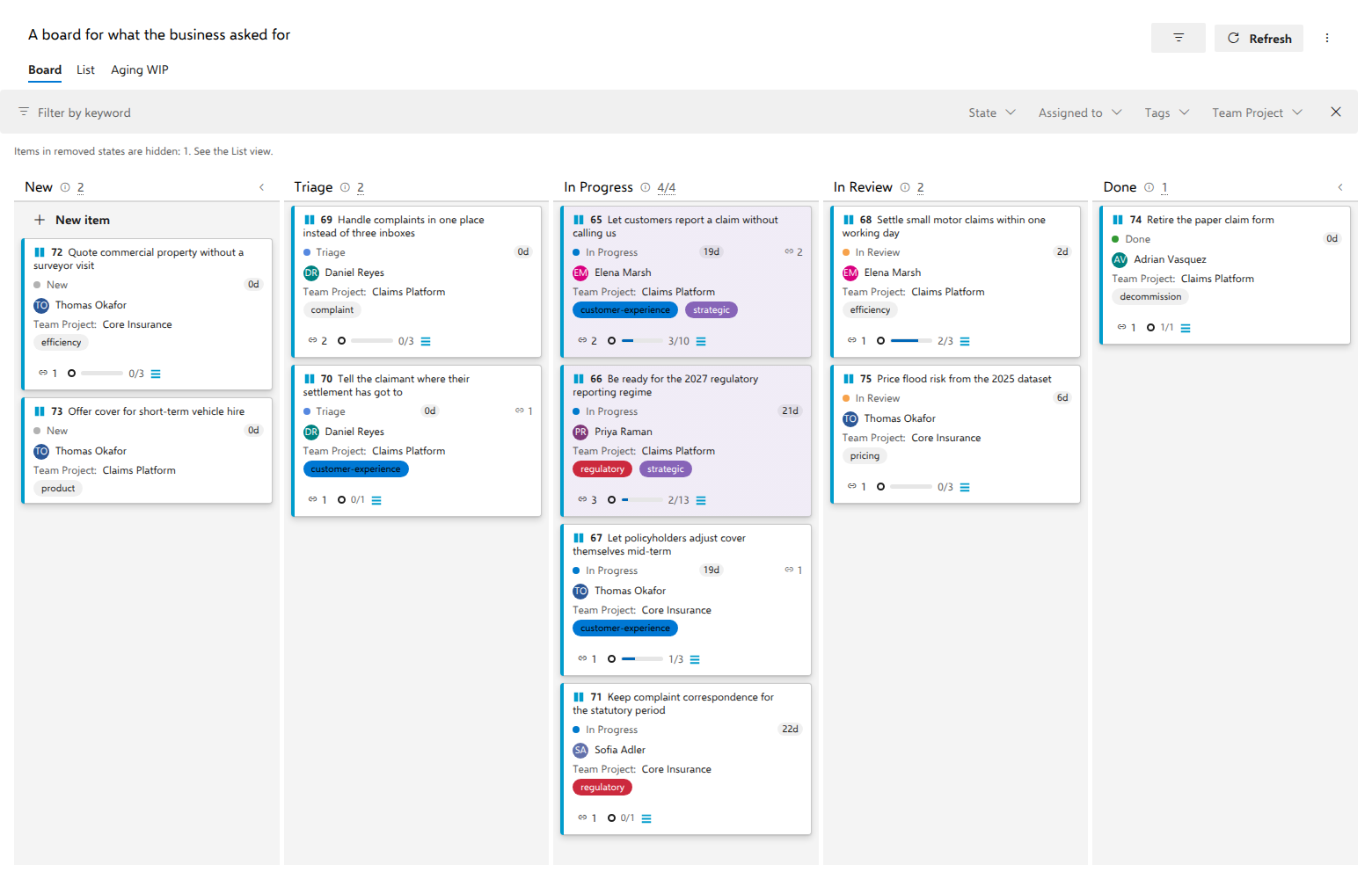
What you will end up with
The examples below use the demo dataset, so you can compare what you build with what the demo shows. The board is called A board for what the business asked for and its query returns Business Request items from two projects, Claims Platform and Core Insurance, for example Let customers report a claim without calling us, Be ready for the 2027 regulatory reporting regime and Settle small motor claims within one working day.
| Piece | Value in the demo |
|---|---|
| Work item type | Business Request (a custom type, deliberately not on any backlog) |
| Columns | New, Triage, In Progress, In Review, Done, which are the type's own states ordered by state category |
| Card fields | Assigned To, Team Project, Tags |
| WIP limit | 4 on In Progress |
| Tag colors | regulatory red, strategic purple, customer-experience blue |
| Style rule | Strategic, where Tags contains strategic |
| Definition of done | on every column, a per-column ladder from Recorded to Closed; In Review's is quoted below |
Rejected is a Removed-category state on this type, so it is not a column. Stop asking for documents we already hold sits in it, and the board says so in a note above the columns and keeps the item in the List view. Nothing disappears silently.
Before you start
Read Prerequisites once. For this board specifically you need three things:
- A work item type for requests. In the demo it is
Business Request. If your organization has no such type, an inherited process with one custom type is enough. It does not need to be added to any backlog level, and it should not be. - Your process's order field on that type: Stack Rank (
Microsoft.VSTS.Common.StackRank) on Agile and CMMI, Backlog Priority (Microsoft.VSTS.Common.BacklogPriority) on Scrum and the processes inherited from it. A custom type you created in an inherited process may not carry it; the board then says so in a warning banner, dragging still changes state, and an administrator adds the field under Organization settings > AnyKanban > Fields (Reordering), as Prerequisites describes. On a request board the order is the priority conversation, so this one is worth doing properly. - A saved flat query over that type, with no
ORDER BYor sorted by the order field ascending.
1. Write the query
The query is the board. Two clauses do the work: the type, and how wide you want to look.
SELECT [System.Id]
  FROM WorkItems
 WHERE [System.WorkItemType] = 'Business Request'
   AND [System.TeamProject] IN ('Claims Platform', 'Core Insurance')
 ORDER BY [Microsoft.VSTS.Common.BacklogPriority] ASC
Three things about this query are deliberate:
- It is a flat query. A tree or a "work items and direct links" query would load too, and the board flattens those to the distinct items they return, but flat is the honest shape here: the request-to-backlog relationship is carried by links on the card, not by the query type, so there is no hierarchy for the query to express.
- It spans two projects. A native board cannot; a query can. Add or remove a project name and the board changes with it. There is nothing to reconfigure.
- It ends with
ORDER BYthe order field, ascending. That is what makes the board, the List view and the query results page agree on one order. In the demo the field is Backlog Priority, because the demo process inherits from Scrum and Business Request carries Backlog Priority. The clause is optional: with noORDER BYthe board adds that order to the query it runs. A query sorted by anything else shows that order, and reordering is off.
Save it in Shared Queries, where the people who own the requests can read it.
Screenshot pending: The backing query in the query editor: flat, two projects, ORDER BY the order field
2. Create the board
- In the project's left navigation, open Boards and select AnyKanban, then select New board and, in the gallery that opens, Use existing query.
- Board name. What the audience calls it. Business requests beats BR board.
- Backing query. Pick the saved query. The dropdown shows the folder path, and reads the first two levels of the query tree; a query nested deeper than that will not be listed, so keep board queries near the top of Shared Queries.
- Work item type.
Business Request. This is what supplies the columns, and the field list on the Fields, Styles and Swimlanes tabs. - Select Create, then open the board from the list.
You now have five columns and eleven cards. The twelfth request the query returns, Stop asking for documents we already hold, is Rejected and therefore sits off the board, as above. Everything below is optional and can be added later from Settings.
Make the columns say something. On the Columns tab, put a WIP limit of 4 on In Progress, because a request board with fifteen things in progress is the symptom the board exists to expose. The limit is soft: the counter turns red, nothing is blocked. On the same tab, give the columns a definition of done. The demo carries one on every column, a ladder from Recorded on New to Closed on Done; for In Review it uses:
Accepted by the requesting business owner
- every linked backlog item is done
- the change is live for users
That text appears behind an info icon in the column header, rendered as markdown. It is also the sentence that makes the rest of this guide matter: "every linked backlog item is done" is only checkable if the links are there.
Make the cards say something. On Tag colors, give regulatory red and strategic purple. On Styles, add a rule named Strategic with one condition, Tags contains strategic. It paints Let customers report a claim without calling us and Be ready for the 2027 regulatory reporting regime, the two requests that carry that tag. Conditions within a rule are ANDed, rules are evaluated top-down, and the first match wins.
Adding a request. The first column has a New item affordance: type a title, press Enter. The item is created as a Business Request in the project the board lives in and lands in the first column, so it matches the query straight away. If a created item ever falls outside the query, the next refresh removes the card and a toast names its ID at the same moment, so it never vanishes without an explanation.
3. Link a request to the backlog items that implement it
A request is answered by delivery work. On the card, that work sits behind the link chip in the card's chip row, after any task and test chips and before the rollup: a link icon and the number of linked items. Hover over it to read Related work items and the count; click it to list every Related link the request carries. The rows split into two groups, derived from your process and never configured: planned work (the target's type sits on a backlog: an epic, a feature, a backlog item) carries a completion count, and everything else (another request, a support ticket) shows a plain state badge.
To add one, open the card's ⋯ menu and select Add related. The search box takes an id or part of a title; pick the item to link it. Create new opens the native Azure DevOps dialog instead, with the link to the request already in it: a new epic lands in someone else's backlog and needs that process's area path, iteration, required fields and rules, so the create path opens the native dialog rather than reimplementing it. Adding the Related link from the work item form's Links tab works too; the board shows it on the next refresh.
Four properties of these links are worth stating plainly, because they are the reason the feature is safe to use across teams:
- They are
Related, never parent/child. A request is not the parent of an epic and an epic is not the parent of a request. Related has no direction, so there is no single-parent constraint and nothing to overwrite. - One request may link to several items, and several requests may link to the same item. In the demo, Quote commercial property without a surveyor visit and Price flood risk from the 2025 dataset both link to the feature Flood zone rating tables, so two business questions are answered by one piece of delivery work. That is normal, not a mistake to clean up.
- The link is visible from both ends. A
Relatedlink appears on the epic too, in the other team's project. That is good for traceability and worth mentioning to the team that owns the epic before you start linking their work. - There are no checkboxes on linked backlog items. You do not close another team's epic from a request card. The card shows each linked item's state badge and nothing else.
- Not everything linked is delivery work. Rows whose type sits on no backlog level are listed after the planned ones, with a state badge and no count: in the demo, Handle complaints in one place instead of three inboxes links the feature Complaint intake automation and the support request Trident Freight: fleet policy renewal not visible in the broker portal. The support request is real context for the request; it is not part of its completion.
The card also carries its own tasks behind the task chip in the same row: a checklist with checkboxes, ordered by the order field and reorderable by dragging, for the work the request owner does themselves, such as chasing an approval or booking a workshop. A tick means the task reached a state in the Completed category, whatever that state is called in your process. Test cases linked with Tested By get a chip of their own, before the link chip, and its list is in a deterministic order (state, then ID), because Azure DevOps has no notion of order for those links and we do not invent one.
4. Follow how far along a request is
This is what the links are for. The card shows the completion count in the rollup at the end of its chip row, and clicking it gives the answer level by level.
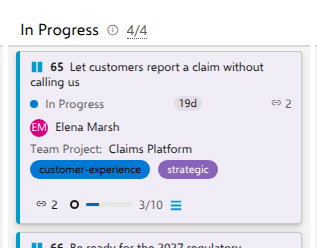
On the card the rollup is deliberately short: a mark saying what it counts, a bar, the ratio, and the icon of the unit being counted. For this request that is 3/10, with the icon of your backlog-item type. That is the whole answer to how far along is this: 3 of 10 backlog items done. The level-by-level detail lives one click away in the breakdown, which has room to spell it out:
Features 0/3 · Backlog items 3/10
When more than one item feeds a number, the tooltip says so, across 2 linked items, and the breakdown lists each one.
The unit is named on purpose. A bar without a stated unit is a lie, because two epics with identical real progress show different percentages depending on how finely someone split them into tasks. On a 280-pixel card the unit is named by its icon, and in full words in the breakdown and in the accessible name a screen reader announces. The unit is your process's requirement backlog level (Backlog items in Scrum-derived processes, Stories in Agile, Requirements in CMMI); the name comes from your backlog configuration, not from us. It is the one level that means the same thing in every process, and the level on which "done" is actually decided.
Click the rollup, or the count on any planned row, and a details flyout opens with the breakdown: per level, per linked item when there is more than one, and the counted items themselves as a hierarchy, with anything excluded from the count dimmed and the reason written next to it. Switch it between Undone (the default, showing only what is still open) and All (everything the fraction counted, finished work included); the choice is remembered for you. Every title in it opens the native work item form.
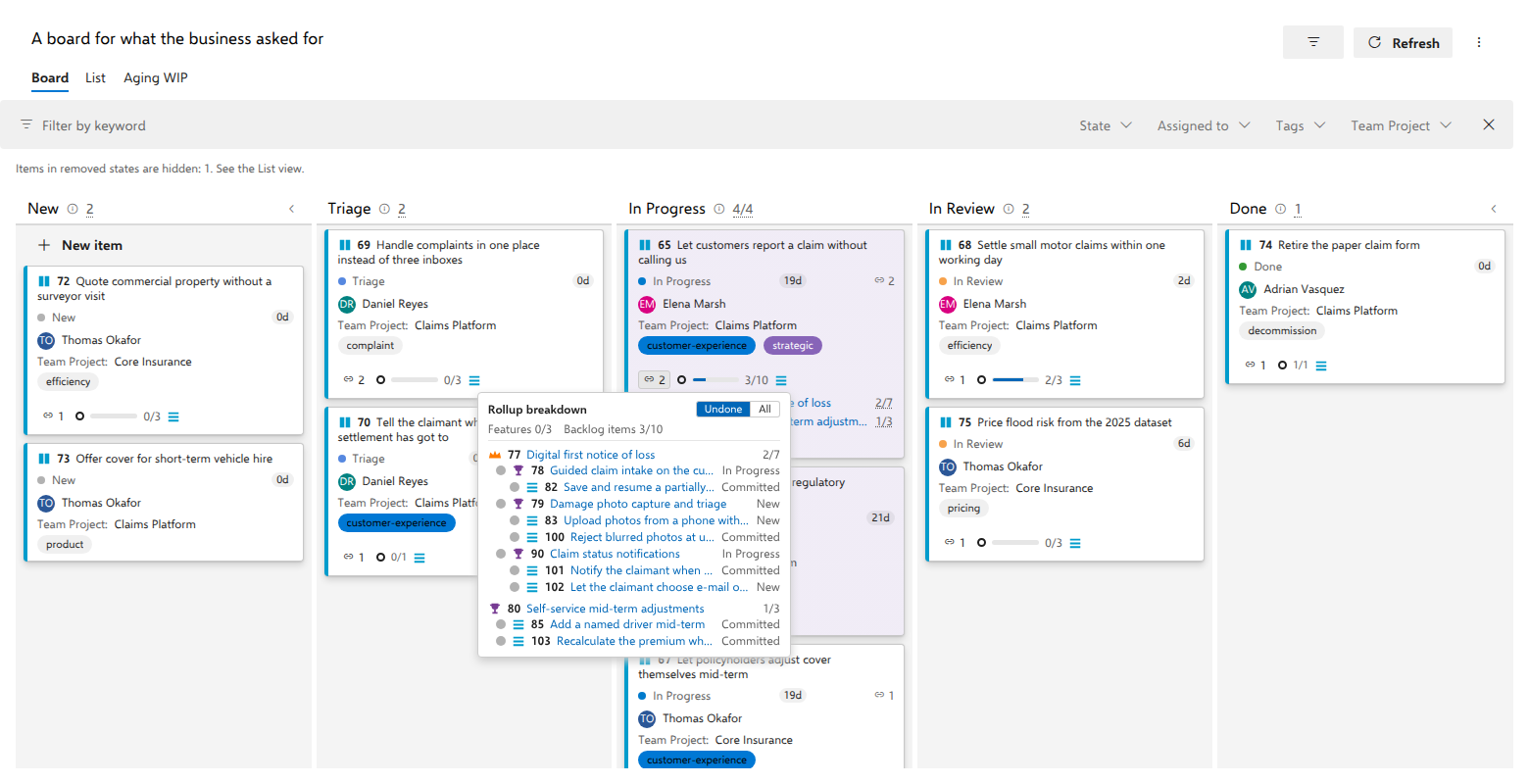
Take Let customers report a claim without calling us. It links to two items:
| Linked item | Project | Breakdown |
|---|---|---|
| Digital first notice of loss (Epic) | Claims Platform | Features 0/3 · Backlog items 2/7 |
| Self-service mid-term adjustments (Feature) | Core Insurance | Backlog items 1/3 |
| Total on the card | 3/10 with the backlog-item icon; the breakdown adds Features 0/3 per level and the tooltip across 2 linked items |
Two readings fall out of that in a second, neither of which the requester could get before: the epic has three features and none of them is finished, and the whole request is roughly a third built. Note also that the two linked items sit in different projects, because the rollup follows the links rather than the board's query, so linked work does not have to be on the board or even in the same project.
Descendants are de-duplicated by ID before counting. A card can link both an epic and a feature nested inside it; the descendants they share are counted once, because counting them twice would quietly inflate every number on the board.
0/1, 1/1 and 0/3 are different answers
Tell the claimant where their settlement has got to links one backlog item that nobody has broken down. Its card reads 0/1, and that is the most useful thing on the board:
0/1 Backlog items
An undecomposed linked item counts as itself: one unit of work whose state is known and not yet done. That is an answer, not a blank: this request has been accepted onto the board, the item that answers it exists, and nobody has started or broken it down yet. The card keeps the count, muted, and leaves out the progress bar, because a single item is either done or not and its row in the link chip's list already shows its state. Clicking the count still opens the breakdown. A column of 0/1 cards in New and Triage is a refinement backlog you can point at in a meeting.
Retire the paper claim form shows the same shape finished: its one linked item is itself done, so the card reads 1/1, a request fully delivered by a single item nobody ever needed to split. You can see both in the screenshot above.
Contrast both with Quote commercial property without a surveyor visit, which reads 0/3 Backlog items. Same zero on the left as 0/1, very different meaning on the right: three backlog items exist and none is done. (The 1 beside the link icon on each of these cards is the link chip, counting linked items. The rollup never repeats that count on the card row; when more than one item feeds it, its tooltip says how many and the breakdown lists each one.)
Now link that 0/3 card to a second Feature, one nobody has broken down yet. The card still reads 0/3: the count is in backlog items, and a Feature is not one, so adding it as a fourth would mix two units in one number. It is not dropped either. The rollup's tooltip says One linked item has no Backlog items to add, so this count leaves it out, the breakdown carries it at its own level as Features 0/1 beside Backlog items 0/3, and its own heading in the breakdown reads 0/1.
A genuine 0/0 still exists, and is rarer: it appears when a linked item has structure but nothing under it can enter the count, most pointedly when its only children were Removed. The structure existed and its owner deliberately killed it; counting the container itself again would resurrect that branch as pending work, so the card says 0/0 and means it. (Children all excluded for other reported reasons, such as another project or a state no process can judge, read the same way, each exclusion dimmed into the flyout with its reason.)
A further shape appears when a request is linked straight to a backlog item whose own children are tasks. There is nothing at the requirement level beneath it to count. If no other item linked to the card has work at that level either, the count falls back to that item's own direct children, and the unit changes with it: the card shows the ratio with no unit icon, while the breakdown and the name a screen reader announces call the unit child items (direct), rather than silently changing what the number means. If another linked item does have requirement-level work, the card total stays on the requirement level, and this item's own count appears only on its row and in the breakdown. In the demo the straight-linked items carry no tasks yet, so their cards read 0/1 (or 1/1 once the item is done); the fallback appears the moment such an item gets its first task.
What the rollup does not do: it does not count test-case links, and it does not average tasks into the headline figure. Tasks appear in the breakdown, under their own level. It also never writes anything. The rollup is a read of the backlog, and the backlog stays entirely under its own team's control.
5. Let the backlog follow the order of the requests
The order of this board is the business's priority. The teams' backlogs have an order of their own, and the two drift apart every time a request moves. Two things on a board of backlog items close that gap, and both start from this board. Point the backlog board at this one under Request board in its settings, and every backlog item sitting below where its request says it belongs is marked, as See work that sits out of request order describes. Nothing is written by the marks.
When the team wants the backlog itself to follow, someone who can change the backlog board's settings turns on Take priorities for that board, which has to be a shared one. Its preview lists every backlog item that would move, on every level, and the backlog changes only when someone presses Apply. The requests on this board are never written, and neither are their links. See Put the backlog in the order of its requests.
What surprises people the first time
- A request in a Removed-category state is off the board, not gone. Stop asking for documents we already hold is
Rejected; the board shows a count above the columns and the List view still lists it. The query is the contract. - The board spans projects, the columns do not. Columns come from the state model of the configured type in the board's own project. If a project's copy of the type has different states, those items land in an Unmapped column on the right, not dropped but not droppable either. The fix belongs to the query or to the process, never to the board.
- Board configuration is shared, view preferences are not. Everyone in the organization sees the same columns, WIP limits and style rules. Your collapsed columns, your filter and your Board/List choice stay yours.
- Filtering keeps dragging on. With cards hidden, a drop lands directly above the visible card below the slot, after any hidden cards between, so what you see afterwards is what you arranged.
- A request board is a slow board, and that is correct. These cards move in weeks. Use As of in the header overflow to see the board as it stood at the start of the quarter, a read-only snapshot straight from work item history, which answers "when did this actually get picked up" without an audit trail.
Troubleshooting
| Symptom | Cause and fix |
|---|---|
| The board is empty | The query returned nothing. Run it in the query editor; check the project names in the IN (…) list. |
| Unexpected items appear, or a note counts items as the query's "structure" | The backing query is a tree or direct-links query. It loads, flattened to the distinct items it returns, with the configured type as the cards and other levels counted out visibly. If that is not what you meant, a flat query over the request type says it exactly. |
| Requests will not reorder | The query sorts by another field, which a line above the board says; or the type has no order field, and a warning banner names the field an admin adds on the Fields page. |
| The board's order differs from the query results | The query sorts by something other than the order field ascending. Remove the sort, or sort by the order field ascending, so every view agrees. |
| My query is not in the Backing query dropdown | Only the first two levels of the query tree are read. Move the query nearer the top of Shared Queries. |
| Cards sit in Unmapped | Their state is not in the board type's state model, usually because a second project's copy of the type differs. |
| A linked epic is not counted in the card total | Another item linked to the same card has work at the requirement level, and this epic has none yet. While that is true, the card total counts requirement-level items only, and the epic's own count appears on its row in the link chip's list and in the breakdown. When no linked item has requirement-level work, every linked item enters the total, each counting its direct children or, with none, itself. |
| The card total is lower than the per-item rows added together | Two linked items share a subtree, for example an epic and a feature inside it. The card counts each shared descendant once, by ID, so the card total is correct. Each item's own row still counts everything under that item, which is why the rows overlap. |
Related pages
- User Guide: every board feature, task by task
- Prerequisites: the order field, the query, permissions
- Put the backlog in the order of its requests: Take priorities, from a board of backlog items
- Start here: the three surfaces AnyKanban adds to a project