AnyKanban User Guide
AnyKanban is an Azure DevOps extension that turns any saved work item query, whether a flat list, a tree, or a "work items and direct links" query, into a fully interactive Kanban board and a reorderable, backlog-style list. It is built for work item types that native Azure Boards cannot show, meaning types that live outside the backlog hierarchy (for example a custom process type linked to delivery work via related links), but it works over any query for any single work item type. A link-based query is flattened to the distinct items it returns: with a configured work item type, that type becomes the cards and the other levels of the tree are counted, visibly, as its structure; without one, the ordinary flat-query rules apply.
This guide is for end users working on a board day-to-day and for project admins who create and maintain board configurations.
What AnyKanban is and when to use it
Native Azure Boards only visualize work items that belong to a team's backlog hierarchy. If your work item type is not part of a backlog level, it has no board at all. AnyKanban closes that gap by making the query the source of the board:
- Columns come from the workflow states of the board's work item type. A board may also define its own columns instead, with names your team chooses and several of them over one state, but it never has to, and most boards do not.
- Membership comes from the saved query. If an item matches the query, it is on the board.
- Order is real data. Dragging to reorder writes the one order field your process orders by (Stack Rank on Agile and CMMI, Backlog Priority on Scrum and processes derived from it), so the board, the list view, a query sorted by that field and the backlog show the same order. The board derives that field from your process for its work item type; nothing is chosen per board. On a board of backlog items, the cards follow the backlog's own order (or the query's, when it sorts by another field), and dragging within a column changes nothing unless Reorder from this board is turned on in the board's settings.
Use AnyKanban when:
- Your work item type is outside the backlog hierarchy and has no native board.
- You want a board over a query (a cross-cutting slice of work) rather than over a team's area paths.
- You need several differently-configured boards over the same or different queries in one project.
The extension adds four surfaces:
| Surface | Where you find it | Purpose |
|---|---|---|
| Boards hub | The Boards section of your project navigation | Named, shared board definitions, and the primary surface |
| Board and Aging WIP tabs | Two tabs on the results of any query, beside Results, Editor and Charts | An ad-hoc board, and the aging chart, over the query you are currently viewing, with no configuration needed |
| Dashboard widget | Dashboard → Edit → Add widget | Column counts for one board, with a direct link to it |
| Organization settings page | Organization settings > AnyKanban | For organization administrators: record the license, add the fields a board needs to your work item types, set the defaults for new boards, choose the projects where AnyKanban appears, and review usage counters. The license, the defaults and the counters' switch and delete are shared by the whole organization, so the page offers to change them to people with the Edit instance-level information permission and shows them read-only to everyone else, as a guard against accidental change |
Prerequisites at a glance
Full setup details are in the Prerequisites guide; in short, before the first board works:
- Extension installed. The publisher shares the extension with your organization and a Project Collection Administrator installs it.
- The order field on the work item type. Manual ordering writes the field your process orders backlogs by (Agile and CMMI: Stack Rank, Scrum-derived processes: Backlog Priority). The board derives it for its type; when the type carries only the other of the two, the board orders by that one and says so. When the type carries neither, an administrator adds the process's field under Organization settings > AnyKanban > Fields (Reordering). Prerequisites explains it.
- Saved query. Typically a query of type "Flat list of work items", with no
ORDER BY(the board shows the order field's order) or sorted by the order field ascending; a query sorted by anything else shows that order and reordering is off. Tree and direct-links queries work too, flattened to the items they return. Save it where the intended users can read it (typically Shared Queries): a board made from a query in My Queries is listed in your own board list, because nobody else can read that query. - Optional: boolean field for split columns. A real boolean field on the type (for example
Custom.BoardColumnDone) if you want Doing/Done sub-columns. - Optional: text field for columns that share a state. A real text field on the type (for example
Custom.BoardColumn) if you want several columns over one state, the way the native board does. - Optional: single-select field for swimlanes. A picklist field whose values are the lanes you want (for example a class-of-service field).
Users need normal work item view and edit permissions in the relevant area paths. The extension reads and writes as the signed-in user and grants no extra access.
Quick start: your first board
You need the extension installed. A saved query is not required to start: AnyKanban suggests ready-made boards built from your own process.
- In your project's left navigation, open Boards and select AnyKanban.
- If you have no boards yet, the suggestions are already on screen, under a New board button at the top left. Otherwise select New board in the header (top right).
- Pick the card that matches what you want to see, for example Bugs board, or a board for a type that sits outside every backlog. Each card says why it is being suggested; you only ever see cards your process can actually support.
- Read the summary: it says in words what the board will contain and how many items match right now. Change the Name if you like. To see or edit the query itself, open Advanced.
- Select Create board. The board opens immediately, with one column per workflow state and a card for every matching item. Or select Open settings to decide the columns, card fields, styles and swimlanes first. It is the same board, in the full settings panel, with nothing saved until you create it there.
- Try it: drag any card to another column, then open the item (click its title) and check its State field. The board wrote the change.
A new board starts in My board list. To list it for others, choose Project board list or A team's group under Where should this board appear? on the summary before you create it, or create a board from a saved query instead (below). A board in A team's group also reads that team's backlog, so it shows that team's work. Wherever you list it, Azure DevOps still decides which work items each person can see on it (Who sees which boards).
What the gallery suggests on the standard processes
Suggestions are always derived from what your process actually has, so the gallery never matches a process by name, which is why customized (inherited) processes get the right cards too. On the four standard processes that derivation is guaranteed to produce at least:
| Process | Suggested boards |
|---|---|
| Agile | Stories as a board · Bugs (your team tracks them as tasks) · Issue board (Issues sit outside every backlog) · Test cases |
| Scrum | Backlog items as a board · Bugs · Impediment board, where linking the backlog items an impediment blocks rolls that work's whole subtree up onto the card · Test cases |
| CMMI | Requirements as a board · Bugs · Change Request, Issue, Review and Risk boards · Test cases |
| Basic | Issues as a board · Test cases, and no bugs board, because Basic has no Bug type |
Each card explains the board in words before anything is created; the exact query is one click away under Advanced, where it can also be edited. A customized process that adds its own types outside the backlog (a Support Request, a Business Request) gets a card for each of them, exactly the same way.
Configuring before creating. Open settings on the summary opens the same board in the full settings panel, meaning columns, card fields, styles, tag colors and swimlanes, with the name, the query and the sharing choice already carried across. Nothing is written until you select Create there, and the board opens when you do.
Starting from your own saved query. Select New board, then Use existing query, and fill in the board settings: a Board name, the Backing query, and the Work item type the query returns. Read the Card order row under the type: it names the field the board orders by, or says why reordering is off (the query sorts by another field, or the type carries neither Stack Rank nor Backlog Priority, which an admin adds).
Everything else (card fields, colors, WIP limits, columns of your own, split columns, swimlanes) is optional and can be added later from the same panel. Open the board and select the gear (Settings) button.
Common tasks, step by step
Change an item's state
- Press and hold the card, drag it over the target column, where a gap shows exactly where it will land, and release.
- If the card snaps back with a message, your process rules refused the transition; open the item's form (click the title) and make the change there with the required fields filled in.
Put items in priority order
- A filter may stay on: with cards hidden, a drop lands directly above the visible card below the slot, after any hidden cards between.
- Drag a card up or down within its column and drop it between two cards, or switch to the List view and drag whole rows. The order is written to the work item's order field, so everyone sees it, and a query that sorts by that field shows the same order. Reordering is off while the query sorts by another field, and for a card whose own type orders by another field; the card menu says which. On a board of backlog items (stories, backlog items, features, epics), dragging within a column changes nothing by default, because the order belongs to the backlog; it works only after Reorder from this board is turned on in the board's settings.
Assign someone
- Click the assignee value, or Unassigned where nobody is set, on the card.
- Start typing a name in the people picker and select the person. That is the whole edit, with no need to open the form.
Add a new item
- In the first column, select New item.
- Type the title and press Enter. The item is created so that it matches the board's query where possible; if a toast says it does not match, note the item ID from the toast and adjust the item (or the query).
Color cards that need attention
- Open the board, select the gear (Settings) button, and go to the Styles tab.
- Select Add rule, name it, and pick a color.
- Select Add condition and set, for example,
Priority=1. All conditions of a rule must match; the first matching rule colors the card. - Select Save.
Limit work in progress in a column
- In Settings, open Columns in the left rail (select the work item type on General first, if you have not).
- Select the column in the strip of column tabs, type a number into its WIP limit box, then Save. The column counter shows
count/limitand turns red above the limit. Nothing is blocked: it is a signal.
Name your own columns
- In Settings → Columns, select a column in the strip and type over its name in the form below. The strip starts as one column per state, in board order, and renaming or reordering needs nothing else.
- To put two columns over one state, say Analysis and Development both over
Active, first pick the field under Column placement field, above the strip. The list offers the text fields added to the type, and an admin adds one if there is none (see Prerequisites). Then select + Add column, and the new column is added at the end of the strip and selected. Name it, choose its state, and put it in place with Move up. - Select Save. A layout that cannot mean anything is refused with the reason rather than saved with a warning: a state left with no column, two columns sharing a name, several columns over one state with no placement field picked, or an ordinary column sitting after a completed one.
- Drag a card between two columns of the same state. Nothing about its workflow moves, only the placement field. Put two columns over one state walks through the whole setup on the demo board.
Split a column into Doing / Done
- Ask an admin to add a boolean field to the work item type (see Prerequisites) if there is none yet.
- In Settings → Columns, pick the field under Done-flag field, above the strip. The list offers the boolean fields added to the type, and nothing is typed by hand. Then select the column you want split and tick Split into Doing / Done in its form, and Save.
Turn on swimlanes
- In Settings → Swimlanes, select Add lane, name it (for example "Expedite"), add a condition (for example a class-of-service field
=a value), and Save. - Items matching a lane's conditions appear in its row; everything else lands in (no lane). Dropping a card into a lane applies the lane's equality conditions to the item.
Highlight stale items (card aging)
- Open the board, select the gear (Settings) button, and go to the Styles tab.
- Select Add rule, name it "Stale", and pick an amber/red color.
- Select Add condition and set
Changed Date<@Today-5, then Save. Cards untouched for 5+ days get the colored tint; adjust the day count to taste.
Back up or move board configurations
- On the board list, select Export, and a JSON file with all the project's board definitions downloads.
- In the target project, select Import and pick that file. (Extension settings do not migrate between organizations by themselves.)
Creating and editing a board
The Boards hub
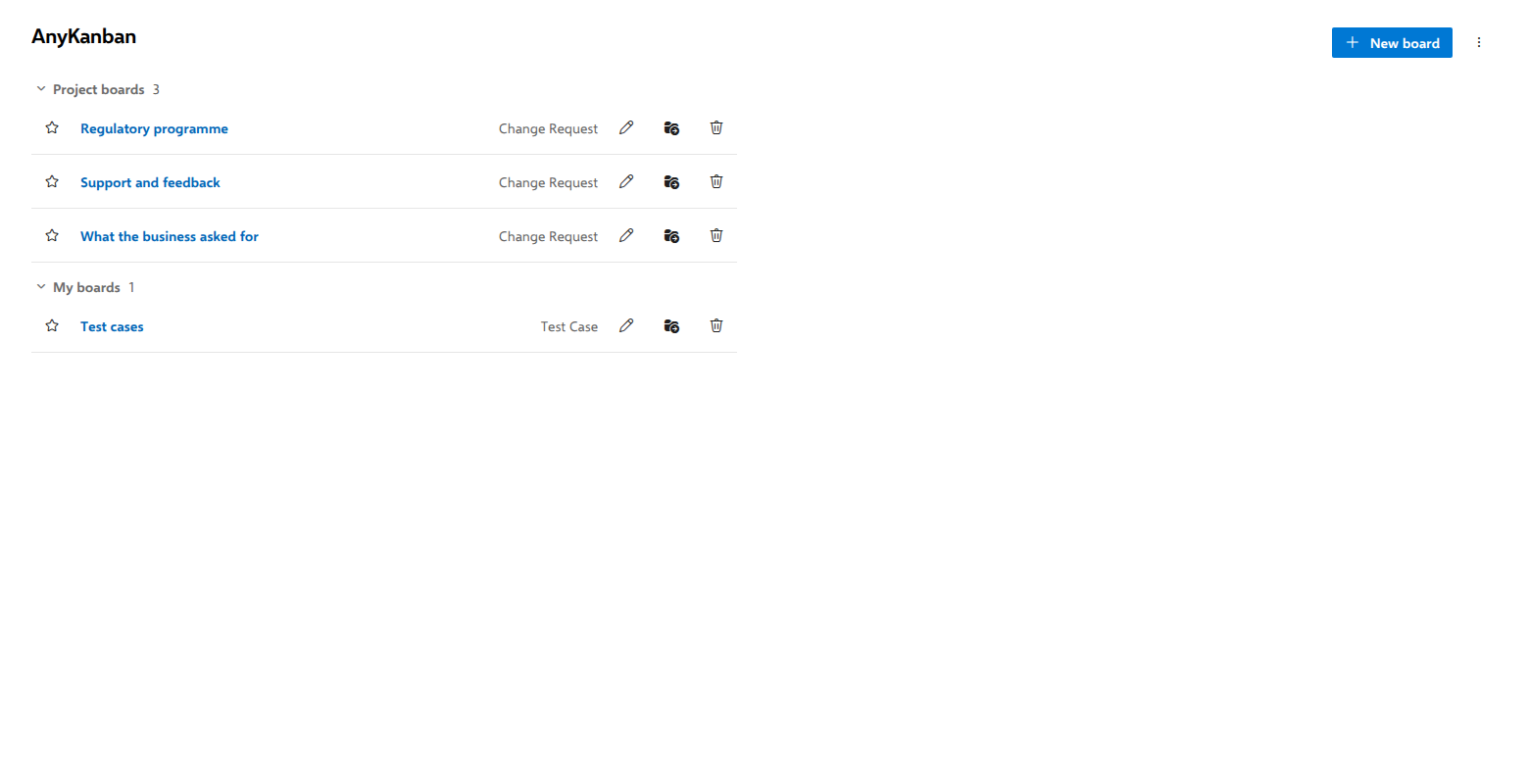
Open the AnyKanban hub in the Boards section of your project. The hub lists the shared boards your Azure DevOps permissions put in your list, and your own. Personal things (your view choice, filters) stay private to you.
- New board opens the suggestions gallery, beneath the button in the header, or, on a hub with no boards yet, in the page itself, where the suggestions are already waiting. Pick a suggested board, or choose Use existing query or Start blank to fill in the board settings yourself. Two suggestions ask a question first. Everything under one item takes an epic or initiative you pick and writes the recursive tree query for you. A team's own board, as a query asks which team's board you want, then copies that team's current scope into the query once. Any suggestion's query can be edited under Advanced before the board is created. Azure DevOps validates it, and a query it refuses cannot be saved.
- Boards are grouped the way the Boards directory in Azure DevOps is: one open group per team you belong to, then Project boards, My boards (only you), and last a collapsed All team boards with the boards of every other team in the project, one heading per team. A team with no boards has no heading. Membership only arranges the list. Which shared boards are in it follows the work items you may read: a project board is listed for people who may read work items at the project's root, a board that reads a team for people who may read work items in one of that team's area paths, and every board for the person who created it, so a board you file under a team you are not a member of is listed for you under All team boards. A board created from a suggestion is listed wherever you choose under Where should this board appear?: your own list (the starting choice), a team's group, or the project list. A suggestion made for a team you already picked starts on that team's group instead. Boards created from a saved query are shared. See Who sees which boards.
- The pencil icon on a board row edits its configuration, the folder icon beside it (Move to…) moves the board to another list, and the trash icon deletes it. Deleting always asks first, and the question says who loses the board: the people it is listed for, by the rule in the bullet above. A shared board that reads no team goes for everyone who can read work items in the project's top-level area. A board that reads a team goes for everyone who can read work items in one of the areas selected for that team, or for everyone who can see the team where its work is not defined by Area Path. One of your own goes for you alone. One that reads a team Azure DevOps does not show you, such as a deleted team, says If the team this board reads was deleted, nobody else will find the board in their list, so no one else will lose it. Until Azure DevOps has said how a team's work is defined, the question reads Finding out who will lose this board… and Delete waits. It cannot be undone, because Azure DevOps keeps no copy of a deleted board, so use Export first if you might want it back. On a shared board these three change the board only for the person who created it, for project administrators and, on a board in a team's group, for that team's administrators. Anyone else can open the pencil to read the settings, and Move to… and the trash icon say who can change the board instead of moving or deleting it. Pressing Move or Delete checks once more that you can change the board. While that check is out the button is greyed and does nothing, whether you click it or press Enter, and Cancel stops the move or the delete, so nothing changes when the answer arrives. If the answer is no, the dialog names who can move or delete the board where the button was. If it is yes, the dialog stays open, with Cancel greyed because what has been sent cannot be called back, until Azure DevOps has answered the move or the delete, and then closes.
- While a board is open, the gear (Settings) button in its header opens the same board settings; Refresh reloads the board; Back returns to the board list. On a board whose work item type sits on a backlog level, a Level selector stands in the toolbar too, reading the level the board boards (Epics, Features, Backlog items, under your process's own names, custom levels included): pick another level and the board shows that level of the same work: the nearest parent of each item the query returned when you go up, their children when you go down, and the query's own items when you come back. The query itself is never rewritten. See Board another level of the same query for what that means in practice, including why a feature with no matching item under it does not appear and why adding items is switched off while you are on another level.
- Export downloads the board definitions listed for you as a JSON file, and says how many boards outside your list it left out; Import reads such a file and creates the boards it contains, each recorded as created by you. Use export/import to back up configurations or move them to another project or organization (extension settings do not migrate on their own).
Note for admins: board configuration is stored in the extension's shared data in your Azure DevOps, and Azure DevOps does not restrict who may write it. AnyKanban offers changes to a shared board (its settings, a WIP limit in a column header, its level, moving it and deleting it) to the person who created it, to project administrators and, on a board in a team's group, to that team's administrators. Project administrators means everyone Azure DevOps gives Edit project-level information in the project. Members of Project Administrators have it, which we checked. Members of Project Collection Administrators are meant to count as well, but one who is not also in Project Administrators has not been checked yet. A board with no recorded creator, one made before version 0.4.70 or with Open settings, Use existing query, Start blank or Save as board before version 0.4.97, is changed by administrators only. A project administrator changes any shared board they can open. A board that reads a team Azure DevOps no longer returns, for example because the team was deleted, opens for its creator alone, so only its creator can change it. If that board also records no creator, it opens for nobody, administrators included, and AnyKanban has no way back to it: it is in nobody's list, its link is refused, and Export leaves it out and only counts it. So before you delete a team, move its boards to another team or to No team, or export them. An export taken before the team went is the only way to get such a board back, as a new board recorded as created by whoever imports it. Everyone else can read the settings of the boards they can open. The rule is AnyKanban's, applied in the product, and Azure DevOps does not enforce it on the stored definitions: it guards against changing a colleague's board by accident, and it is not access control. See Who sees which boards.
Board settings
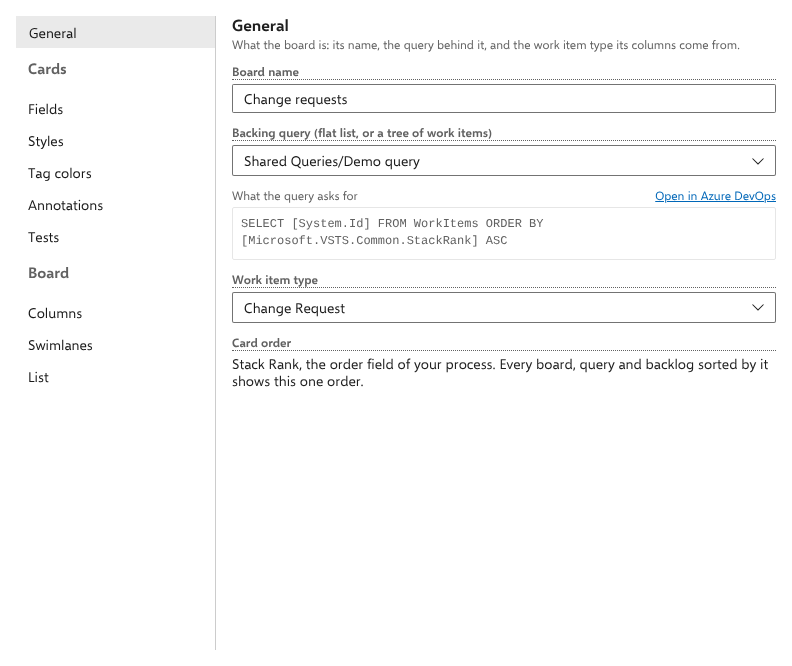
Sections are listed in a rail down the left side, grouped the way the native board settings dialog groups them: General on its own at the top, then everything about a card, then everything about the board. Pick one and it opens on the right, under a title and a line saying what it is for.
| Section | What it configures |
|---|---|
| General | Board name, the backing saved query, and the work item type; the Card order row names the order field the type derives from your process, or says why reordering is off. On an existing board whose type sits on a backlog level, the panel states the type but the choice lives in the Level selector in the board's toolbar, because which level a board boards is a statement of what it is rather than a setting. The chip for the level below follows from what the board boards and what its query returns, with nothing to configure. On a board of backlog items, Request board names a shared request board whose order the board compares with, marking the items that sit out of request order and letting each reader sort by it. See See work that sits out of request order. Directly below it, on a shared board, Let Take priorities from … reorder the backlog lets the board reorder the backlog from that request board after a preview, and asks for a confirmation before it turns on. See Put the backlog in the order of its requests. |
| Cards › Fields | Which fields are shown on cards and in what order. Drag rows to reorder, delete to remove, add from the dropdown. Each field renders as a labeled row; assigned-to shows the person's avatar; tags render as pills; dates localized. Then: Show work item ID on cards (like the native "Show ID"), Hide empty fields on cards, Show time in current state on cards, and the optional day limit that view highlights against. |
| Cards › Styles | Card style rules: each rule has a name, a color, and one or more conditions (field, operator, value). All conditions of a rule must match. Values support the @Today (with ± day arithmetic) and @Me macros. A date can also be typed as 2026-10-10: it means the start of that day in your own time zone, as @Today does, so = matches the whole day, < means before it begins and > means after it begins, which includes the rest of that day. For boolean and picklist fields the value editor offers the allowed values in a dropdown. Matching cards get a colored tint (the left strip stays the work item type's). |
| Cards › Tag colors | A color per tag name. Tags on cards render as colored pills. |
| Cards › Annotations | The sections a card carries below its fields: tasks, bugs, and related work items. Beside them, Sum estimates at names the backlog level at which a rollup adds up your process's effort field (the requirement level unless you choose another), with a line naming the field your process maps. See What the rollup counts. |
| Cards › Tests | The test cases section, meaning work items linked with Tested By. |
| Board › Columns | The board's columns themselves. + Add column sits above a strip of one tab per column, in board order; picking one opens its whole form below: name, WIP limit, the state it maps to, Definition of done, a split checkbox once a Done-flag field is chosen, and the buttons that move or delete that column. A board that defines no columns gets one per state, which is what a new board starts with. Above the strip sit two board-wide pickers: a Done-flag field (needed before any column can be split into Doing/Done) and a Column placement field (needed before several columns may share one state). Both offer the fields on the type; neither takes a typed reference name. A layout that cannot mean anything, such as a state left with no column or two columns sharing a name, is refused on Save with the reason, not saved with a warning. Select the work item type on the General section first. |
| Board › List | The List view's columns, in order, for everyone who opens the board. Add any field of the board's type with Add column…, move a column up or down, remove it (Title stays: it opens the work item), start from the cards with Add the fields shown on cards, or go back to ID, Type, Title, State, Tags with Reset to default. Column options above the List opens this tab directly. How wide each column is stays per user. |
| Board › Swimlanes | Named lanes with conditions (same condition editor as style rules): the first lane whose conditions all match wins, and unmatched items land in the implicit "(no lane)" default row. Dropping a card into a lane applies the lane's literal equality conditions as field changes (like native swimlane rules). A simple mode also exists: enter the reference name of a single-select field whose values become the rows. Leave both empty to keep swimlanes off (the default). Lane totals, on the same tab, sum up to two numeric fields of the board's type in every lane header and every cell, each with an optional short label and an optional capacity per lane; a lane over its capacity says so in words. See Compare demand with capacity, per lane. A third model, Lanes from a tree node, draws one lane per child of an iteration or area node, read again at every load, with an extra lane for items still on the project root; a drop writes the child node itself. See Get one lane per period from the iteration tree. Baseline from the iteration start, last on the tab, sets how many days after an iteration's start the board takes as its baseline where a lane stands for an iteration in progress or the query names one (one day by default), or turns that off for the board. See See what changed since the plan was set. |
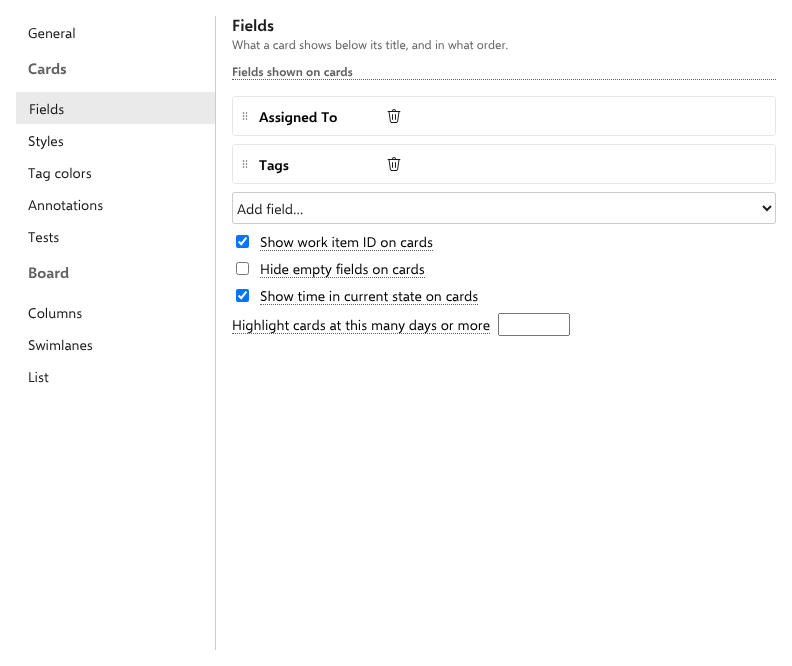
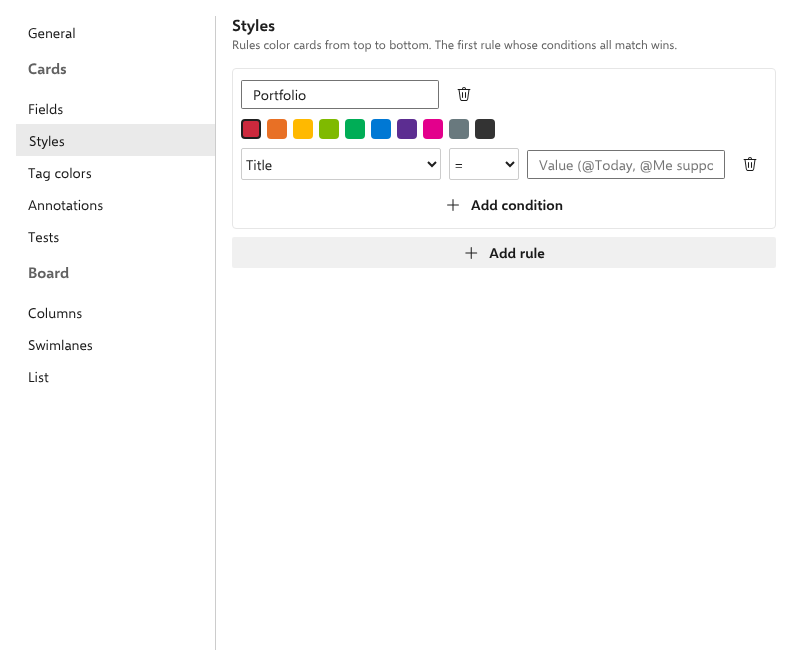
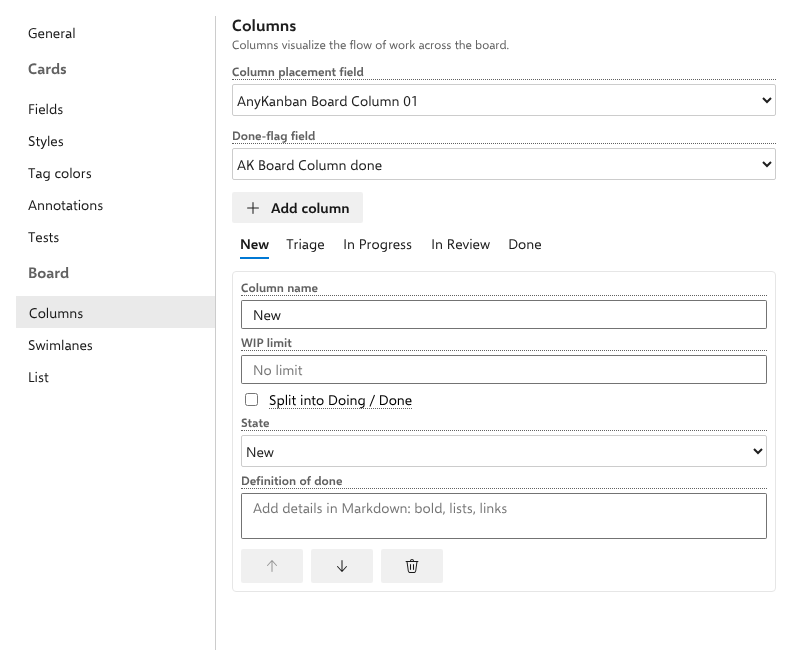
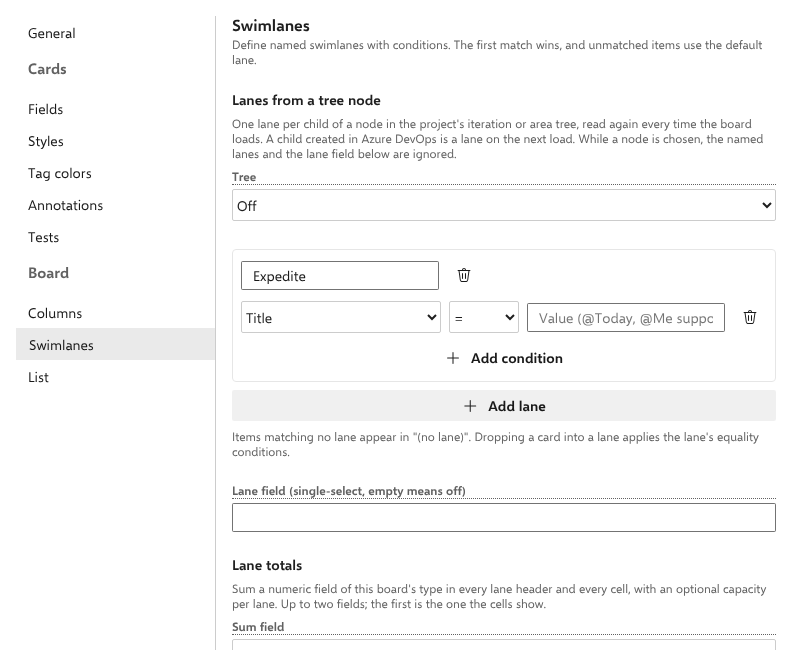
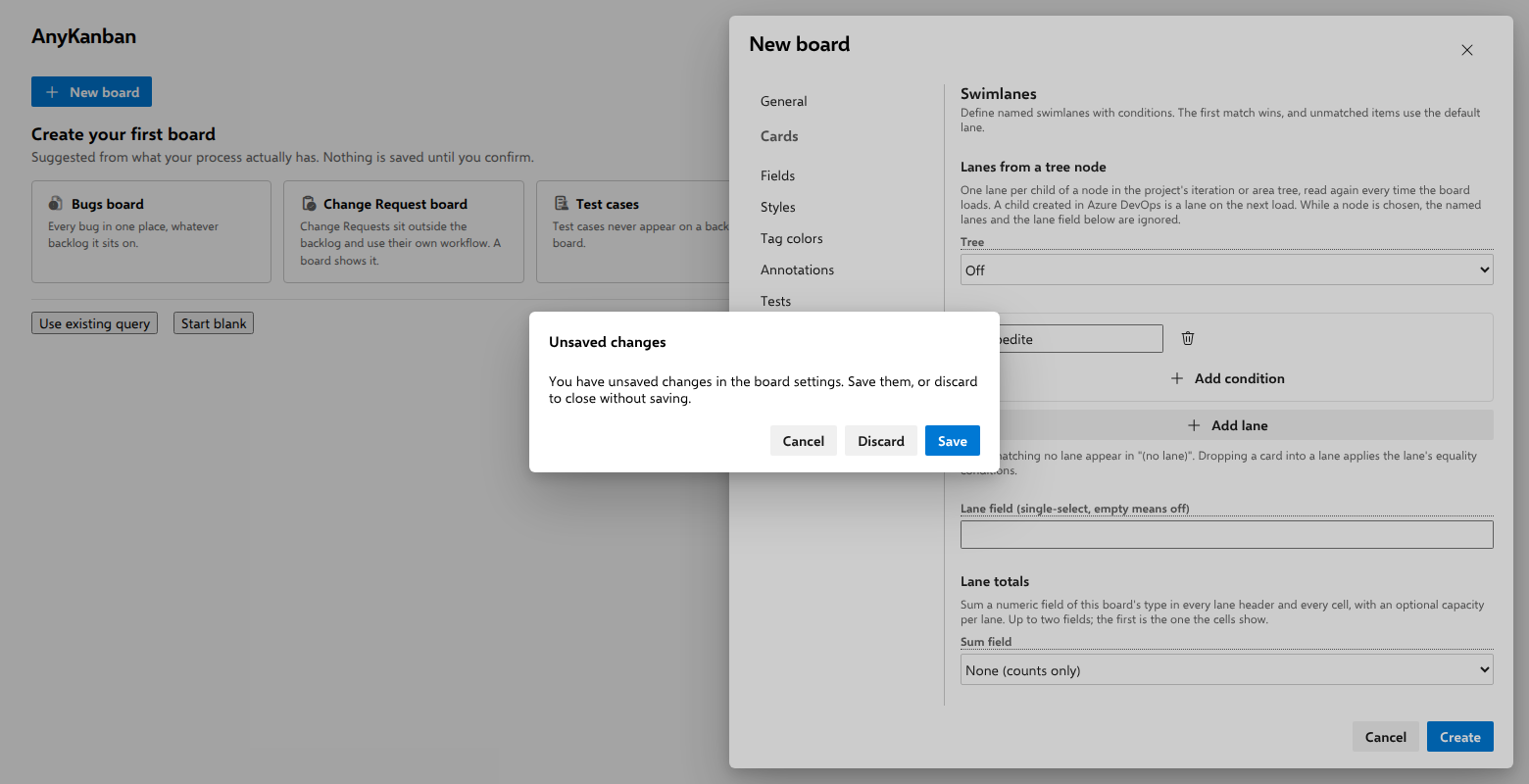
Saving the board applies the configuration for everyone. Changing the query or the work item type reloads the board. Closing the panel with unsaved changes asks whether to Save, Discard, or keep editing. On the settings of a board you cannot change, the dialog has no Save and says These changes cannot be saved. Discard them to close the settings.
Board links (bookmarks, dashboards, wiki)
Every named board has a stable URL: opening a board adds ?board=… to the
browser's address bar, and loading that URL later opens the board directly,
no stop at the board list. Use Copy link in the board's header to put the
link on a dashboard, in a wiki page, or in a browser bookmark; that gives each
board a one-click entry point. The link opens the board for the people it is
listed for. Anyone else reads This board does not exist, or you don't have
permission to read the work it shows. (Who sees which boards).
Getting to your board faster
Last board reopens automatically. The hub remembers the board you last opened (per user) and opens it directly next time, exactly like native Boards. If you have marked a default board, that board opens instead. The Back button in the board's header is always one click away, and a
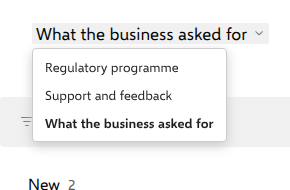
?board=deep link always wins over both. If your default board was deleted, or is no longer in your list, the board you used last opens instead, and if that one is gone too, you land on the list.Header switcher. With two or more boards in your list, the board title in the header becomes a dropdown: jump straight to another board without going back to the list. It offers the same boards the list does.
The dashboard widget
Add the AnyKanban board widget to any project dashboard
(Dashboard → Edit → Add widget). Configure it by picking one of the named
boards in your list. The tile shows the board name, the total item count, and per-column
counts (WIP-limited columns show count/limit and turn red when exceeded).
Clicking the board name opens the board directly for everyone the board
is listed for. The widget is each board's one-click entry point from the
dashboard.
Ad-hoc boards on query results
On any query's results page, the extension adds two tabs beside Results, Editor and Charts: Board, the board over that query, and Aging WIP, the aging chart over the same query, without creating a named board. Each tab is its view, so neither repeats the query's name or carries view tabs of its own; one row above it holds the item count, the filter, Refresh and More actions, and the filter bar starts closed. On a saved query, a filter set on one tab is still applied on the other; an unsaved query starts each tab unfiltered. The List view stays on boards in the AnyKanban hub. If the page cannot determine the current query, a query picker appears instead. Ad-hoc boards use default settings: one column per state, and nothing configured on top. For WIP limits, styles, columns of your own, split columns, or swimlanes, create a named board in the hub.
Using the board day-to-day
Moving and reordering cards
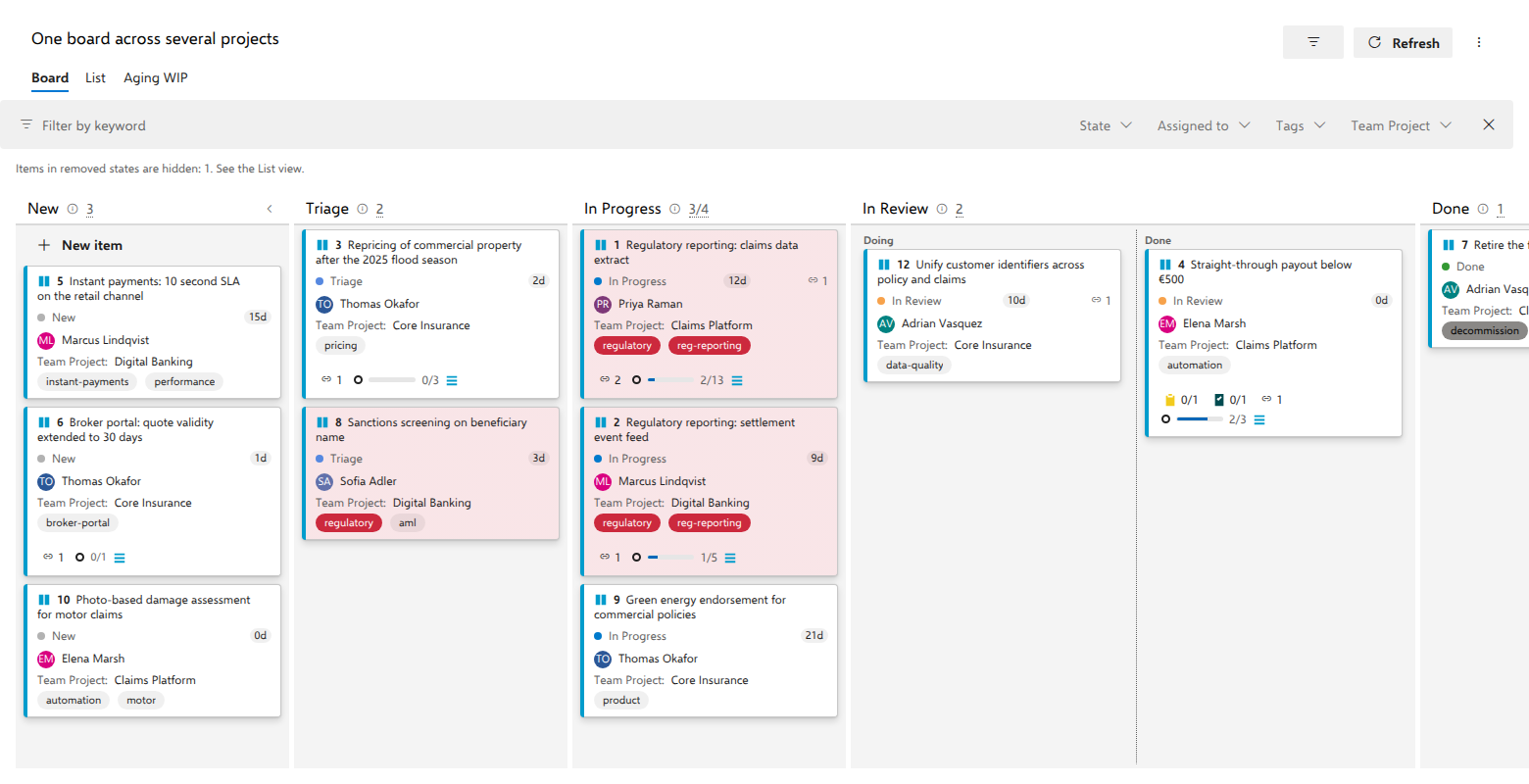
- Drag a card to another column to change its state. While you drag, the card visually moves into the hovered column and the gap between cards shows the exact position it will take when you drop it.
- Drag within a column to reorder. The new position is written to the process's order field, so everyone sees the same order, the query and the backlog included. On a board of backlog items (requirement or portfolio level) the order belongs to the backlog, so reordering is off unless the board's settings turn on Reorder from this board. Take priorities, in the … overflow, reorders such a backlog from a request board after a preview instead (see Put the backlog in the order of its requests).
- Dragging also works with the keyboard (focus a card and use the keyboard drag interactions); screen readers announce pick-up, movement, and drop.
- The card menu. Hover a card and select the ⋯ button (right-clicking the card opens the same menu). It carries Open, Edit title, Move to top, Move to bottom, Move to column ▸, Move to iteration ▸, Move to position…, the add entries the board's card sections allow (Add task; on a portfolio card, Add with the type of the level below, such as Add Feature; Add related; and Add test where the tests section is on), and Delete. The add entries are offered whether or not the card already has links of that kind. On a board of backlog items, the reorder entries give way to a line saying why, such as Reordering is off because the backlog owns this order. Moving from the menu is handy when dragging across a long board is awkward.
- Move to iteration lists the iterations of the card's own project, not of any team, so on a board spanning several projects each card offers its own. A sprint is marked Current when today falls inside its dates. Choosing Backlog clears the iteration.
- Move to position asks for a number and moves the card there within the list the card is in (the right swimlane row, the right side of a split column). The number counts the cards a filter hides, as the native board counts them, so with a filter on it can be larger than the number of cards you see. It opens with the card's current position selected, so you type the new number and press Enter; Cancel or Escape closes it and returns focus to the card's ⋯, as a save does. It is absent on boards of backlog items, where the order belongs to the backlog.
- Delete asks for confirmation and sends the work item to the project's recycle bin, where an administrator can restore it. AnyKanban never deletes permanently. Cancel or Escape on the confirmation returns focus to the card's ⋯.
- Edit title turns the card's heading into a text box: Enter or clicking away saves, Escape cancels, and an empty title cancels rather than saving (every process requires a title). The save goes through the same checked write as everything else, so a rejection restores the old title and tells you why.
- If a move is not allowed (for example, a state transition your process rules forbid), the card snaps back and a message explains why. See "When two people edit at once" below.
The List view
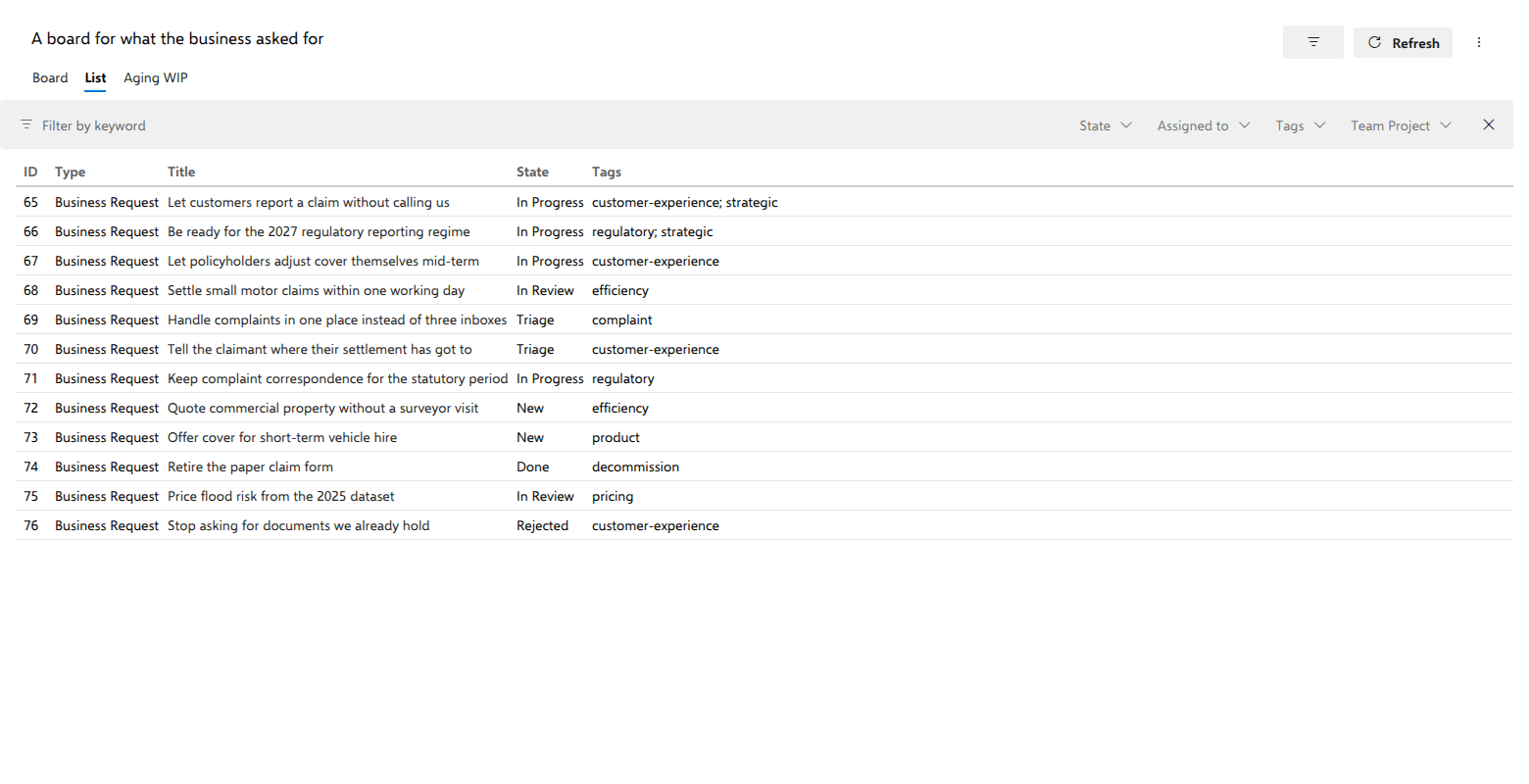
The Board / List switcher sits above the board. The List view shows the same items as a dense, reorderable list in query (rank) order. Drag a row onto another row to reorder, except on a board of backlog items, where reordering stays off unless Reorder from this board is turned on. Its columns are the board's: Column options above the list opens the board's settings on the List tab, where they are chosen for everyone. Your choice of Board or List is remembered per user and per board, so the view you left is the view you return to.
Every row offers the card menu: hover the row and select the ⋯ at its right-hand end, or right-click the row. The entries and the conditions are the item card's, and three things differ because the List has no columns:
- Move to top, Move to bottom and Move to position… count the whole List, including rows a filter hides and rows not yet shown by Show more. The dialog is titled Move to list position. They make the same move a row drag makes, so they are offered on the rows you can drag and write the same order field.
- Move to column moves the item to that column as the card's entry does, but writes no new order, so the row keeps its place in the List. On the board the card also goes to the bottom of the new column.
- Edit title turns the row's Title cell into the text box, and the add entries (Add task, Add related and the rest) open a dialog with the box the card would show. Under the box it lists what the item already has of that kind, and the new item appears in that list.
In an as-of snapshot the rows have no menu, as the cards have none.
Task and bug checklists on cards
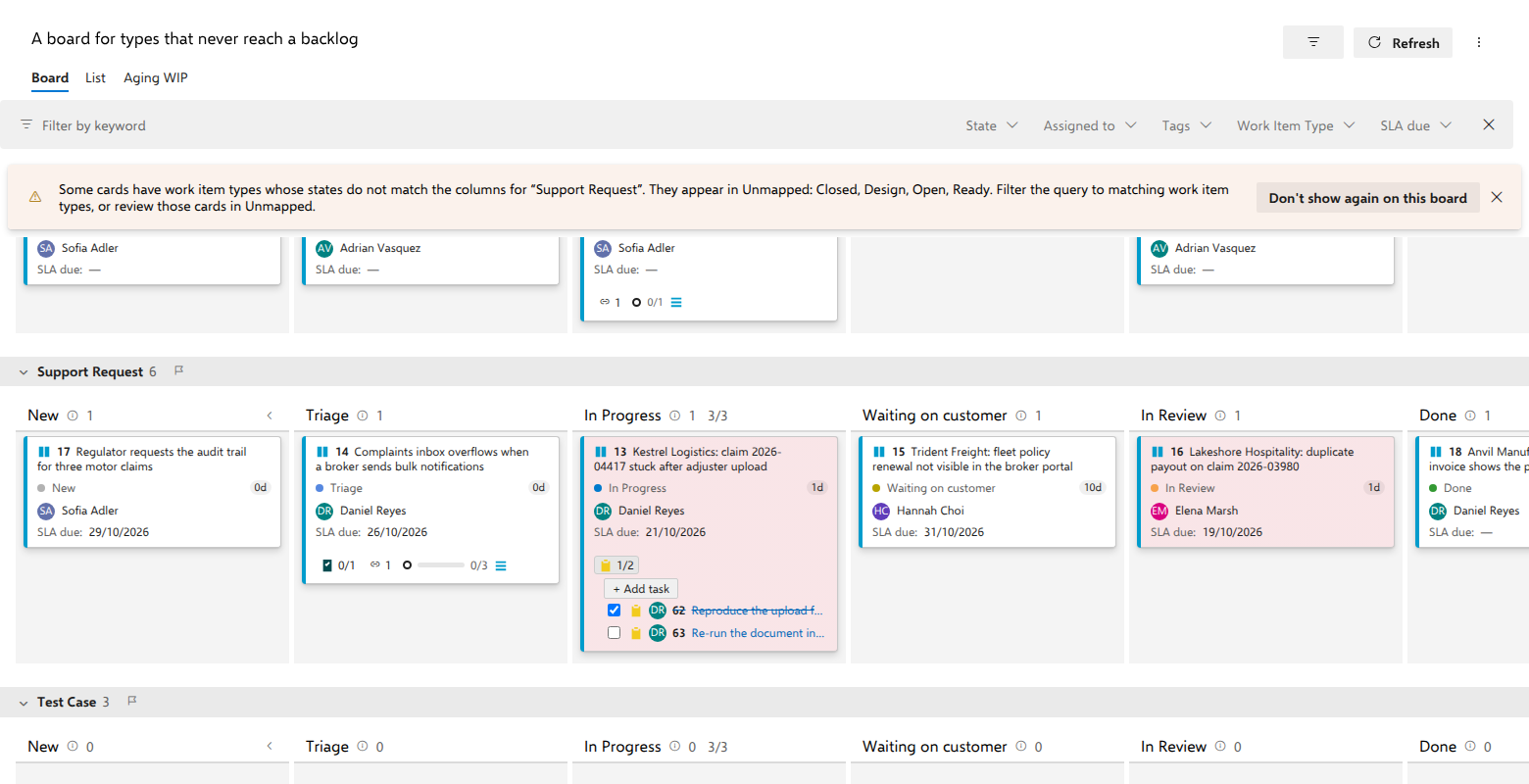
A card whose work item has child tasks shows a task chip in the card's chip row: the Task type icon and a done count (for example 3/5). It works like the checklist on the native board, on a board driven by a query. Click the chip to open its rows. Only one chip is open at a time.
- Check a task to complete it: the task moves to its process's completed-category state (whatever that state is called in your process). Unchecking returns it to the first proposed-category state. If your process rules reject the transition, the checkbox reverts and the server's message appears.
- Drag tasks to reorder them; the order is written to the process's own ordering field, so the sprint taskboard and queries see the same order.
- Add, under whichever chip is open, creates a child of that kind under the card's work item, in the parent's project, area path and iteration path, like the native checklist. It is named after the type it creates (Add Task, Add Product Backlog Item, Add Feature), and the box stays open for the next one.
- Clicking a task's title opens the native work item form.
- A bug chip appears when the board is configured for it (Cards › Annotations → Show bugs on cards). When you create a board, the checkbox is pre-set from your organization's Defaults for new boards. Where those say nothing about bugs, it follows the Working with bugs setting of the host project's default team, and no other team is asked. The board keeps its own explicit choice afterwards, because on a cross-project board different teams answer that question differently.
- A tests chip (Cards › Tests → Show test cases on cards, on by default for boards of backlog items) lists work items linked with Tested By, whatever their type. Checking one moves it to its process's completed-category state. Their order is stable but not yours to arrange, being state and then id, because Azure DevOps has no ordering for these links, and an order nobody controls must at least never surprise, so there is no drag. Add test writes a new test case and links it; Link existing finds one that is already there. We create the test case and the link and nothing more. The native board also builds a default test plan and suite, and we do not.
- A checklist row is a checkbox, the child's work item type icon, its assignee and the title: the same four things, in the same order, that the native card shows. There is no state in words: the checkbox already says whether the child is done, and that room goes to the title. A title too long for one line is still cut, and hovering gives it back in full, so you rarely have to open an item to know which one it is. Linked work items are the exception: their rows have no checkbox (you do not close another team's epic from a card), so they keep a state badge instead.
- Hovering a chip says what it counts, in your Azure DevOps theme's own colors, so it reads the same in light, dark and high contrast. The tooltip cannot be clicked and never blocks the rows a chip has just opened.
- On a board of backlog items, a card's backlog-level children (a Feature's stories, an Epic's features) appear behind one chip for each child work item type. The chip shows that type's icon and a done count, and the children are ordered by the backlog's own rank. Hovering the chip names the type, for example 0 of 3 Feature completed. Its rows carry the same checkbox the native board draws there: always offered, never grayed out in advance, and if a process rule refuses the close the tick comes back and the message says why. That is exactly what the native board does, measured rather than assumed. The chip row ends in the card's own subtree rollup: a mark, a bar, the total, and the type icon naming what was counted. Click it to see what the number was counted from: the breakdown lists the work item by work item, and gives the per-level answer in full words, so the number the native board shows for the level below is one click from ours for the whole subtree.
- Linked backlog items are a different matter: the link chip's rows never get checkboxes, because you do not close another team's epic from a card.
- In an as-of snapshot the checklist is hidden: a snapshot is read-only, and its children would be today's, not the snapshot date's.
Related work items and the rollup
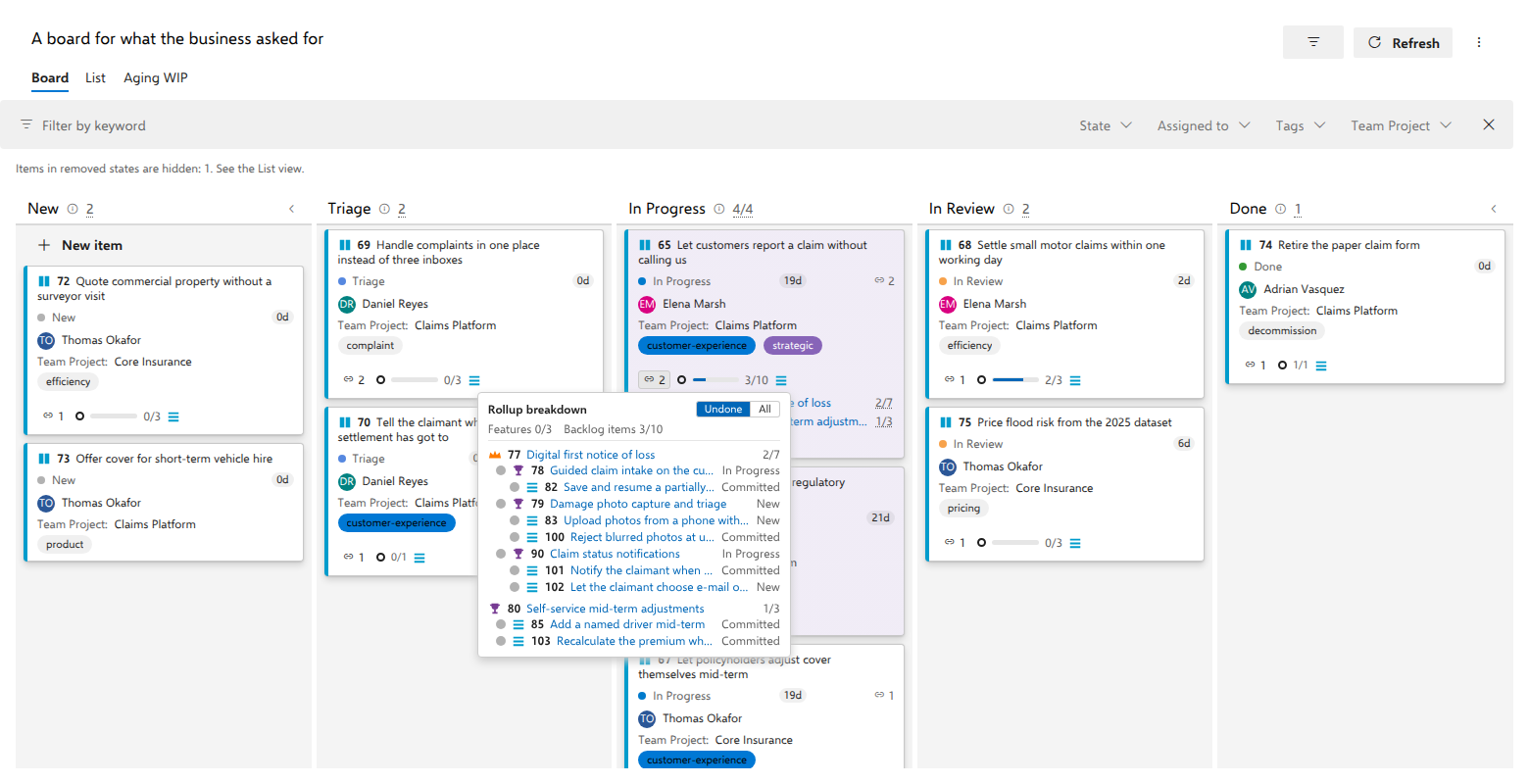
Cards › Annotations → Show related work items on cards decides this, and your board answers it already: a board over a type that sits outside your backlogs starts with it on, a board over backlog items starts with it off, because there the rollup counts the card's own children instead. Either way the card menu's Add related links an existing work item; on a board that does not draw them, the board confirms the link in a message rather than on the card. Its search box takes an id or part of a title: a title is matched in every project the board's cards come from, an id in any project. With it on, every work item linked to the card with a Related link appears behind a link chip in the card's chip row, which is one row for everything a card carries, with the links after the tasks and tests. Click the chip for the list. The rows split into two groups, derived from your process and never configured:
- Planned work. The linked item's type is on some backlog level (epics, features, stories…). These rows carry a progress count, and the chip row ends in one rollup for the whole card: a link ring, a progress bar, the total such as
8/22, and the icon of the level it counts (a screen reader announces it as8/22 Backlog items). When more than one item is linked, its tooltip says so: Rollup breakdown across 2 linked items. Click it for the breakdown: the per-level answer in full words,Features 3/17 · Backlog items 8/22, and then the counted items themselves. The unit is always the requirement level of your process (Stories, Backlog items or Requirements), the only level that means the same thing everywhere, and its label comes from the process itself. - Related. Everything else shows a plain state badge, colored by the state's category in its own process. Nothing more is claimed, because nothing more is known.
Every count is a link to its evidence. Click the rollup at the end of the chip row, or the count on any planned row, and a details flyout opens with the breakdown by level (Features 3/17 · Backlog items 8/22 · Tasks 40/61), by linked item, and the items themselves:
- The hierarchy is always drawn, indented under the linked item. Items excluded from the count appear dimmed with the reason written on the row: removed-category, another project, or a state their process cannot judge.
- Undone (the default) leaves out finished branches, which is the short answer to "what is left?". A parent stays when anything under it remains, because a row indented under nothing lies about whose work it is.
- All shows everything, so a finished branch is one click away rather than gone.
- Every title in the section and the flyout, like every checklist row, is a link that opens the native work item form.
- The Undone/All choice is remembered per user, like your collapsed columns, because it is your way of reading a list rather than a property of the shared board.
- Esc or a click outside closes the flyout.
Details worth knowing:
- There are no checkboxes in this section, by design: you never close someone else's backlog item from a card.
- An undecomposed linked item counts as itself: a card linked to one backlog item nobody has broken down reads
0/1, one unit of work whose state is known and not yet done, and the unit is the item's own level (counted in Features when the linked item is a Feature, never in a silently borrowed "Backlog items"; the breakdown and a screen reader name it). A genuine0/0survives when the linked item has structure but nothing under it can enter the count: its only children were Removed, or they all sit in other projects or in states no process can judge (each exclusion reported: the warning banner says so and the flyout shows the rows dimmed with their reason). It renders compactly (a smaller count in the secondary text color, no progress bar): in the Removed case especially, counting the container again would resurrect a branch its owner deliberately killed. A0/0+(lower bound) keeps the full render, because "could not count" is information. - A linked item with children but none at the requirement level (say, a card linked straight to a backlog item whose children are tasks) falls back to counting direct children, and the label says so.
- Beside a linked item that has backlog items, one with none is left out of the total, and the card says so. Link a Feature broken down into three backlog items and a Feature nobody has broken down, and the rollup reads
0/3: it counts backlog items, and a Feature is not one. Its tooltip adds One linked item has no Backlog items to add, so this count leaves it out, the breakdown's per-level answer carries the second Feature asFeatures 0/1, and that Feature's own heading reads0/1. The same goes for a linked epic whose features have no backlog items yet. A linked item whose backlog items sit in another project, or that you cannot open, is left out of the total too, and the tooltip does not claim it has none: those items are reported like every exclusion, by the warning banner and as dimmed rows in the breakdown. - Counts followed by
+are lower bounds: the descendant tree hit a size cap or some items could not be read. The same fact appears as a board warning banner. - Items in a removed-category state are counted on neither side: a removed story is not remaining work. Descendants in other projects and items whose state the process cannot judge are not counted (native parity), and every exclusion is reported: the warning banner says it happened, and the flyout shows each excluded item dimmed with its reason.
- The link is bidirectional in Azure DevOps: linking a card to an epic also makes the card visible on the epic's own Related list, which is good for traceability and worth knowing before you link.
- In an as-of snapshot the whole chip row is hidden, links and rollup included, like the checklists: descendant counts have no history to replay, and pairing today's hierarchy with the snapshot's fields would be a quiet lie.
- A link the board could not read (no permission on its project, or it was deleted) still counts as a link: the row cannot be drawn, so the section says how many are missing, the card's count carries the
+, and the board raises its warning banner. A link that becomes readable again brings its row back on the next refresh. - If the rollup itself stops updating, because the descendant query keeps failing, the counts on screen stay, and a banner says they are the last ones the board managed to read. Numbers that quietly stopped moving are the failure this product treats as unacceptable.
- Rows render immediately with the board; the rollup numbers arrive a moment later. There is no spinner, because a link you can already see beats a number you have to wait for.
Adding items inline
The first column has a New item button: type a title and press Enter. The new item is created with fields pre-filled from the query's filter conditions so that it matches the query where possible, and it is ranked at the end of the board. If the query's conditions cannot be satisfied automatically, a toast warns you that the created item does not match the board's query and will not appear on the board. Open it via the work item ID in the toast and adjust it. (With swimlanes enabled, inline add is not shown, so create items from the query or backlog instead.)
Opening and editing work items
- Click a card's title (or press Enter/Space on it) to open the full native work item form in a dialog. When you close it, the card refreshes.
- Click a field on a card to edit it in place: Enter commits, Escape cancels. Identity fields (such as Assigned To) open the native people picker, so you pick real users just like on the work item form. (In the standalone demo environment, where there is no host to provide the picker, identity fields fall back to plain text.) Numeric fields keep their numeric type. Any value your process rules reject is reverted with an explanatory message.
Filtering
The filter bar narrows the board or list by keyword as you type. Dragging keeps working while a filter is active: a card lands directly above the visible card below the slot, after any hidden cards between, or directly below the last visible card at the bottom, so the order you see afterwards is the order you arranged.
Freshness
The board refreshes itself: changes made by other people or in other views appear within roughly 20 seconds while the tab is visible (slower while the tab is hidden), and immediately when you return focus to the tab or after your own changes. There is no need to press F5; a manual Refresh button exists for full reloads. A board whose saved query has no sort of its own also re-reads that query every five minutes, so an edit to the query itself reaches the open board without a Refresh.
Dependency arrows (predecessor / successor)
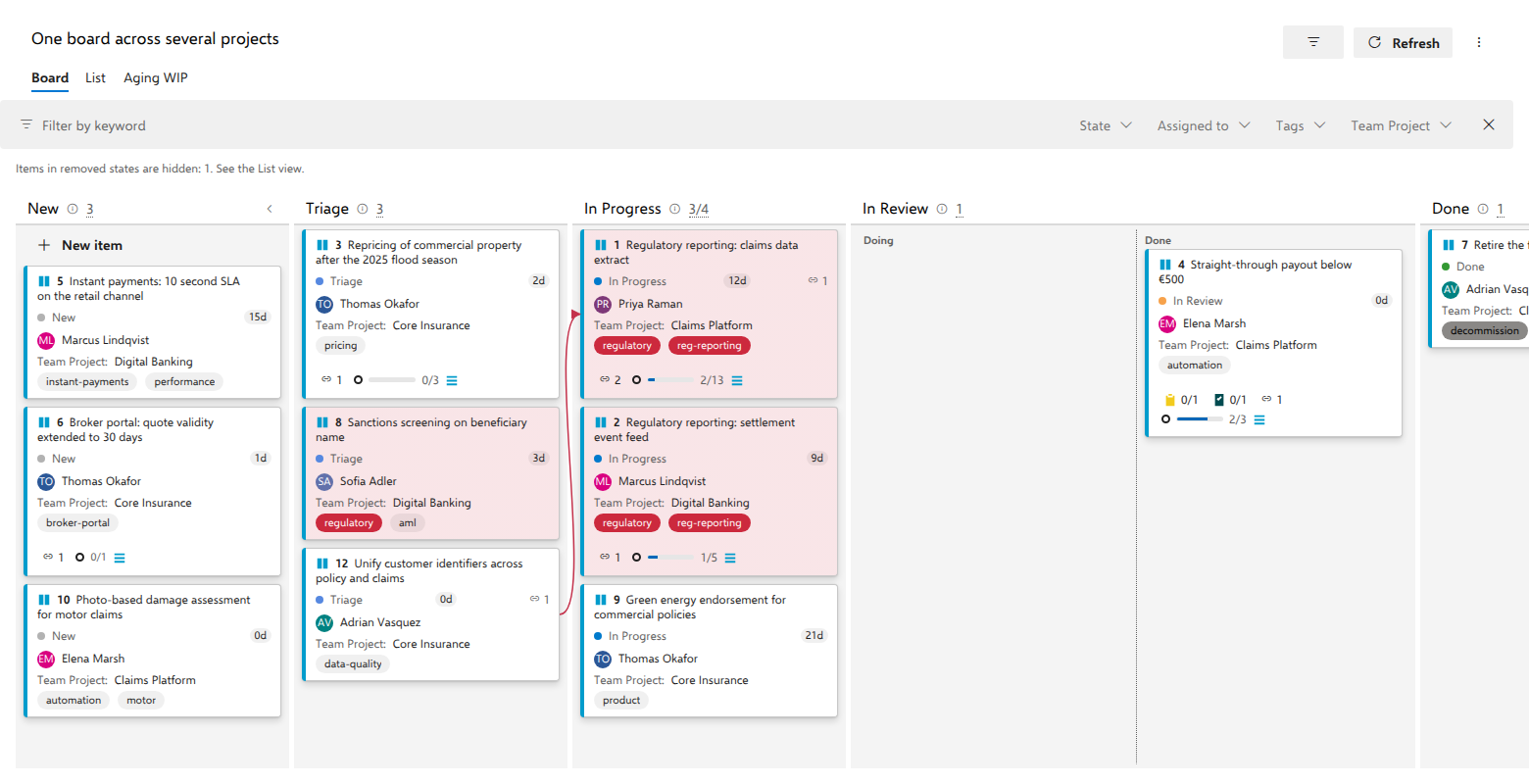
If items on the board are linked with Predecessor/Successor links, their cards show a small link icon with a count next to the state. The visual language is the same as in Delivery Plans:
- Click the link icon on a card to draw arrows for that card's dependencies (click again to hide them). Arrows point from the predecessor to the successor.
- Dependencies in the board's ⋯ menu toggles arrows for all linked cards at once.
- An arrow turns red when the successor sits in a column further along the process than its predecessor, so dependent work has started, or finished, before the work it depends on. A neutral arrow means the order is healthy.
- Arrows only connect cards that are both on the board; links to items outside the query are not drawn. Arrows hide while you drag and while an endpoint is filtered out or collapsed.
Time travel: the "As of" snapshot
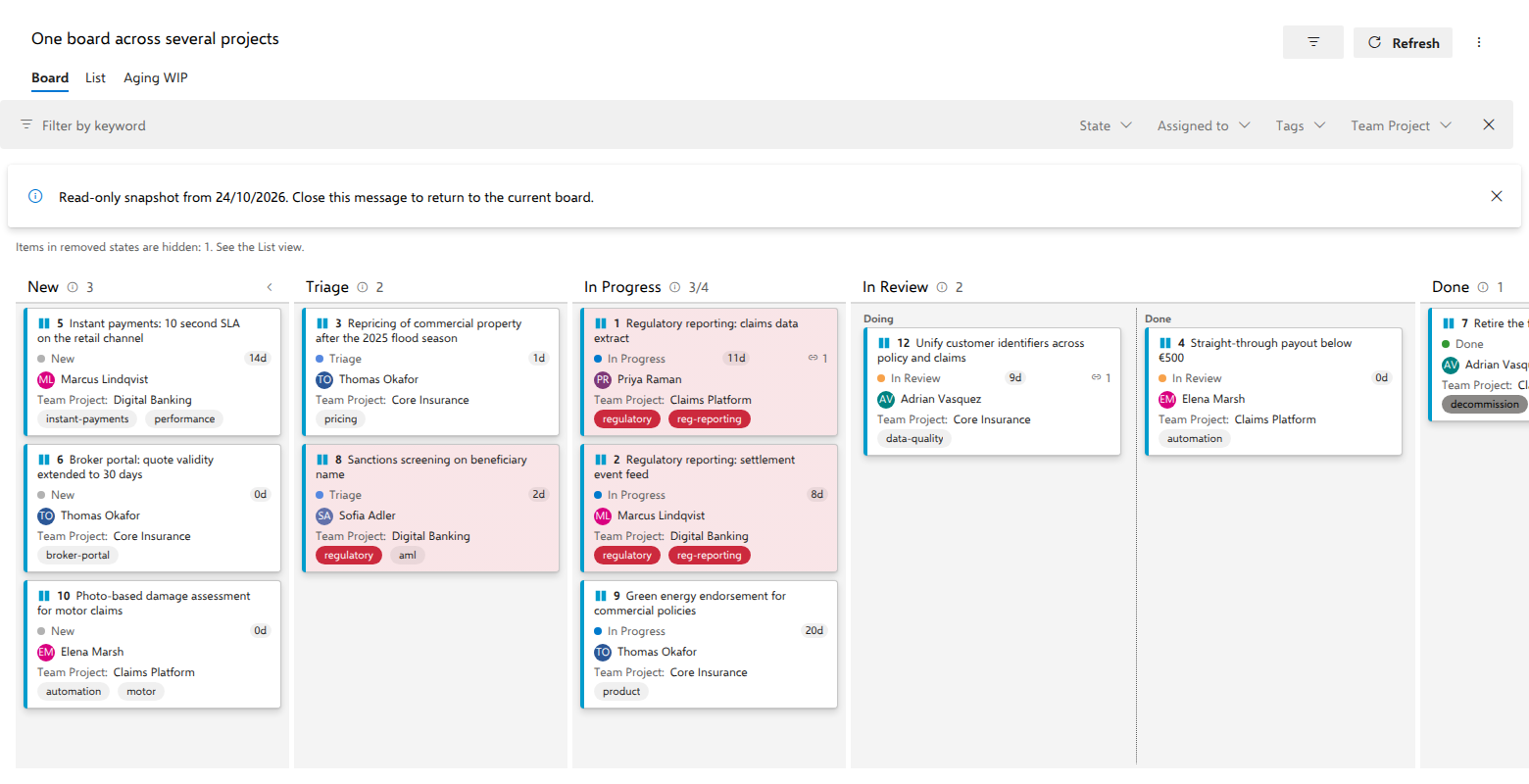
The As of command in the header's More actions menu (the ... button) opens a small panel with a date picker and quick presets (Yesterday, A week ago, Start of this month). It is not offered on a board whose query is a tree query or a work items and direct links query, because Azure DevOps cannot run those queries as of a past date. Picking a date shows the board exactly as it was at the end of that day, with states, order, fields and card placement all coming from the work item history.
- While a snapshot is active, the command shows a check mark and a banner reminds you the board is read-only: dragging, inline add, inline edit and WIP editing are disabled, and background refresh is paused.
- Dismiss the banner (or use Back to now in the As of panel) to return to the live board.
- Typical uses: retrospectives ("what did the board look like at the start of the sprint?"), reporting, and reconstructing when an item moved.
Process transition rules on the board
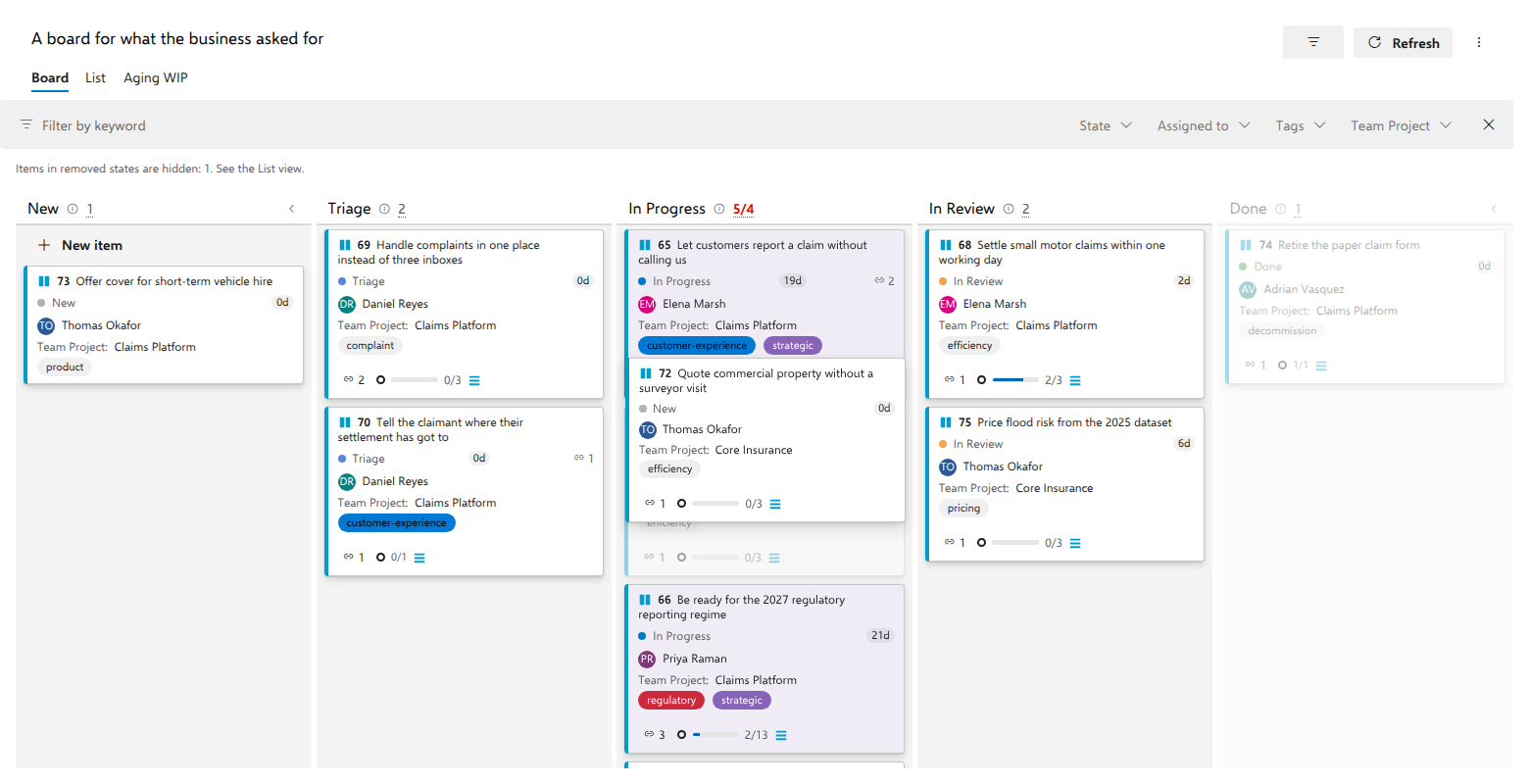
If your process restricts state transitions (inherited-process rules: "a work item state moved from X" → "restrict the transition to Y"), the board respects them proactively:
- While you drag a card, columns the server would reject are dimmed; dropping on a dimmed column cancels the drag and the card returns to where it was.
- The card menu's Move to entries only offer reachable states.
- The verdicts come from the server itself (lightweight validate-only checks), so user- and group-scoped rules are honored for you specifically, and there is nothing to configure on the board.
- If the check cannot run (network hiccup), the board simply falls back to its usual behavior: the drop is attempted and, if the server rejects it, the card snaps back with the server's explanation.
Cross-project queries
A board's query may return work items from multiple projects, and the board reads and writes them all. Columns follow the host project's state model for the configured work item type; items from projects whose states differ appear under Unmapped (fix the query or align the process). Inline add always creates items in the project the board lives in.
Understanding what you see
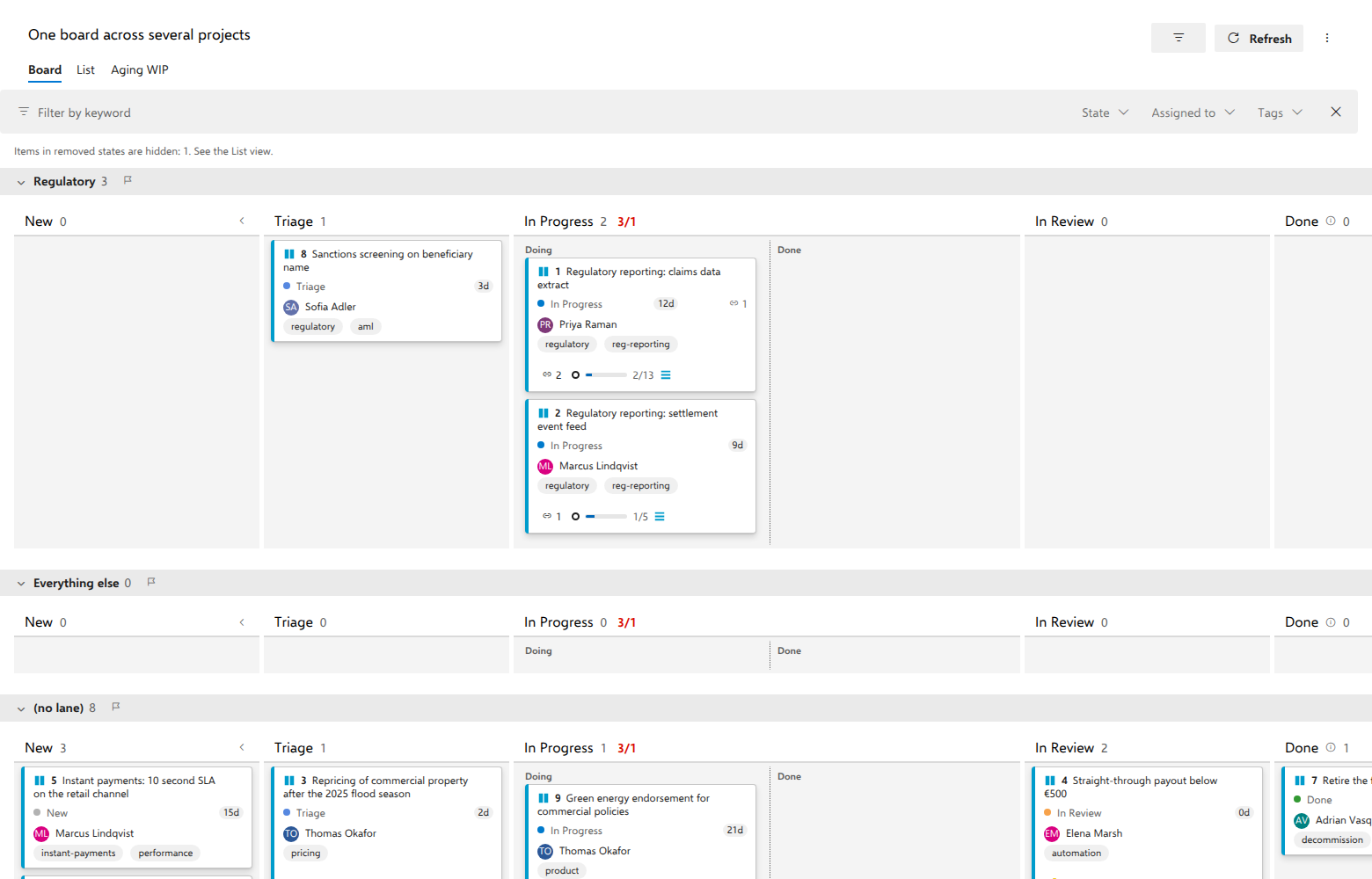
- Column count and WIP limit. Each column header shows its item count. If a WIP limit is configured, it shows
count/limitand turns red when the count exceeds the limit. The count includes all items in the column, even ones currently hidden by your keyword filter, because limits measure real work in progress rather than what you happen to be looking at. On named boards, click the counter to edit the limit in place (Enter saves, empty clears). - Column width. Columns share the window between them: they widen as you widen the browser, stop at the same maximum native Azure Boards uses rather than stretching a card across a whole monitor, and once they no longer fit they hold their minimum and the board scrolls sideways instead of squeezing the cards. The minimum is a little wider than native's, because an AnyKanban card carries fields native's does not, so on a narrow window the board starts scrolling slightly sooner.
- Collapsing. The first and last column collapse to a narrow strip via the chevron in their header (the strip still accepts drops); swimlane rows collapse via the chevron in the lane header. Both are remembered per user.
- Definition of done. An info icon next to the column name. hover or focus it to read the column's definition of done.
- The left strip. The 4px strip down a card's left edge is the work item type's own color, the same channel native Azure Boards uses for it. On a board that mixes types (or spans projects), each card shows its own type's color, not the board's.
- Card colors. A tint behind the card means a style rule matched it (rules are evaluated in order; the first matching rule wins). The tint never touches the left strip, so a card can tell you both things at once: what it is, and which rule it matched. Tag pills use the configured tag colors.
- Columns over the same state. On most boards a column is a state, and the column header and the card's State field say the same thing. On a board that defines several columns over one state, the state still says what the process thinks and the column says where the team put the card, recorded in a field you can query. A card that has never been placed, or whose placement names a column that no longer exists, sits in the first column of its state; nothing is ever stranded, and renaming or reordering columns rewrites no work items.
- Split columns. A column configured as split shows Doing and Done sub-columns. Dropping a card on the Done side sets the bound boolean field to true (Doing sets it to false); moving the card out of the split column clears the flag. Because the flag is a real field, you can query and chart it.
- Swimlanes. Each lane is a row. A card sits in the first lane whose conditions it matches, and cards that match no lane sit in the "(no lane)" row. Dragging a card into a lane writes that lane's equality conditions to the work item. A board that uses a lane field instead of named lanes shows one row per value of that field, plus "(no lane)" after them for items without a value, and a drop writes the field.
- The Unmapped column. Items the board cannot place are never silently dropped: they appear in an Unmapped column on the right. This happens when the query returns work item types other than the board's configured type, or items in states unknown to that type. You cannot drop cards onto Unmapped, because the fix belongs to the query (narrow it to the right type) or to the board configuration (pick the right work item type).
- Removed-state items. Items in states of the Removed category are hidden from the board, exactly like on native boards, and a note above the board tells you how many are hidden. The List view still shows them, because the query remains the complete source of truth.
- Notices above the columns. When the board has to degrade it says so in a message bar above the columns: a rank field the type does not carry, items the query returned but you cannot read, a type mix that filled Unmapped. Each one carries the same close button Azure DevOps puts on its own messages. Dismiss it and it stays gone while the condition holds, including across the automatic refresh. Reopening the board or saving its configuration says them again, and a condition that clears and later returns raises its notice afresh, because that is news rather than the message you closed. Two are deliberately not closable: the rate-limiting notice, which clears itself the moment the pause lapses and is the only explanation for a board standing still, and a load error, which is shown instead of the board. On the List and Aging WIP tabs the notices that apply there sit in the same place, above the list or the chart, at their full height and with the same controls, however long the list is: the list and the chart scroll in the space below them.
- Hiding a notice for good. Where the condition is never going to change, closing the notice every week is not an answer. Such a card carries a second control, Don't show again on this board, which is yours and that board's: it is stored against your account in your own Azure DevOps, it survives a reload and a change to the board's configuration, and nobody else who opens the board loses the notice. Bring one back from the board's More actions menu, where a Show again entry appears for each notice you have hidden on that board. Notices saying the board has stopped being current are never offered the choice, however often you meet them, because a board sitting quietly under one of those would be showing numbers that are no longer true.
- Very large boards. Columns and the list render the first 200 items and offer Show more below (native boards page large columns the same way), so boards stay fast well beyond a thousand items. Queries are loaded up to 5,000 items; beyond that a warning asks you to narrow the query.
When two people edit at once
Simultaneous edits never lose an update. Every change the board writes is protected by a version check on the work item:
- If someone else changed the item first, the board fetches the fresh version and retries your change once against it, and usually you never notice. If the other person already made the exact same move, there is nothing left to do.
- If the change can no longer be applied, the card reverts to where the server says it belongs and a toast explains that the item was changed in the meantime.
- If your process rules reject a change (for example a forbidden state transition), the card snaps back and the toast shows the server's own rule message.
The same applies to reordering: rank maintenance runs safely in the background, and if a step is lost to a concurrent edit, the next automatic refresh converges everyone to the same order.
Troubleshooting and FAQ
| Symptom | Cause and fix |
|---|---|
| The board is empty | If it says "The query returned no items.", check the query's filters, or run the query in the query editor to confirm. If you picked another level from the Level selector, the sentence names that level instead and says what the board found for the items the query returned: no parent on that level (or, below it, nothing under them), or nothing on that level when some items could not be placed, which a notice above the board counts. Above the board's own level, More actions › Include items with no children adds that level's items nobody has broken down yet. See Board another level of the same query. On a board filed under a team, a sentence naming the team means the board found items and every one is outside that team's area paths or backlog iteration: widen the team's scope, or move the board to the project list with Move to…. |
| A notice says items from other levels "remain in the hierarchy but are not shown as cards" (on a board of a whole backlog level: tree items "are structure rather than cards") | The backing query is a "Tree of work items" or "Work items and direct links" query. It loads: the board flattens it to the distinct items it returns, shows the board's level or work item type as cards, and counts the other items, meaning the roots the query hangs from, intermediate levels and task children, as the tree's structure. To show a different level as cards: on a named board of a backlog level, pick it from the Level selector in the board's toolbar. On a board without that selector, the notice asks you to change the query; changing the board's work item type in board settings also works when the query returns items of that type. If you change the query, keep it a tree query: converting it to a flat list would lose the subtree it selects. |
| Reordering does not work | The board shows backlog items, whose order belongs to the backlog: the card menu says so, and reordering stays off unless Reorder from this board is turned on in the board's settings. Or the query sorts by another field, which a line above the board says. Or the work item type carries neither Stack Rank nor Backlog Priority, which a warning banner says, and an admin adds the process's field under Organization settings > AnyKanban > Fields (Reordering). |
| The order looks different in the query results | The query sorts by something other than the order field ascending. Remove its sort, or sort by the order field ascending, so all views agree. |
| A yellow notice I hid is back the next time I open the board | Closing a notice means "not now" and lasts one session, on purpose. For a condition that is never going to change, use Don't show again on this board on the card instead. It is stored per user, per board, and it stays hidden until you restore it from More actions › Show again. |
| A notice I hid will not go away | It is one of the notices that may never be hidden: a failed refresh, a connection being re-established, or counts frozen at their last good values. Those say the board has stopped being current, so only the session close button is offered and the notice returns as soon as the next cycle fails again. |
| I added an item and it vanished | The new item does not match the backing query (a toast warned about this at creation). Open the item by ID and change it to satisfy the query, or adjust the query. |
| A colleague's change is not visible yet | Changes made elsewhere appear within about 20 seconds, or immediately when you re-focus the tab. Use Refresh for an instant full reload. |
| Cards sit in an "Unmapped" column | The query returns other work item types, or states the configured type does not have. Narrow the query or fix the board's work item type in configuration. |
| Some items are missing from the board but the note says items are hidden | They are in a Removed-category state (for example "Rejected" style states). This mirrors native board behavior. Switch to the List view to see them. |
| "The query exceeds Azure DevOps' limit of 20,000 items", or "Refreshing is paused because the query now matches more than Azure DevOps allows" | Azure DevOps caps query results at 20,000 items. Narrow the query's filters. A board that already loaded keeps its last cards on screen and resumes updating once the query is back under the limit. |
| "This board is showing the first 5000 of N matching items" | A board loads at most 5,000 items from its query, and any items past that are left off. Narrow the query to show every item. Columns and the list show 200 items at a time, and Show more adds the next 200. |
| The split (Doing/Done) option is missing | No Done-flag boolean field is configured in Board › Columns (and on the work item type). Add and bind one, as Prerequisites describes. |
| The board shows one column per state again, not the columns we configured | The column placement field is not configured, or is no longer on the work item type, and a banner above the board says which. Several columns over one state cannot be told apart without it, so the board falls back to one column per state rather than half-working. Re-add the field to the type, or pick another one in Board › Columns. |
| The board, or the whole extension area, shows "Service Unavailable" or an empty frame | Azure DevOps serves the extension's own files from its gallery CDN, and that answered an error. Nothing inside the board can recover from this, because none of its code loaded: reload the page. If other extensions in the left menu are also failing to open, it is not this extension but that part of Azure DevOps, and it usually clears within minutes. |
| A notice says the board's connection to Azure DevOps was interrupted, or that Azure DevOps treated AnyKanban's request as anonymous or did not issue an access token | Azure DevOps did not accept the request as signed in, or stopped answering it. It is not your permissions, your query or your data, and nothing was written. If the board had already loaded, it keeps its last read state on screen; otherwise the notice stands where the board would be. Either way AnyKanban reconnects by itself and the board comes back without you doing anything. If the notice is still there after a few minutes, open another hub and come back, or reload the page. |
| The header says the extension "is taking longer than expected to load" | That message is Azure DevOps', not AnyKanban's, and it means the extension's files were slow to arrive, most often right after a new version is published, or while that part of the service is struggling. The board loads normally once they do. |
| My change was rejected with a rule message | Your project's work item rules refused the change (e.g. an invalid state transition or a required field). The board reverted the card; make the change on the full work item form where the rule can be satisfied. |