A board for types that never reach a backlog
Support requests, customer feedback, impediments, risks and test cases are real work with real states, and none of them appear on any backlog. Azure Boards draws a board for the backlog levels of a team, so a work item type that sits outside that hierarchy has no board at all. The items exist, people work on them every day, and the only way to see them together is a query result: a flat table, with no columns, no flow and no order anyone agreed on.
AnyKanban closes that gap without changing anything about your process. A query finds the items, the work item type's own state model supplies the columns, and everything the query returns becomes a card.
This guide is written for the process owner or team lead who runs this kind of work. It covers the query, the board, telling several types apart, making service-level pressure visible, and, the part that decides whether the board is trusted, what happens when the types you put on one board have state models that do not line up.
The types this guide is about
The demo organization runs the same five types most insurers and banks end up with beside their delivery backlog:
| Type | What it holds | Why it has no board |
|---|---|---|
| Support Request | Customer and broker incidents, with a service-level date | Not a backlog level. It feeds delivery work rather than being delivery work |
| Feedback | What users and brokers tell you, before anyone decides what to do about it | Deliberately outside the backlog: most of it never becomes a work package |
| Risk | Operational and audit findings under active management | Governance, tracked by a different group of people entirely |
| Impediment | Blockers raised in the Daily Scrum | A Scrum process type that is not on a backlog level |
| Test Case | Regression evidence | Lives in Test Plans, not on a backlog |
Each one already has states, an owner and a life cycle. What none of them has is a column.
The query
Board membership comes from one saved flat query. For the support desk in the demo organization, with the neighboring types it works alongside:
SELECT [System.Id]
  FROM WorkItems
 WHERE [System.TeamProject] = 'Claims Platform'
   AND [System.WorkItemType] IN ('Support Request', 'Feedback', 'Impediment', 'Test Case')
 ORDER BY [Microsoft.VSTS.Common.StackRank] ASC
Three details separate a board that works from one that half-works:
- Flat list of work items is the natural shape here. A tree or a "work items and direct links" query loads too, and the board flattens it to the distinct items it returns, but the types this guide is about sit outside every hierarchy, so a flat list says exactly what you mean and nothing more.
ORDER BYthe type's order field, ascending, or noORDER BY. The board derives the order field for each type: your process's own order field when the type carries it, otherwise the other platform field. The demo process inherits from Scrum, so its own order field is Backlog Priority (Microsoft.VSTS.Common.BacklogPriority). Support Request is a custom type without Backlog Priority, so once Stack Rank (Microsoft.VSTS.Common.StackRank) is on the type, Support Requests order by Stack Rank, and that is the field this query sorts by. Sorting by the order field keeps the board, the List view and the query results page telling the same story. Without the clause, the board adds that order to the query it runs. A query sorted by anything else shows that order and reordering is off.- A type that lacks the field is shown and never reordered. The board derives the order field per type: a card of a type that carries neither Stack Rank nor Backlog Priority moves between columns and lanes, cannot be dragged within a column, and its menu says why. Nothing is written into a field the type does not carry. Ask an administrator to add the process's field to that type under Organization settings > AnyKanban > Fields (Reordering), as Prerequisites describes.
Risks in the demo organization live in Core Insurance, not in Claims Platform. Widening the board to include them is a query edit and nothing else: add 'Risk' to the type list, widen the project clause to IN ('Claims Platform', 'Core Insurance'), and turn on Query across projects in the query editor. Without it, Azure DevOps scopes the query to the project it is saved in. The board needs no change at all: it reads and writes items in every project the query returns.
Screenshot pending: The backing query in the query editor: flat, several types, ordered by rank
Building the board
- In your project's left navigation, open Boards and select AnyKanban.
- Select New board. The suggestions gallery opens. Choose Use existing query, and the board settings panel, titled New board, opens on General.
- Board name. What the team calls this work, for example Support desk.
- Backing query. Pick the saved query. Queries are listed with their folder path, and only the first two levels of the query tree are offered, so keep board queries near the top of Shared Queries.
- Work item type. Pick Support Request. This choice supplies the columns, and it is the one decision on this panel you should make deliberately: pick the type whose flow the board is meant to show.
- Card order. The row appears once the type is chosen and names the field the type orders by. Nothing is chosen here. In the demo organization, whose process inherits from Scrum, Support Request carries no Backlog Priority, so with Stack Rank on the type the row begins Support Request orders by Stack Rank because it does not carry Backlog Priority, the order field of your process. While the type carries neither field, the board has only the process's Backlog Priority to look for, and this query sorts by Stack Rank, so the row says the query controls the order. A query with no
ORDER BYgets a different sentence there: the type does not have Backlog Priority, with the page where an administrator adds it. - Select Create, then open the board from the list.
The columns are the Support Request type's own states, in state-category order: New, Triage, In Progress, Waiting on customer, In Review, Done. Nothing here is hardcoded and nothing is invented. Waiting on customer is a state this organization added, and it becomes a column because the process says it exists. The Rejected state does not become a column: it belongs to the Removed category, and removed-category states stay off the board exactly as they do on native boards.
Then open Settings and make the board readable at a glance:
| Tab | Setting | Why it earns its place here |
|---|---|---|
| Fields | Card fields: Assigned To, SLA due | The date the conversation is actually about, on the card |
| Columns | WIP limit 3 on In Progress | A support desk fails by starting, not by finishing |
| Columns | Definition of done on Done | Written once, read by whoever picks up the queue next |
| Tag colors | sla-breach, regulatory, complaint |
Three tags this queue really carries. Add Tags to the card fields above if you want the colored pills on the cards |
| Styles | An SLA rule, described below |
Two things about card fields on a board like this. Work Item Type is not available as a card field. Like the title, the ID and the state, it belongs to the card's own frame rather than to the list you configure. On a board carrying several types you still tell them apart at a glance: each card shows its own type's icon beside the title and its own type's color on the left strip, so a support request, a risk and a test case look different as long as your process gives them different icons and colors. If Azure DevOps cannot describe a type, for example one that exists only in another project, its cards show a plain square where the icon would be. To group the types rather than just mark them, use swimlanes by type or the List view's Type column. And the counter in a column header counts every item in that column, including the ones your filter is currently hiding, because a work-in-progress limit measures real work in progress not what you happen to be looking at. Nothing is ever blocked; the counter turns red above the limit and that is the whole mechanism.
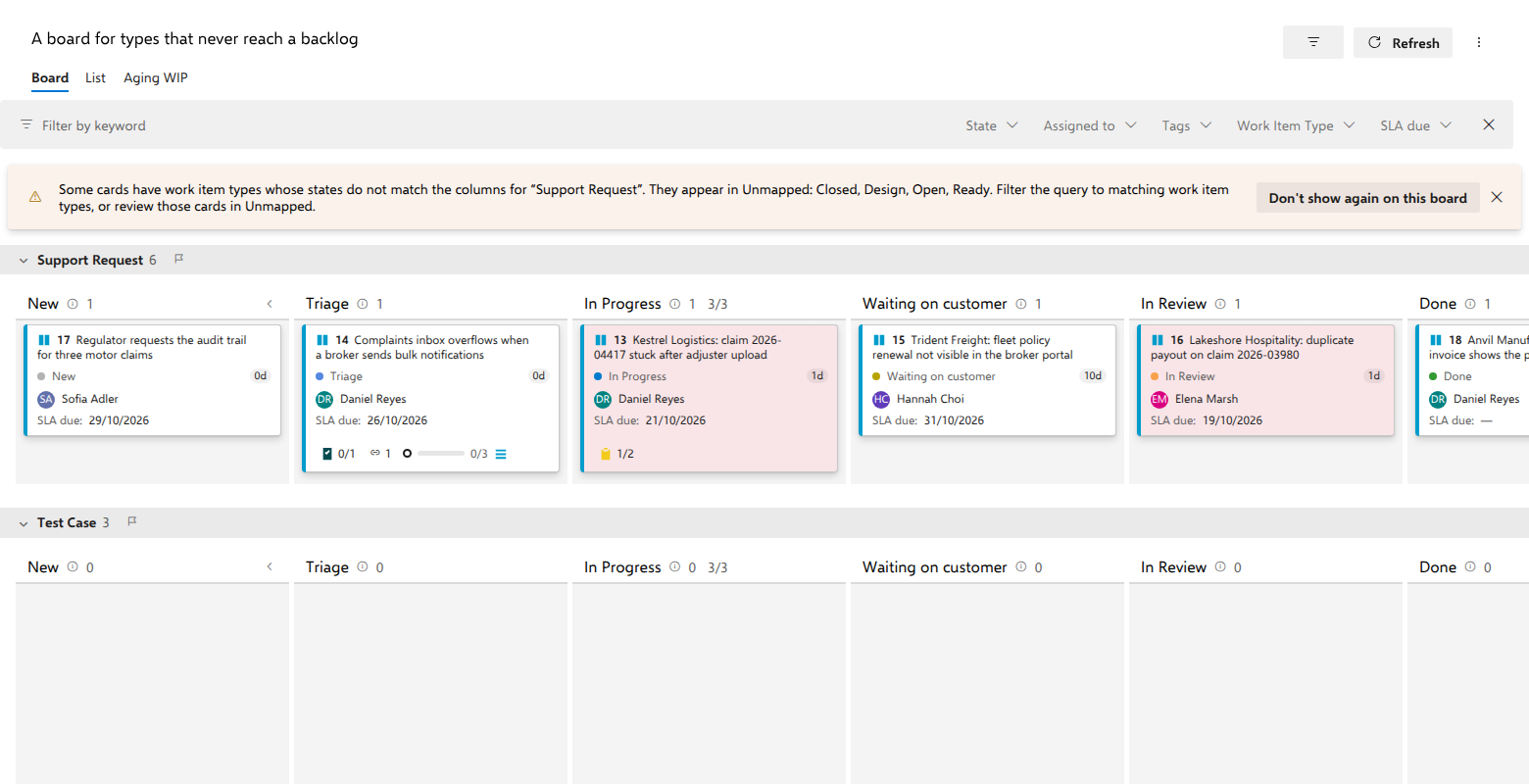
Telling the types apart, with swimlanes by work item type
On a board that carries four or five types, the most useful grouping is usually the type itself. Open Settings → Swimlanes and, in the simple-mode box at the bottom, enter the reference name System.WorkItemType. Leave the named lanes above it empty, because lanes with conditions take precedence over simple mode whenever both are filled in.
The board then renders one row per distinct type in the result set, in alphabetical order, each with its own header, its own collapse chevron and its own count. Support requests, feedback and test cases stop competing for the same column.
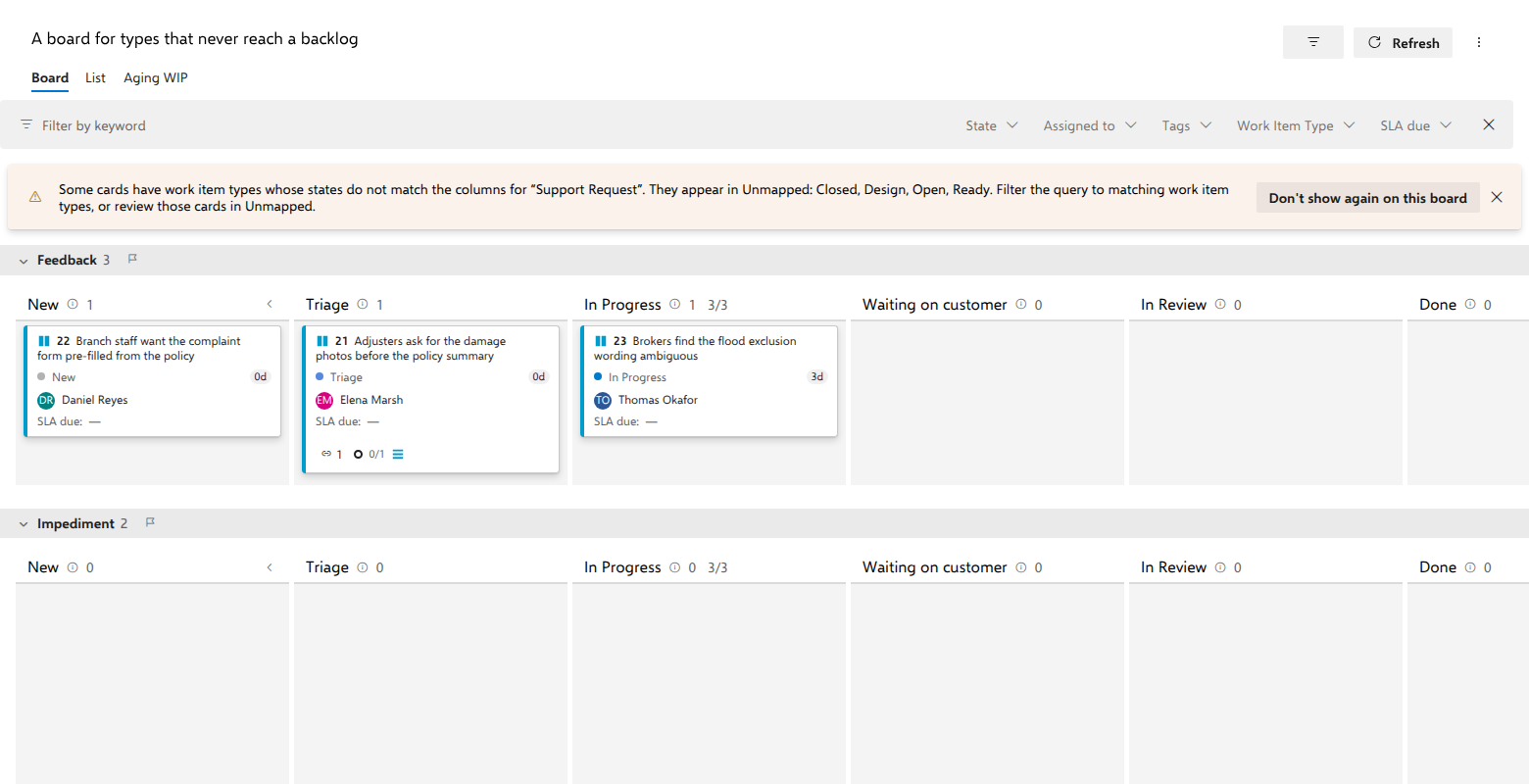
Three things to know before you turn this on:
- Do not drag cards between type lanes. In simple mode, dropping a card into another lane writes the lane field, which here is the work item type, so the drop asks Azure DevOps to change the item's type. Depending on the two types and your permissions, the service may accept that change or refuse it. If it refuses, the card returns to its own lane and the server's explanation appears in a message. Use type lanes as a grouping, not as a control.
- The work-in-progress limit does not split by lane. Every lane row's In Progress header shows that lane's own count and, beside it, the whole column's count against the limit, which is what a work-in-progress limit is supposed to measure, the same as native swimlanes.
- Some affordances step aside while lanes are on. The New item button on the first column and in-place editing of a WIP limit from the column header are both offered only on the unlaned board. Everything else works as usual: dragging between columns, reordering, inline field edits and the right-click menu.
Cards whose state is not a column of the board's type appear in an Unmapped column at the right of their own lane row. The next section explains why.
When the state models do not line up
Put four types on one board and their state models will not agree. This is where AnyKanban makes a deliberate choice, and it is worth understanding rather than working around.
Columns follow exactly one type, the one on the General tab. When the query also returns other types and at least one of their cards is in a state that has no column, a warning card appears above the board:
Some cards have work item types whose states do not match the columns for “Support Request”. They appear in Unmapped: Closed, Design, Open, Ready. Filter the query to matching work item types, or review those cards in Unmapped.
The list after the colon names the states that actually stranded cards on your board. On the demo board it is those four, the states of the impediments and test cases.
Behind the warning is the rule the board follows: a card is placed by its state name, not by its type. If an item's state is one of the board's columns, it goes into that column no matter what type it is. Only items in a state that has no column go to Unmapped, and the column is drawn only while the board holds at least one such item.
On the demo board, widened to include Risks, that works out like this:
| Item | Type | State | Where it lands |
|---|---|---|---|
| "Kestrel Logistics: claim 2026-04417 stuck after adjuster upload" | Support Request | In Progress | In Progress |
| "Trident Freight: fleet policy renewal not visible in the broker portal" | Support Request | Waiting on customer | Waiting on customer |
| "Adjusters ask for the damage photos before the policy summary" | Feedback | Triage | Triage, because Feedback has a Triage state too |
| "Single adjuster can both approve and release a payout" | Risk | In Progress | In Progress, the same state name on a different type |
| "Test environment has no anonymised claims data since the June refresh" | Impediment | Open | Unmapped, because Support Request has no Open |
| "Payout below €500 is released without a second approval" | Test Case | Ready | Unmapped, because Support Request has no Ready |
Feedback and Risk share enough of the support desk's vocabulary to sit in ordinary columns and be managed there. Impediment (Open / Closed) and Test Case (Design / Ready / Closed) speak a different language, and the board says so instead of guessing.
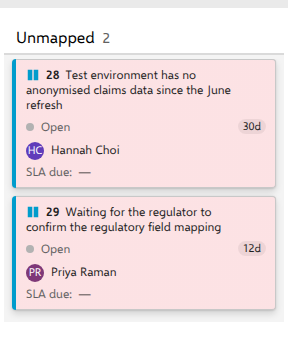
Why Unmapped is a feature
The alternative designs are all worse. A board could drop those items silently, and then the query and the board disagree, and nobody notices until an audit. It could invent columns for every state of every type, and then the board stops being a picture of one flow. It could refuse to load, and then a single stray item costs everyone their board.
Instead: the query is the contract. Everything the query returns is accounted for somewhere.
- Unmapped is not a drop target. You cannot drop a card onto it, because moving a card there would have no state meaning. Dragging a card out of Unmapped into a real column writes that column's name as the item's state, which only succeeds if that state exists for that item's own type, and otherwise comes back with the server's own explanation.
- The column appears only when the board holds an unmapped card. An all-one-type board never shows it. Once it is there it stands in every lane row, empty with a count of 0 in a row that has none, and the filter bar does not take it away.
- The fix belongs to the query or to the type. Narrow the query, split the board in two, or accept the bucket. The board will not change your process to make itself tidier, and it never adds a state, a field or a rule to make an item fit.
- Removed-category items are handled the same way. A rejected support request is hidden from the board, exactly as on a native board, and a note above the board counts them and points at the List view. Hidden, counted, never silently gone.
The List view is the complete answer
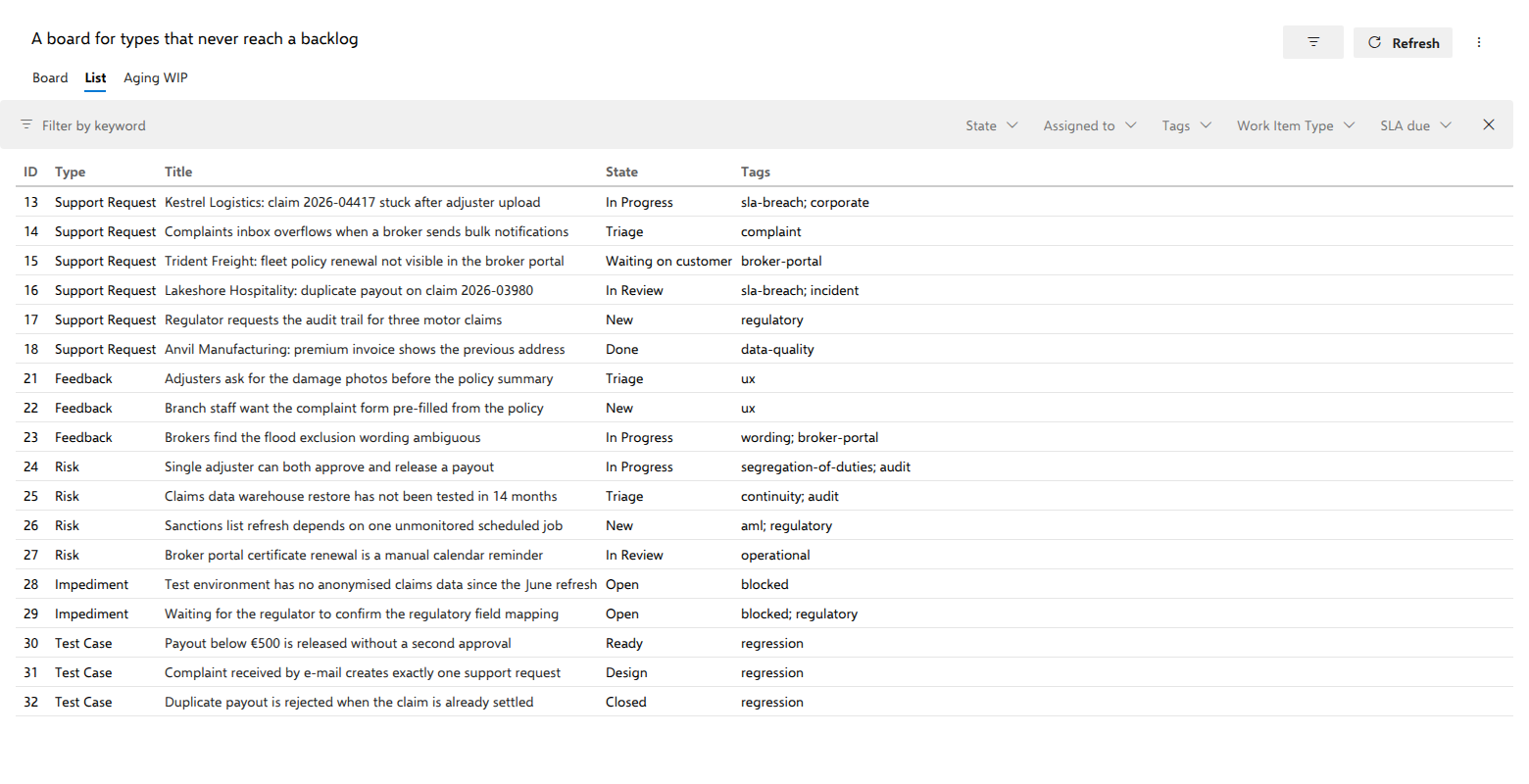
The List view renders the whole query result, meaning every card on the board, everything in Unmapped and the removed-state items the board hides, as a dense table, ID, Type, Title, State and Tags unless the board's settings choose other columns, in the query's own order. Rows drag to reorder through the same rank field as the board.
That is the surface to use when someone asks "what is actually in this queue?". Turning swimlanes on does not hide anything from the board either: whenever any card on the board is unmapped, the Unmapped column appears at the right of every lane row, and each row's Unmapped holds that row's own cards. The impediments and test cases stay on the board, inside the row for their type.
| Unmapped column | Swimlanes by type | |
|---|---|---|
| Items in states the board's type lacks | Shown, on the right | Shown, in Unmapped at the right of each row |
| Grouping by type | None on the board, beyond the List view's Type column | One row per type |
| Inline New item | Available | Not offered |
| WIP limit editing from the header | Available | Settings → Columns instead |
Both layouts show everything the board holds. Turn swimlanes on when you want each type in its own row; leave them off when you want the inline New item button and WIP limit editing from the column header.
Making the service level visible
A support board that does not show its clock is a list with extra steps. Three settings do the work.
Card styling. The demo board carries two rules, and both read tags. SLA breached matches a card whose Tags contains sla-breach. Blocked, below it, matches Tags contains blocked and paints the two blocked impediments a brighter red. To build the first one, open Settings → Styles, select Add rule, name it SLA breached, pick red from the palette, then Add condition: the Tags field, operator contains, value sla-breach. Matching cards get a faint red tint behind them (the left strip keeps showing the work item type).
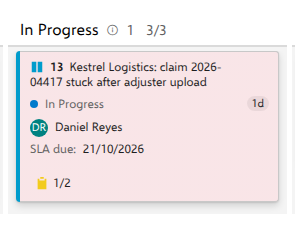
Or read the date instead of a tag. A tag is only there when somebody remembers to add it. If your requests carry the SLA date, a rule can compare the date itself: SLA due, operator <, value @Today matches every request whose due date has passed, tagged or not. The demo board does not carry this rule. On the demo data it would pick out the same two requests the tag rule does, because they are the two whose SLA date has already passed.
How the rules evaluate, in the order it matters:
- All conditions of a rule must match, and rules are evaluated top-down, and the first match wins. A card is never painted twice, so put the rule you most want to see at the top.
@Todayaccepts day arithmetic. For a due soon warning beside the date rule, add an amber rule with SLA due<@Today+2and keep it below the red date rule. A card already past its date matches the red rule first and stops there, so the amber one only catches cards due today or tomorrow.@Meresolves to the signed-in user.- A typed date means the start of that day in your own time zone, the moment
@Todaynames on that day. SLA due=2026-10-10matches any time on 10 October.<2026-10-10means before that day begins and>2026-10-10means after it begins, so a card due at 09:00 on 10 October matches>as well. A text or picklist field that holds a date written the same way, such as a list of release dates, is read as that day too. - An empty value matches nothing. A support request with no SLA date does not accidentally look breached. It looks unstyled, which is its own signal.
- On Tags,
containsmeans "has this tag". A rule on Tagscontainssla-breachmatches the whole tag, case-insensitively, not a fragment of one.
Tag colors. On the Tag colors tab, pick a color per tag name: sla-breach, regulatory, complaint. Tag pills render only when Tags is one of the configured card fields, and matching is exact on the tag name.
Definition of done. On the Columns tab, give Done a definition of done. It accepts bold, lists and links, and it surfaces as an info icon in the column header that opens on hover or keyboard focus, which is where "resolved" gets defined once instead of in every stand-up.
On the card itself
A support request card ends in one row of chips. The related-work chip opens the delivery work the request triggered, meaning the backlog items it is linked to, each with its current state, so you can see whether anything is actually happening without opening the item.
Tasks and linked test cases can join the same row once you tick Show tasks on cards on the Annotations tab and Show test cases on cards on the Tests tab of board settings. Both start off on a board like this one. Once they are on, child tasks get a chip with a count of how many are done, which is the honest measure of how far a request has really got, and test cases get a chip of their own, so the regression evidence sits next to the work it covers.
A completion count is shown even when the linked delivery item is undecomposed. It then reads 0/1, the item counting as itself. That is an answer rather than an empty value: the delivery work exists and nobody has started or broken it down yet.
AnyKanban only ever adds Related links to backlog items, never parent/child. A support request can point at one team's feature and another team's backlog item at the same time, and nothing you do here changes the hierarchy those teams' boards depend on.
What stays untouched
- Your process. Building this board adds no field, state, rule or backlog level, and none of these types is moved onto a backlog. Nothing about how the work is configured changes because it got a board. AnyKanban changes a process in one place only: on the Fields tab of the organization settings page, it can add a field a board needs, such as Stack Rank, to a type in an inherited process, and only after an administrator has reviewed the plan and selected Execute plan. Prerequisites describes it.
- Other people's boards. Manual ordering writes the order field the type derives. None of these types sits on a backlog, so no native board or backlog reorders because of it, and a second AnyKanban board over the same items shares that one order by design.
- Permissions. The board reads and writes as the signed-in user. Anyone who cannot edit a risk today still cannot; a rejected write reverts the card and shows the server's explanation.
- Your data. Board definitions, your own view preferences, organization-wide settings and aggregate usage counters (numbers only, never a work item, title, query or person) are stored in your Azure DevOps through the Extension Data Service, and so is a board baseline when somebody sets one, which records the ids, titles and lane values of the cards at that moment. Nothing leaves your organization. Security and data handling lists every document.
Troubleshooting
| Symptom | Cause and fix |
|---|---|
| A warning says some cards' types do not match the columns | Expected on this kind of board. Only items whose state the board's type does not have go to Unmapped, and the rest sit in ordinary columns. |
| Cards sit in an Unmapped column | Their state is not one of the board's columns. Narrow the query, or build a second board whose work item type matches those items. |
| Dragging a card between type lanes fails, or changes its type | The lane field is the work item type, so the drop asks Azure DevOps to change the item's type, which the service may refuse or accept. Type lanes are a grouping, not a control. |
| The Waiting on customer column dims while you drag a card, or the card returns to where it was | That state belongs to Support Request, and an item of another type cannot move into a state its own type does not have. When a drag starts, the board asks Azure DevOps which states it would refuse for that card and dims those columns; a drop on a dimmed column is canceled and nothing is written. If that answer has not arrived yet, the drop is attempted, refused, and the card returns with the server's message. |
| Reordering does nothing | The query sorts by another field, which a line above the board says; or the type has neither Stack Rank nor Backlog Priority, which the board says in a warning banner naming the process's field. |
| The State filter does not offer Open or Ready | The State facet lists the board's columns. Type those words into the keyword box instead, because it matches the state name as well as the id, title and tags. |
| Some items are missing and a note counts them | They are in a Removed-category state, which in this process is Rejected. Hidden from the board like on a native board; the List view still shows them. |
| The board is empty | The query returned nothing. Run it in the query editor first. |
Related pages
- User Guide: everything the board does, organized by task
- Prerequisites: the order field, the query and the permissions an administrator must put in place first