Change a field without opening the item
A bug turns out to be worse than it looked, or the wrong person is on a support request. One field should not cost a dialog: click the value on the card and change it there. The Priority row on "Settlement report totals differ by one cent after a partial reversal", say, on the demo board for bugs when bugs are tasks.
Before you start
Only the fields configured for the card can be edited this way, meaning the list on Settings → Cards → Fields → Fields shown on cards. The board must be live: an As of snapshot switches inline editing off completely. And if Hide empty fields on cards is on, a field with no value is not on the card at all, so there is nothing to click.
Steps
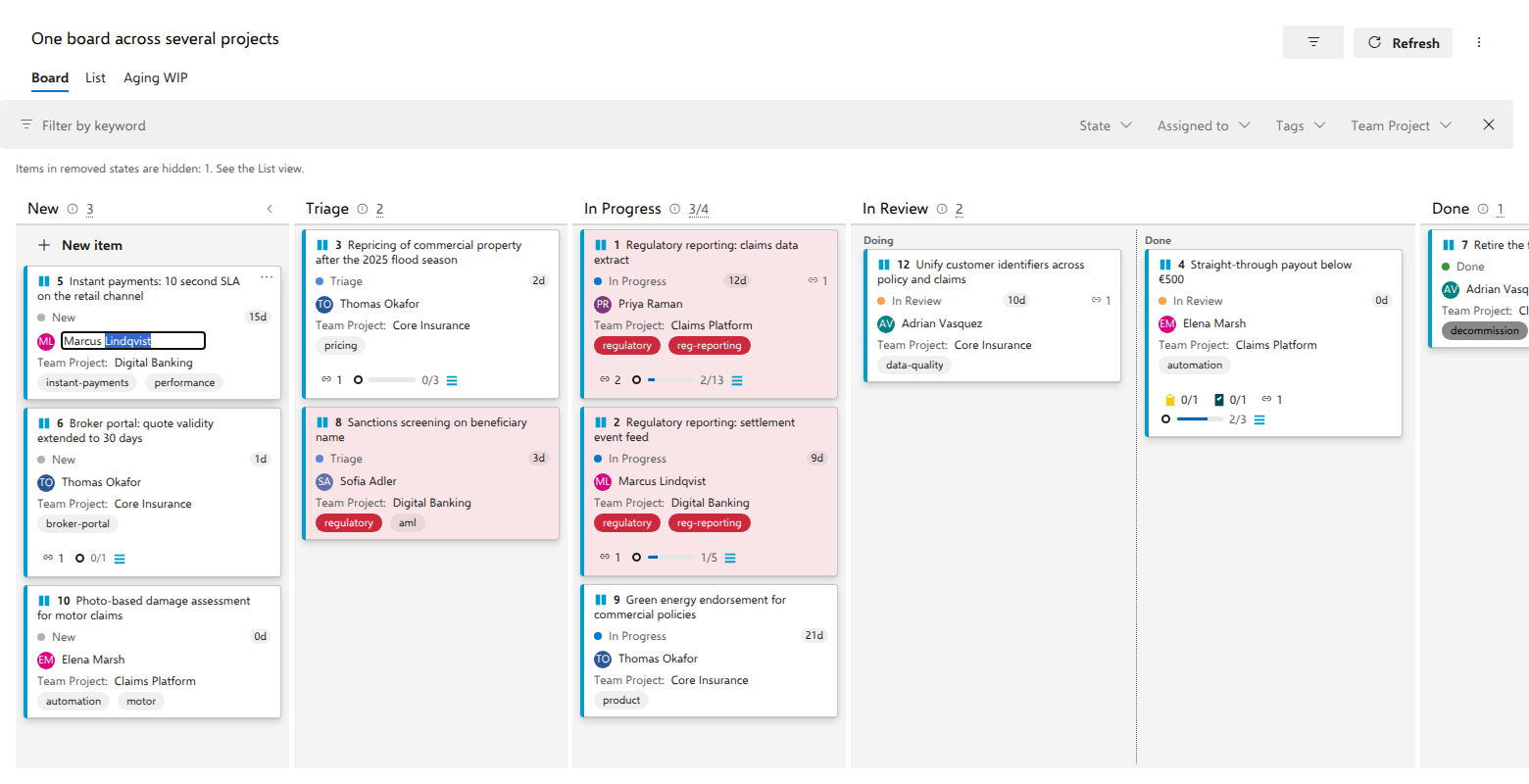
- Click the field's value on the card. It turns into an editor in place.
- For an ordinary field, type the new value and press Enter to commit.
- For an identity field, meaning Assigned To plus whatever else the project reports as an identity field, the host's own people picker opens instead: start typing a name and select the person, which commits straight away.
- Iteration Path and Area Path open a tree picker, the same shape the
work item form offers: the box holds the full path, the project's own tree
sits underneath (sprint dates included, collapsible branches), and typing
narrows a Suggestions section that matches on the part you typed, so
sprint 41findsClaims Platform\Intake\Sprint 41. Picking a node commits its full path; pressing Enter commits whatever the box says and lets the server judge it. On the card these two fields print only the last segment,Sprint 41, as the native board does, with the full path in the tooltip. - To back out, press Escape once, in the people picker and the tree picker too, even while the picker is showing suggestions. On an ordinary field, clicking away cancels in the same way, without writing anything.
What you should see
The card shows the new value immediately, before the server has answered, and the change is then written with a revision check. If a work item rule or a permission refuses it, the card reverts to what the server says is true and a toast carries the server's own wording, falling back to "Azure DevOps work item rules rejected this change." when it gives none. If someone else edited the item in the meantime, the board re-reads it and retries once; if that still fails you get "Someone else changed this item first. The board was refreshed with their changes."
Notes
Some things on a card look editable and are not. Tags render as pills and have no inline editor: they are changed on the work item form. Title, ID and Work Item Type are never field rows: the title opens the form and the ID has its own board option. The state is editable, but not as a field row. Click the state name next to the dot and a dropdown offers the work item type's own states, exactly the set its process defines, with a checkmark on the current one. A state a process rule has closed off for this item is not offered, the same filtering the Move-to-column menu applies, and the server still has the final word, so a rejection reverts the card with the rule's own message. Picking a state moves the card to that state's column. If no column maps that state, the card moves to the Unmapped column on the right of the board. If you pick a state in the Removed category, the board hides the card and counts it in the note above the columns. The List view still shows it.
An empty value shows as —, except Assigned To, which shows Unassigned; both are clickable. A value that was a number stays a number, so a numeric field does not quietly become text. In the website demo there is no Azure DevOps host to supply the people picker, so identity fields fall back to a plain text box there.