Create a named board
A named board is the one other people open: it lives in the hub, it keeps its own configuration, meaning WIP limits, colors, split columns and swimlanes, and it has a stable link. The ad-hoc Board tab has none of that.
Before you start
A saved query, saved where the intended readers can see it. A query in My
Queries can be read by you alone, so a board made from one is listed in My
boards. To list the board for others, save the query under Shared Queries.
A Flat list of work items boards exactly what it returns; the picker, labeled Backing
query (flat list, or a tree of work items), also accepts a Tree of work
items. Leave the query without an ORDER BY, or sort it by your process's
order field ascending, so the board can reorder. The query dropdown reads only the first two
levels of the query tree, so keep board queries at the top of Shared Queries
or one folder down.
If you are already looking at the query as a board in the hub, opened from a
?query= link, you can skip the list: More actions, then Save as
board, opens the same panel with the query already chosen, and the board you
create takes the ad-hoc one's place. Steps 3 and 5 to 7 below are the same.
Steps
- In your project's left navigation, open Boards and select AnyKanban.
- Select New board. The suggestions gallery opens. Choose Use existing query, and the settings panel opens on the General tab.
- Type a Board name. It is what the hub list, the board header and the dashboard widget show.
- Pick your query under Backing query (flat list, or a tree of work items). Queries are listed with their folder path, for example Shared Queries/Portfolio/Change requests. A query from My Queries gets a line under the picker saying the board will be listed in My boards.
- Pick the type under Work item type. Its state model becomes the columns, and the Card order row appears underneath once a type is chosen.
- Read the Card order row. It names the order field your process uses for this type, or says why reordering is off: the query sorts by another field, or the type carries neither Stack Rank nor Backlog Priority. Neither stops you saving.
- Select Create.
- On the board list, select the board's name to open it.
What you should see
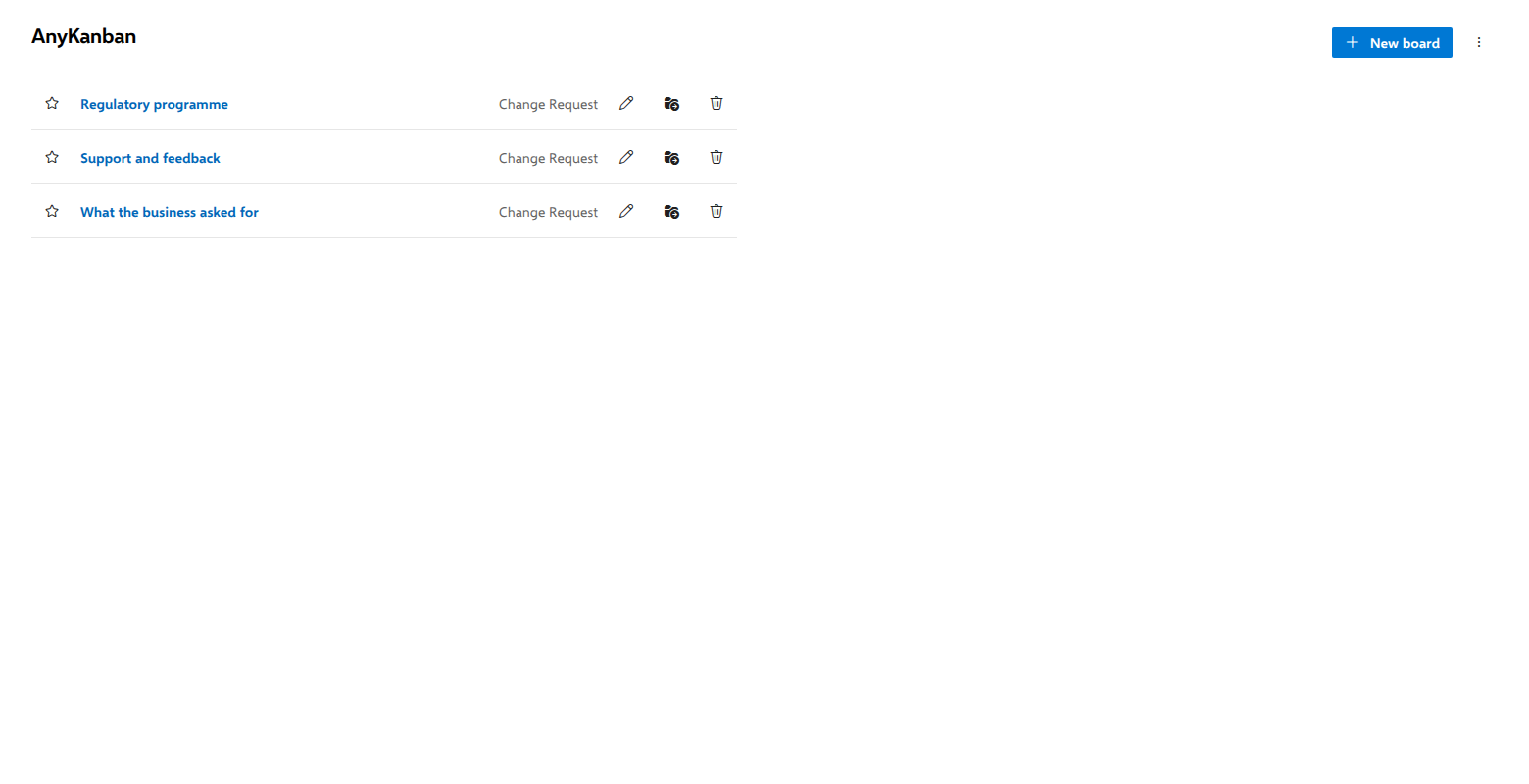
The panel closes and the list refreshes with your board in it. Creating a board does not open it, which is why step 8 exists. The row shows the board name with its work item type beside it, a star at the left for the board you want opened by default, and at the right a pencil to edit, a folder icon for Move to… and a trash icon to delete. Open it and you get one column per state of the type, in state-category order, with a card for every item the query returns except those in a removed state.
Check what the query actually asks for
The board takes exactly what its query returns, so when a card is missing, or one is there that nobody expected, the query is the answer and not the board. You do not have to go looking for it:
- In the settings panel. Edit the board (the pencil on its row, or
Settings in the board's command bar). Under Backing query the query's
own text is shown read-only. The
WHEREclauses are the board's membership rule, and theORDER BYis the order the board starts from. - In Azure DevOps. Select Open in Azure DevOps beside that text, or Open query in the board's ⋯ menu. That is where the query is edited; AnyKanban never changes it. The panel's link opens a new tab, so unsaved settings edits stay where they are.
A query that cannot be read says so instead of showing an empty box. Usually it has been deleted, or it lives in a project you cannot see. The board keeps working for the items you can see (see Build a board across several projects).
Notes
Where a board appears is chosen when you create it from a template: My board list, A team's group or Project board list, and Move to… on the board's row changes it later. A board made with the steps above goes to the project list, or to My boards when its query is in My Queries. A board in your own list is yours alone. A project board is listed for everyone who may read work items at the project's root, and a board that reads a team for everyone who may read work items in one of that team's area paths. Either is always listed for you, because you created it.
You and project administrators can change, move or delete a board you created in the project list. On a board in a team's group, that team's administrators can as well. Everyone else can open its settings and read them, and the panel says who can change the board (see Who can change a board). Filing arranges the list. Which work items a reader sees is still decided by their own Azure DevOps permissions.
Delete asks first and says who loses the board, but once confirmed it cannot be undone: Azure DevOps keeps no copy of a deleted board, so use Export first if you might want it back. Who loses it follows who the board is listed for, so deleting a board from your own list affects nobody else even when it reads a team's backlog. What stays private to you is your view choice, your collapsed columns and lanes.
Two boards may carry the same name; nothing checks. Use Export and Import on the board list to back configurations up or move them to another project. Import always creates, so importing the same file twice gives you duplicates.
Related
- Put an existing query on a board: the version with no setup
- Build a board across several projects
- Build a board for types that never reach a backlog
- Prerequisites: the order field, the query and the permissions