Copy a set of boards into another project
You spent an afternoon getting the business-request board right in Claims Platform, with card fields, tag colors, the WIP limit on In Progress and the definition of done on In Review, and Core Insurance now wants the same thing. Export writes the boards in your board list for a project to one JSON file, and Import recreates them somewhere else.
Before you start
In the target project: the saved queries the boards will run, and the work item
types the boards are built on, including any field a board binds, such as the
placement field behind columns that share a state. A query can be a flat list,
a tree of work items or work items and direct links, matching the shape the
source board used; a flat query carries no ORDER BY, or sorts by the
process's order field ascending. Board
configuration copies; process does not, and neither does a saved query. See
Prerequisites.
Steps
- Open AnyKanban under Boards in the source project.
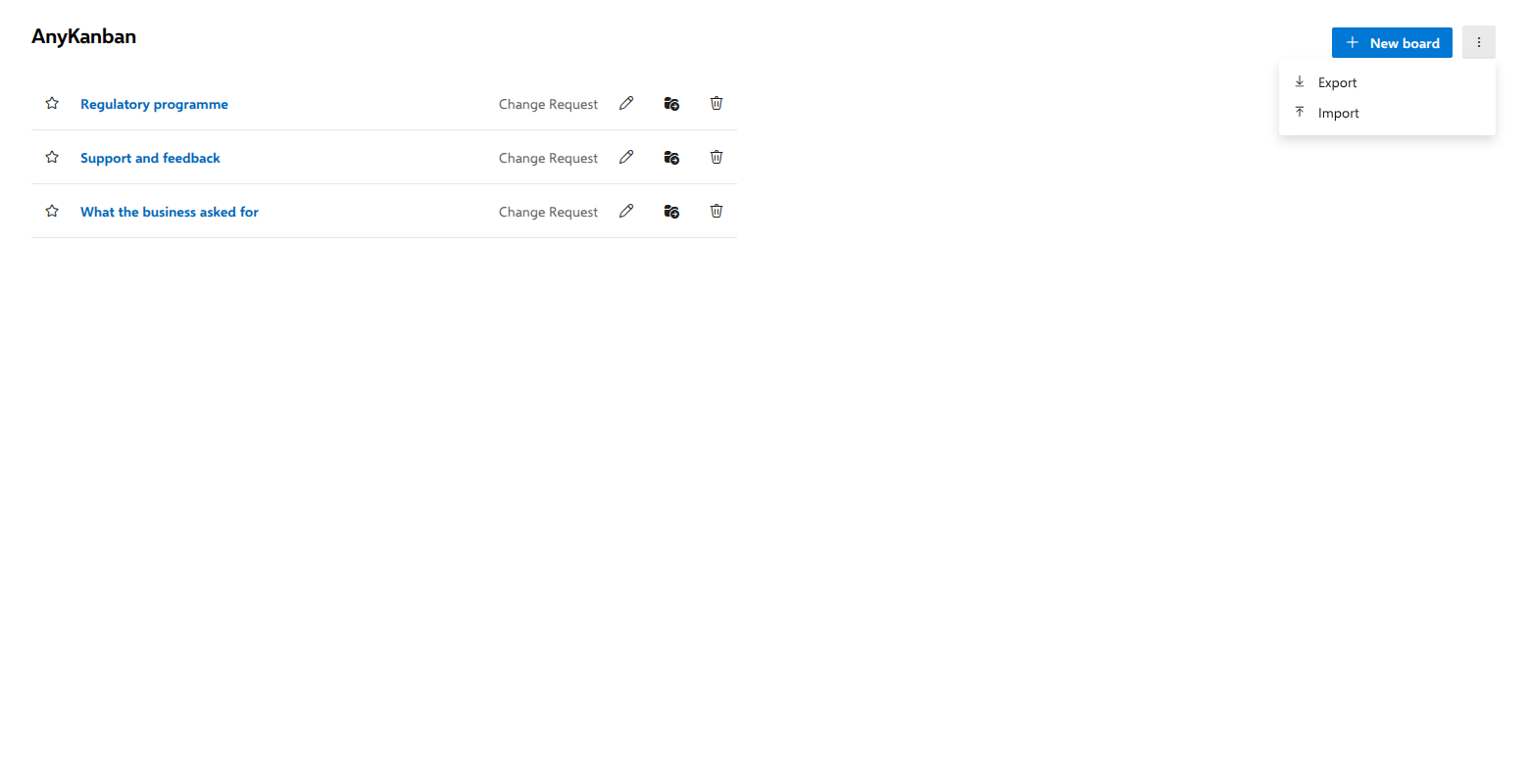
- In the hub header, open More actions (⋯) and select Export. A
file named
query-kanban-boards.jsondownloads, holding every board in your list for that project: the project and team boards, and your own boards under My boards. Other people's personal boards are not in your file. - Open the hub in the target project.
- Open More actions (⋯), select Import and pick the file.
- For each imported board that ran a saved query, select its pencil (Edit board) icon, choose a Backing query (flat list, or a tree of work items) from the new project, check the Work item type, and select Save.
What you should see
One new row per imported board, sorted by name and showing its work item type. Each imported board records you as the person who created it, so you can change, move and delete it, whoever made the original. A board filed under a team arrives in Project boards instead, because a team belongs to one project, and the hub tells you so after the import. Use Move to… on its row to file it under a team of this project. A board from your My boards arrives in your My boards again. Card fields, style rules, tag colors, WIP limits, definition-of-done texts, the split column, the swimlanes and the board's own column list all arrive with it. A column list travels as names and states, so it lands intact only where the target type has those states; and where several columns share one state, the placement field has to exist on the target type as well, or the board falls back to one column per state and says so. A saved query is the part that cannot travel: it belongs to the project it was saved in, and a board always runs its query in the project the board lives in, so a board bound to a saved query has nothing valid to run until step 5. A board created from a template in the New board gallery is different: it carries its own query text, which travels in the file, so it arrives with a query to run. That query names the project it was created in, so the copy shows the same work items as the original; to board this project's own work, create it again from the gallery here.
Notes
Import only ever creates: importing the same file twice gives you two of every board, each with its own id and its own settings from then on. Entries that are not board definitions, whether a wrong schema version, no name or no query, are counted like any other rejection and named in the result line, and a file that is not a JSON array is refused with its own message. An entry that is a board definition but carries something the settings panel would refuse, such as a reserved field name or a column layout that cannot mean anything, is rejected rather than stored, and the result line says how many were rejected and why, though not which ones. Export is a plain download from your browser and Import a plain read of the file you pick: the file itself never leaves your machine, and the boards it creates are stored in your Azure DevOps like any other. Board definitions do not cross an organization boundary by themselves, so this is the only way to move them between organizations.