Docs › Follow work through links
Break work down on the card without a backlog
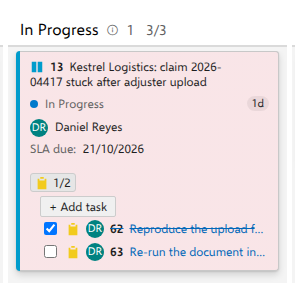
A support request like "Kestrel Logistics: claim 2026-04417 stuck after adjuster upload" needs two or three concrete steps, not backlog items. Child tasks live on the card itself, behind a small chip carrying the task icon and a done counter, ticked to complete and dragged into order.
Before you start
Show tasks on cards (board settings, Annotations under Cards) is on from the start on a board of backlog items and on a board fed by a tree query; on a board like this one, turn it on first. A chip appears only on a card that already has at least one child of that kind. For the first one, use Add task in the card's … menu, and the rest from the card itself.
A card shows one chip per kind of work beneath it, and which kinds those are comes from your own backlog: whatever sits on the next level down. On a board of support requests that is your task level; on a board of features it would be your stories. Bugs get their own chip wherever your project's Working with bugs setting puts them.
Steps
- On the card, select the task chip, the task type's own icon with 1/2 beside it: one of the two child tasks is done. Hovering it spells that out, 1 of 2 Task completed.
- Tick "Re-run the document ingestion for claim 2026-04417". Its title is struck through and the counter becomes 2/2.
- Select + Add task, directly under the chip, type a title and press Enter. The box stays open and empty for the next one, so several tasks are several titles and Enters. Press Enter on an empty box, or Escape, to put it away; leaving the box also creates whatever is in it.
- Reorder a task: press on a row and move about 4 px to start the drag, then drop it, or focus the row, press Space, move with the arrow keys and press Space again.
- Click a task's title to open it in the native work item form. Closing the form re-reads that one task, so a change made there shows on the card at once.
What you should see
The counter and the strike-through follow every tick immediately, and the write goes to the server behind them. The new task has no order value yet, so it sorts to the end of the list; it is created in the parent's own project, area path and iteration path, with the first work item type of that project's task backlog level. The order you drag into is written to the task's own ordering field, so the sprint taskboard and any query see the same order.
Notes
The checkbox never keys on a state name. Ticking writes the child type's first Completed-category state and unticking writes its first Proposed-category state, which is "Done" and "To Do" in the demo process, whatever your own process calls them elsewhere. If the type has no state of that category, nothing is written and a message says so instead.
Only task rows can be dragged into order. Test cases keep a fixed order (state name, then ID) because Azure DevOps stores no order for Tested By links, and bugs shown as a chip of their own keep the same order. Adding is not limited to tasks: the test chip has its own Add test and Link existing, described in See which tests cover a change, and on a feature or epic card the chip for the level below has its own + Add box named after that type.