See everything the query returned, in one list
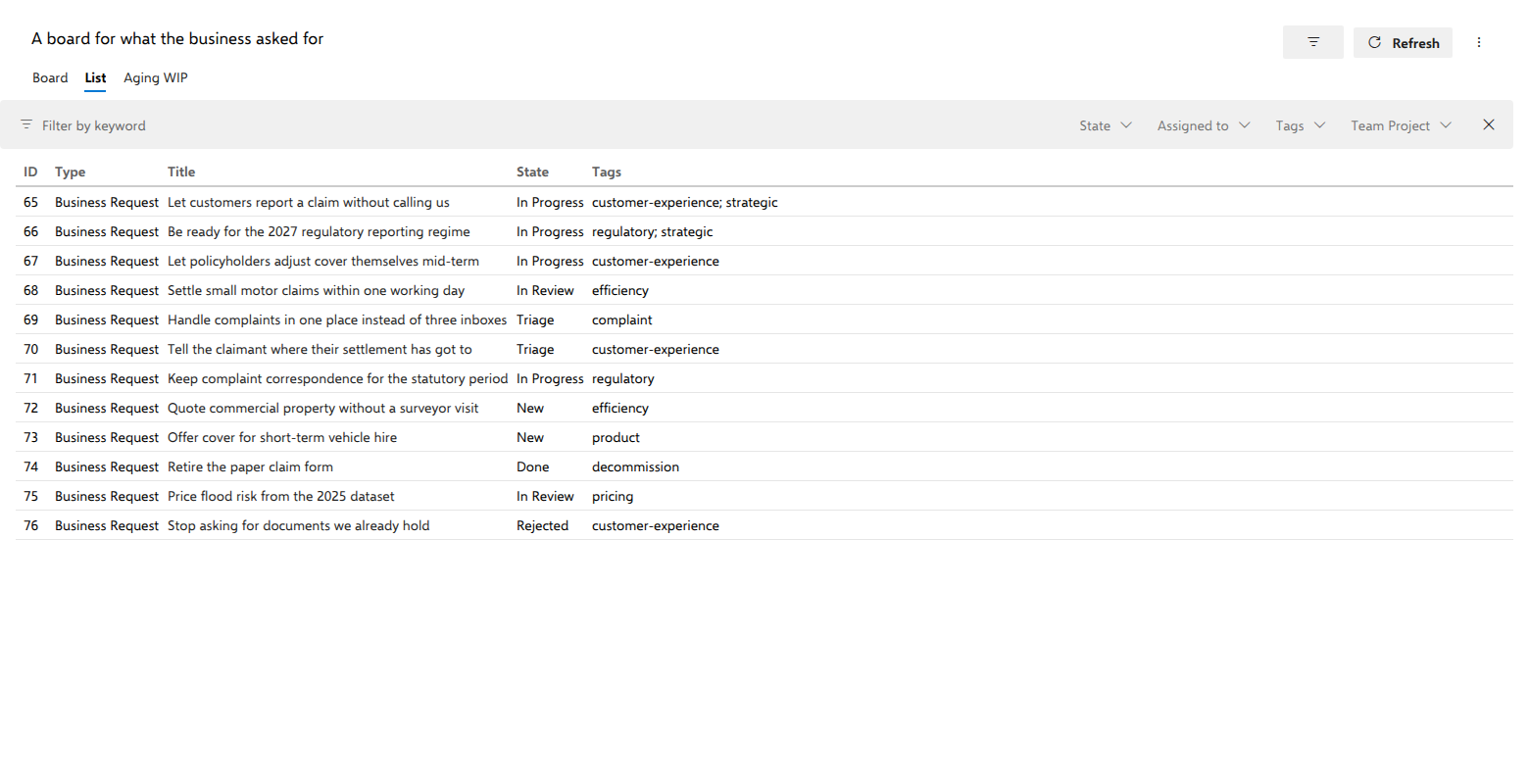
The board is a process view: it leaves out items in removed states and diverts states it cannot place. When you need every item the board loaded, including the ones its columns leave out, switch to List. It shows the same items in the same order as the board. On a business request board, Stop asking for documents we already hold is Rejected and therefore off the board; the List still has it.
Steps
Open the board and select the List tab, beside Board, under the header.
Read across the columns. A new board shows ID, Type, Title, State and Tags (tags are joined with
;). Each one opens as wide as its own contents need.To show other columns, select Column options above the list. It opens the board's Settings on the List tab, the one place the columns are chosen. There you can:
- add any field of the board's type with Add column…;
- move a column up or down, or remove it (Title stays, because it opens the work item);
- start from the cards with Add the fields shown on cards, after which the two lists are independent;
- go back to the five with Reset to default.
Press Save. The columns belong to the board, like the fields shown on cards, so everyone who opens it sees the same ones. Numbers are aligned to the right with your locale's separators, an area or iteration path shows its last part with the full path in the tip, a person shows their name, and an empty value shows a dash, never 0.
To change a column's width, drag the divider on its right-hand edge. You can grab that divider anywhere down the list, not only up in the header row, so you do not have to scroll back to the top to adjust a column you noticed was too narrow at the bottom. Double-click a divider to fit that column to its contents again.
Or use the keyboard: Tab to a divider, then ← and → to move it, and Home to fit the column to its contents.
Click a row's title, or press Enter on it, to open the native Azure DevOps work item form. The rest of the row is the drag handle, not a link.
To act on one item without leaving the List, hover its row and select the ⋯ button at the right-hand end, or right-click the row. It opens the item card's own menu, with the entries that card offers: Open, Edit title, Move to top, Move to bottom, Move to column, Move to iteration, Move to position…, the add entries and Delete. Some of them work differently here, because the List has no columns:
- Move to top, Move to bottom and Move to position… count the whole List, including rows a filter hides and rows below Show more. The dialog says Move to list position and opens with the row's current position selected: type the new one and press Enter. They are offered on the rows you can drag, and they write the same order field a drag writes.
- Move to column changes the item's state and nothing else. On the board the card also goes to the bottom of the new column, which writes a new rank. In the List the rank is the row's place, so it is left alone and the row stays where it is.
- Edit title turns the row's Title cell into a text box. Enter or clicking away saves, Escape cancels.
- Add task, Add related and the other add entries open a dialog with the box the card would show. What the item already has of that kind is listed under the box, and the new item appears there.
Closing Move to position… or Delete with Cancel or Escape returns focus to the row's ⋯, as a saved position does, so the keyboard carries on from the row. In an as-of snapshot the rows have no menu, as the cards have none.
To change the order, drag a row where you want it. Or do it from the keyboard: Tab to the row, Space to pick it up, ↑ and ↓ to move it, Space again to drop it. Either way the process's order field is what gets written, so the new order is the one everyone sees. With a filter on it works, and the row lands directly above the visible row below the slot, after any hidden rows between, or directly below the last visible row at the bottom. Reordering is off on a board whose type has no order field, while the query sorts by another field, and in an as-of snapshot. It is also off on a board whose order belongs to the backlog, unless that board has Reorder from this board (writes the backlog's own order) turned on in its settings. A screen reader announces a row you can drag by its work item ID and title, as a work item row, draggable, and reads the title link and the ⋯ button inside it as controls of their own. A row that cannot be reordered says nothing about dragging.
Narrow with the filter bar above; it applies to the List exactly as it does to the board.
Switch back with the Board tab. Your choice of Board or List is remembered per user and per board, so the view you left is the view you return to.
What you should see
One dense row per item the board loaded, in the same order as the board, including the kind the board leaves out altogether: items in a Removed-category state. Items the board excludes for other reasons, such as items from other backlog levels on a board set to one level, are not listed here either; the notice above the board counts them. A long list shows 200 rows at first; the Show more button at the bottom names how many are still hidden and adds the next 200. On a board bound to a tree query, the List shows the boarded level exactly as the board does: the levels around it (the root the query hangs from, intermediate levels, task children) are the tree's structure, counted in the notice above the board rather than listed here. Items whose state has no column are on the board as well, gathered into Unmapped; here they are simply rows in the board's order like every other item. Above the board you will have seen the matching note: "Items in removed states are hidden: {count}. See the List view."
No cards, no type icons, no checklists and no linked work. Those belong to cards. Style rules and tag colors are not applied here either. What a row does share with a card is its menu, behind the ⋯ at the row's right-hand end.
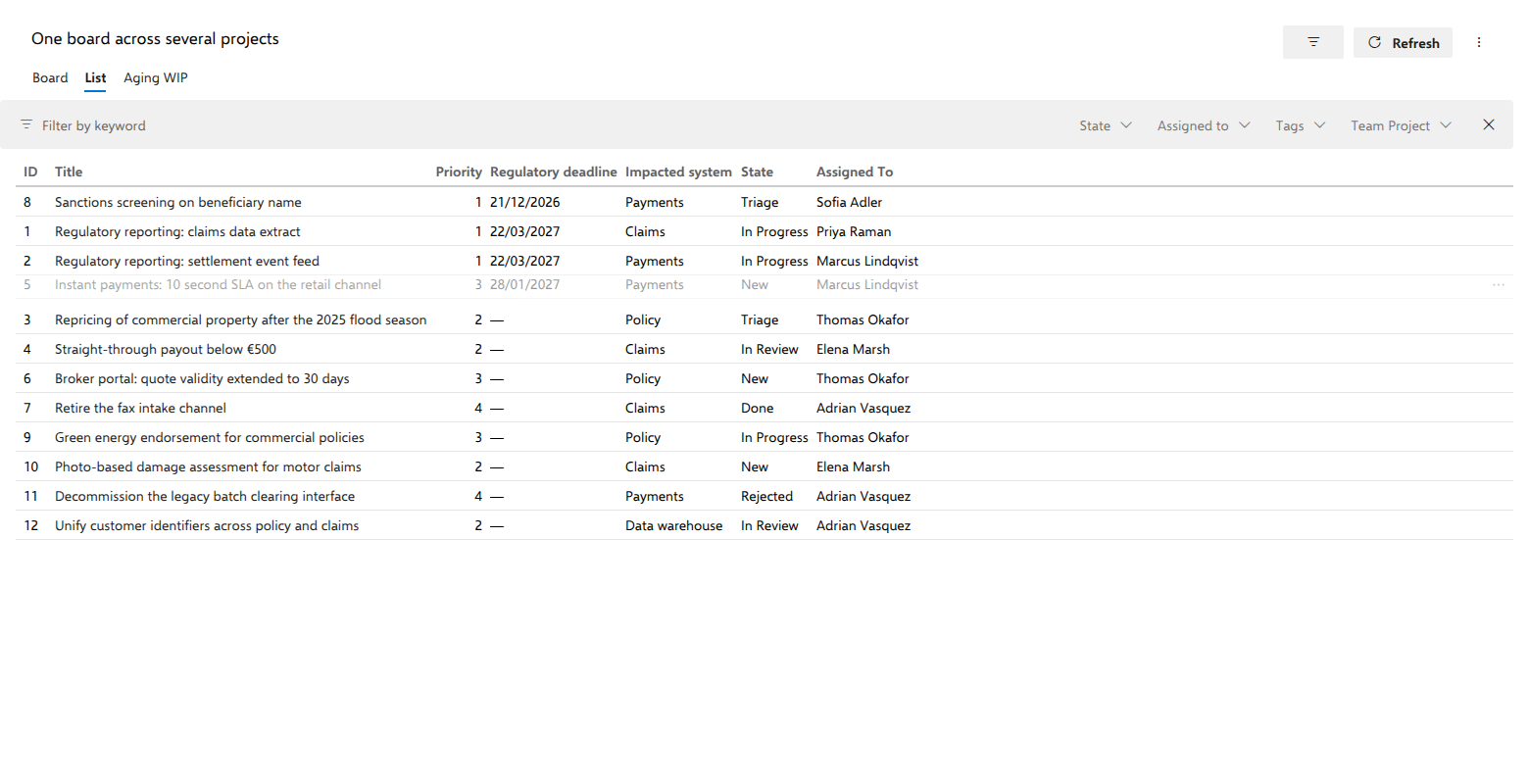
With columns of your own, the List is where a priority conversation happens. On the demo's change request board it shows Priority, Regulatory deadline, Impacted system, State and Assigned To. Sanctions screening on beneficiary name has gone to the top for the nearest deadline, and Instant payments: 10 second SLA on the retail channel is on its way up for the next one. Its Priority still reads 3: a drag changes the order, not the field.
Notes
Column widths are yours, not the board's. They are remembered per user and per board, exactly like your choice of Board or List, so a colleague opening the same board sees their own widths, and nothing about widths appears in the board's settings. Which columns there are is the board's, not yours: that is chosen in the board's settings and is the same for everyone. The rule is simple: a column you have never touched fits its own contents every time the board opens, and one you have sized keeps the width you gave it. Whatever the columns leave over stays empty at the right, so the first and the last column behave the same way.
Row order follows the board's order rule: the query's own ORDER BY when it
has one, and without one the order field's order (the board adds it to the
query it runs). Rows can be dragged onto one another to reorder, which writes
the order field. That is switched off when the type has no order field, when
the query sorts by another field, for a row whose own type orders by another
field, and in an as-of snapshot; a
filter leaves it on, by the rule in step 8. On boards of backlog items the backlog's order is read and
not written, unless the board has Reorder from this board (writes the
backlog's own order) turned on in its settings. It is off by default. Even
then, only rows of the board's own type and project can be dragged, and a query
whose own ORDER BY sorts by anything other than the order field, ascending,
keeps the order read-only. The rank of a backlog item
that a mixed query returns alongside other types is never written. See
Why we never write to your backlog.
The row menu's Move to top, Move to bottom and Move to position… follow exactly these rules, because they make the same move a drag makes. Where a row cannot be dragged they are not offered. When the backlog owns the order, or the row's own type orders by another field, the menu says why in their place, as it does on a card.