Find one item on a board of four hundred
A broker is on the phone about a stuck claim and you need that one card. Typing
kestrel into the filter bar reduces the support board to Kestrel Logistics:
claim 2026-04417 stuck after adjuster upload; ticking the sla-breach tag
instead shows every request whose service level has already gone.
Steps
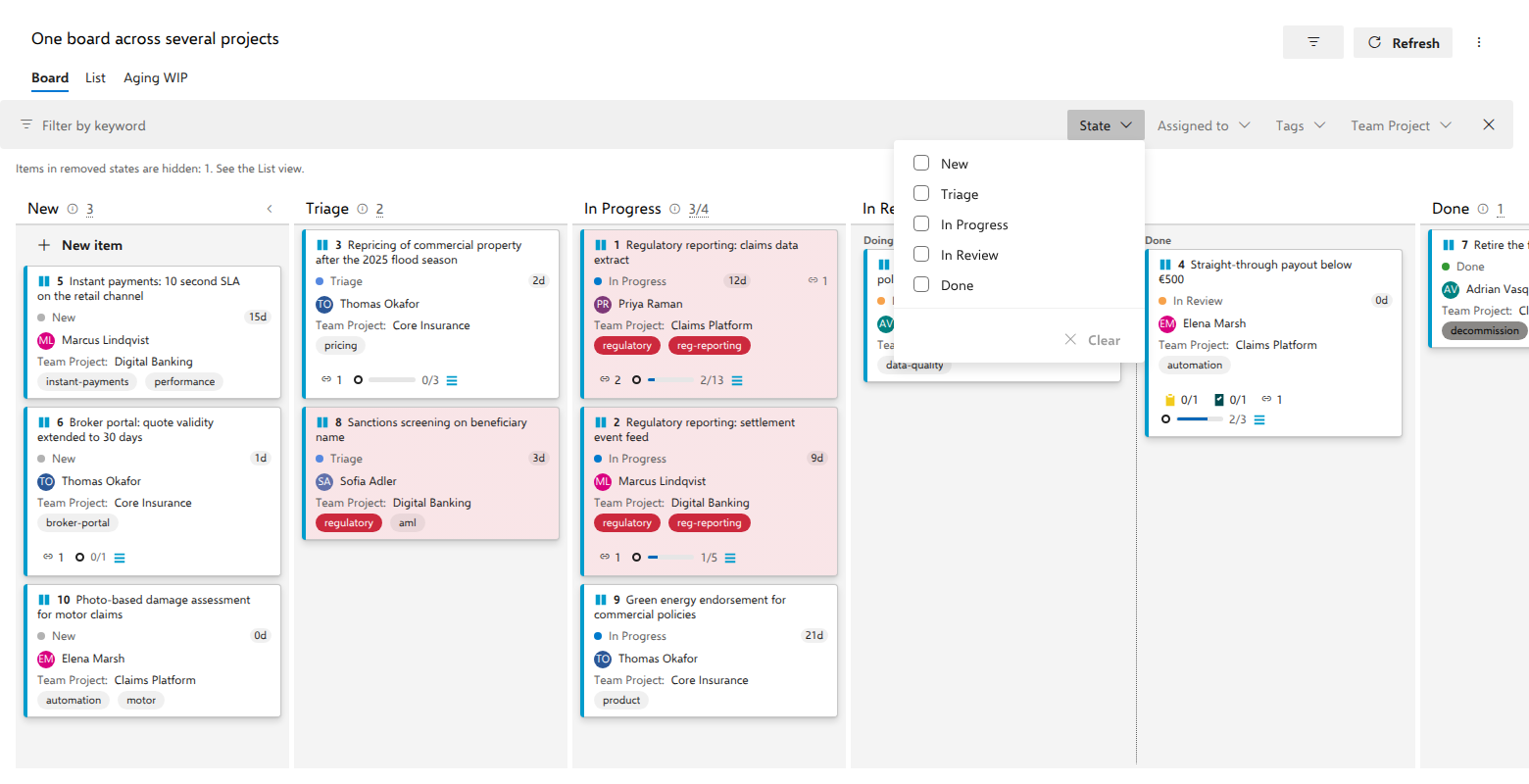
- Open the board. The filter bar sits in the toolbar row under the Board, List and Aging WIP tabs and applies to whichever one is showing.
- Type a fragment into Filter by keyword. It is matched, case-insensitively, against the work item ID, the title, the state name and each tag. Any one hit keeps the card.
- To narrow by something other than text, open State, Assigned to or Tags, or a dropdown named after a field the cards show or the lanes use, and tick values. Ticks inside one dropdown are OR-ed together; the keyword and every dropdown you use are AND-ed.
- To see work nobody owns, tick Unassigned, the first entry in Assigned to.
- Clear the keyword box and untick the facets to bring the whole board back, or press the X at the bar's right edge, which clears everything and hides the bar in one move. The funnel icon in the board's header brings it back (and hides it again), the same toggle the native board has.
What you should see
Cards that do not match disappear from their columns; in the List view the same filter removes rows. The column headers do not move: the number beside a column name stays the unfiltered count of that column, and a WIP limit is still compared against that number, because the limit measures real work in progress rather than what you happen to be looking at.
Dragging keeps working while anything is filtered, on the board and in the list, by one rule: the item lands directly above the visible item below the slot, after every hidden item between them, or directly below the last visible item when you drop at the bottom. Hidden items keep their own places, so the order you see afterwards is the order you arranged. The card's right-click menu keeps working too: Move to column, Move to top and Move to bottom where the board can reorder its cards, and Move to position…, which counts the whole column, hidden cards included.
Notes
A hidden filter bar is never still filtering: dismissing it clears every facet and the keyword with it, so the board you see after the X is the whole board. That is deliberate, because a bar that hides while its filters keep working would show a subset with nothing on screen to say so.
The facet lists are built from what is loaded, not from the process: State
offers the states the board's columns stand on, so a removed state, or a state
only a foreign type has, is never on the list even when such items are on
screen. On a board whose columns are named by the team, the facet still says
the state: it matches what the work item holds, and two columns over one state
cannot be told apart by a field the filter does not read. Meanwhile,
Assigned to and Tags offer the distinct values found among the loaded
items. So does each field dropdown, which also offers (blank) when some
loaded items have no value in that field. The keyword matches the ID as a
substring, so 42 also matches 1425.
A tag facet, unlike the keyword, matches a whole tag.