Color cards by any date field
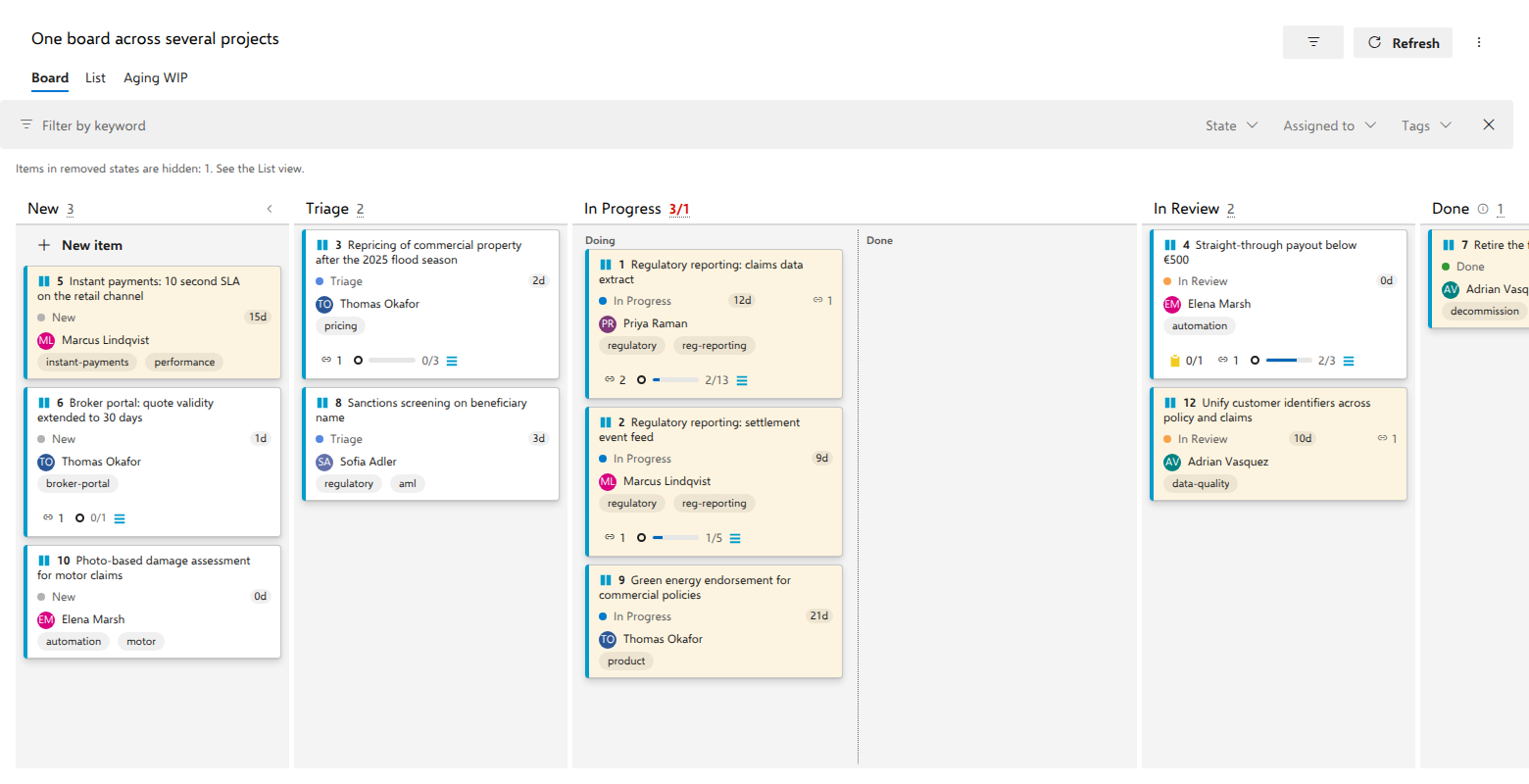
If you are here for "how long has this been sitting?", you do not need a rule for that. Every card shows its days in the current state, and Aging colors, in the ⋯ menu in the board header, marks what has sat longest in each column: Read a card's age at a glance. That is a better answer than the recipe below, because it needs no configuration and it counts from the last state change rather than from the last edit of any kind.
This page is still worth reading for a different job: coloring cards by a date field you care about: an SLA, a regulatory deadline, a renewal.
A card carrying a deadline looks exactly like one that does not. A style rule on a date field makes it visible. The example below uses the last change date, which is the simplest one to try; the same shape works on any date field.
Before you start
A named board in the AnyKanban hub, with its work item type chosen on the General tab.
Steps
- Open the board and select Settings.
- Open the Styles tab.
- Select Add rule and name it, for example
Untouched for a week. Pick an amber or red swatch. - Select Add condition and set: field
Changed Date, operator<, value@Today-7. The value box names the macros it accepts: Value (@Today, @Me supported). - Select Save.
What you should see
Every card whose last change is older than midnight seven days ago now carries the tint; a card someone touches today loses it at the next refresh. While Aging colors is on, no style rule colors any card. Turn it off and your rules come back.
⚠️ Changed Date is not the same clock as the card's age counter. It
resets on any edit, whether a tag, an assignment or a comment, while the
counter on the card resets only on a state change. A card someone re-tagged this
morning has been in its column for three weeks and this rule will not say so.
That difference is exactly why the age counter exists. Which cards those are depends on when the items were last edited, so
the honest test is to open one aged card and check its Changed Date against
the number you typed.
@Today resolves to local midnight of the current day, and takes day
arithmetic: @Today-7, @Today-30, @Today + 3, with or without spaces
around the sign. Use < and > for "before" and "after": they compare exact
times against local midnight. Use = and <> for "on that day" and "on any
other day": they compare the calendar day on your own clock, the same day
@Today names. So Changed Date = @Today matches anything changed today,
and Changed Date <> @Today matches anything last changed on another day.
The same shape works on any date field. On the demo board over support
requests, SLA due < @Today picks out the requests whose SLA has already
passed: "Kestrel Logistics: claim 2026-04417 stuck after adjuster upload" and
"Lakeshore Hospitality: duplicate payout on claim 2026-03980" carry the
earliest due dates in the set.
Notes
The field a rule reads does not have to be shown on the card: the board loads
every field its rules refer to, precisely so a rule cannot silently never
match. Remember that the first matching rule wins and new rules are appended at
the bottom, so an aging rule added after a Priority = 1 rule will not recolour
a priority-1 card. The @Me macro resolves to the signed-in user's display
name, so a rule built on it shows something different to each person looking at
the same board.
Related
- Read a card's age at a glance: the built-in answer to "how long has this been sitting?", with no rule to write.
- Make regulatory work impossible to miss
- Color the tags you actually use
- Choose what each card shows